
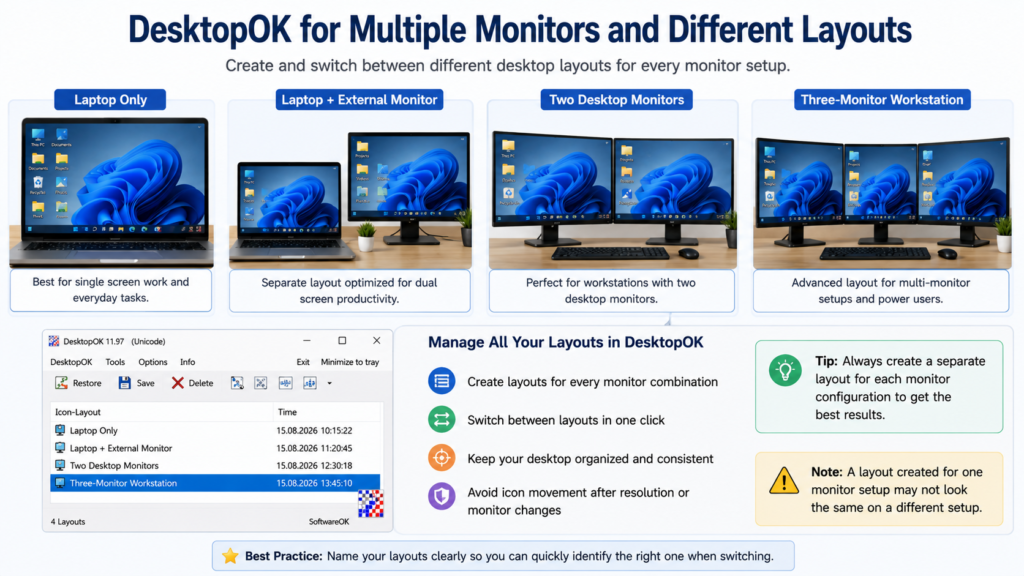
DesktopOK multi-monitor setup starts with one simple idea: save a separate icon layout for every screen arrangement you use. When your desktop changes, your icons do not have to move with it. A saved layout puts icons back where you placed them.
Many people use one screen at a desk, two screens at work, and a laptop alone. Each setup has its own space, its own resolution, and its own icon order. DesktopOK lets you keep a layout for each one, so you can switch setups without rebuilding your desktop.
This guide shows how to save layouts for single, dual, and docked laptop setups. It also shows how to restore the right layout after you connect or disconnect a monitor. The steps use the features described on this site.
How DesktopOK Saves a Layout for Each Screen Setup
DesktopOK saves the position of every desktop icon in a named layout. You can save as many layouts as you need, and each one keeps its own icon positions. That makes it easy to keep one layout for each resolution and monitor count.
A layout is tied to the screen setup you had when you saved it. If you save a layout on a single monitor, it fits that single monitor. If you save it with two monitors, it fits that setup.
Save One Layout for Each Monitor Combination
Start by arranging your icons the way you want them for one setup. Open DesktopOK, give the layout a clear name, and save it. Then change your setup, arrange the icons again, and save a second layout.
Repeat this for every setup you use. A laptop alone, a laptop with one external monitor, and a desktop with two monitors each deserve their own layout. You can also save layouts for different resolutions on the same monitor.
Name Each Layout So You Can Find It Fast
Clear names save time later. Use the monitor count and the place or purpose in the name, such as “Laptop Only,” “Laptop plus Monitor,” or “Office Dual Monitors.” You will know which layout to restore.
Avoid vague names that all look the same. A name with a date or a short note can help, but the setup itself should come first. If two layouts look alike, check the resolution and monitor count first.
Restoring the Right Layout After You Connect or Disconnect a Monitor
When you connect a second monitor, Windows gives your desktop more space. Icons may stay where they were, or they may shift to fit the new screen area. Restoring the layout you saved for that setup puts them back.
When you disconnect a monitor, the opposite happens. Icons that lived on the second screen have nowhere to go, so Windows moves them onto the remaining screen. Restoring your single-monitor layout brings order back.
Connect Every Monitor First
Always connect all your monitors before you restore a layout. A layout saved for two monitors needs both monitors in place to look right. Restoring too early can place icons on a screen that is not there.
Wait until Windows has detected each display and set its resolution. Then open DesktopOK and choose the layout for that setup. If a monitor is still waking up, give it a moment.
Restore in a Few Clicks
Restoring is simple. Open DesktopOK, find the layout that matches your current setup, and restore it. Your icons move back to their saved positions. You can switch between layouts in one click, so changing setups takes seconds.
If you have not set up DesktopOK yet, start with the download guide on this site. It walks through the download and setup for Windows 11, Windows 10, Windows 8, and Windows 7. Once DesktopOK is ready, save your first layout.
What Happens to Icons When the Resolution Changes
A change in resolution changes the space your icons can use. Icons near the edge of a wide screen may bunch up when the screen gets narrower. Icons may also move when scaling changes, since the same screen holds fewer large icons.
This is normal Windows behavior, and it is why a saved layout matters. The icons are not lost; they are only in new positions. A layout saved at the new resolution can put them back where you want them.
Why Icons Move or Stack
Windows places icons in a grid that fits the current screen. When the grid shrinks, icons that no longer fit move to the next free spot. That is why icons can stack at the left edge after a resolution drop.
The same thing can happen after a Windows update or a driver change. The screen size or scaling may change without warning. Keeping a saved layout for each resolution gives you a quick way back.
Getting Icons Back After a Resolution Change
First, set the resolution back if that was not planned. Then open DesktopOK and restore the layout saved for that resolution. If the layout still looks wrong, check that every monitor is connected.
If icons still will not restore, work through the fixes on this site. The troubleshooting guide covers save, restore, and startup problems. Most layout problems come from a changed setup, not from a broken layout.
Practical Tips for Multi-Monitor Layouts
A little planning keeps multi-monitor layouts simple. Save each layout right after you arrange the icons, while the setup is still in front of you. Do not wait until you need it to save it.
Check your layouts now and then, especially after a Windows update or a new monitor. Open each setup, restore its layout, and fix any icon that has drifted. Then save the layout again.
Keep a Backup Copy
Layouts can be saved as files, and those files are your backup. Copy them to a USB drive, an external drive, or cloud storage so you can restore them after a fresh Windows install. Keep the name of each setup with its backup file.
Use Auto-Save for Everyday Changes
Auto-save keeps your layouts current without extra work. Turn it on in DesktopOK, and your layouts are saved at set intervals while you work. That way, small changes to your icons are kept, even if you forget to save.
Auto-save works best with clear layout names. It updates the layout you are using, so a vague name can hide which setup was saved. Name each layout first, then let auto-save keep it fresh.
Conclusion
DesktopOK multi-monitor setup is simple when each screen arrangement has its own saved layout. Save one layout for a single monitor, one for dual monitors, and one for your docked laptop. Restore the layout that matches your monitors.
Keep your layouts named clearly, keep a backup copy, and let auto-save catch small changes. Then connecting or disconnecting a monitor becomes a small step, not a fresh start. Your icons will be where you left them, on every setup.