
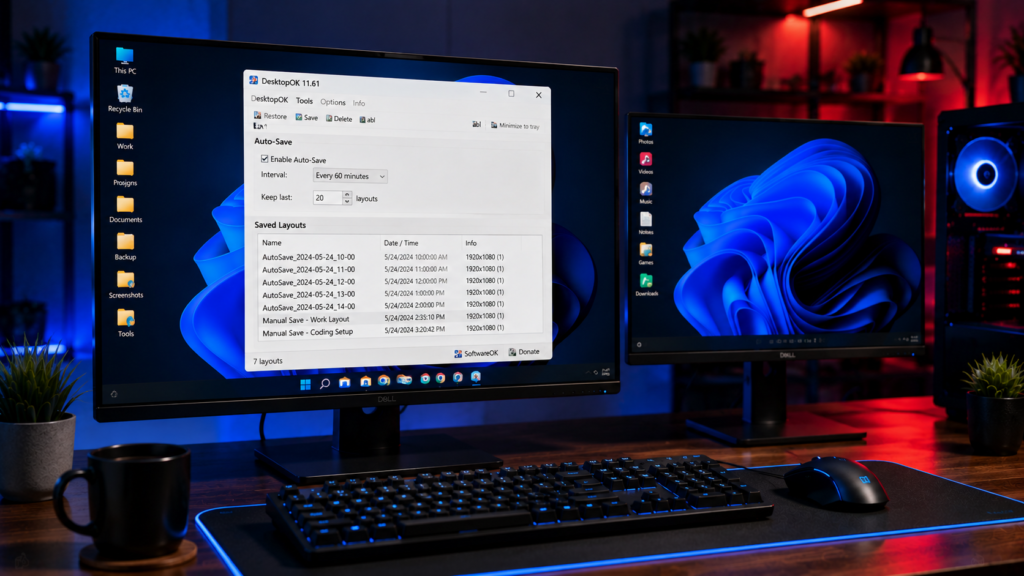
DesktopOK auto save keeps your saved icon layout updated without you having to press Save again. It records the current positions of your desktop icons on a schedule you choose. That way, a fresh copy is ready when Windows moves your icons.
This guide explains what the option does, where to find it, and when it runs. You will also learn how it differs from a manual save. Finally, you will see how to restore an auto-saved layout.
What DesktopOK Auto Save Does
DesktopOK auto save creates automatic backups of your icon layout at set times. Each snapshot stores icon positions, the desktop arrangement, and screen details. The result is a history of layouts you can return to.
The feature works in the background once it is turned on. It protects your layout after a resolution change, a monitor switch, or a Windows update. You do not need to remember to save anything yourself.
How to Enable Auto Save in DesktopOK
Launch DesktopOK and open the program menu to find the Auto Save options. Look for the Auto-Save settings and turn the feature on. Apply your changes, then keep DesktopOK running so it can save.
DesktopOK must stay running in the system tray for auto save to work. If you close it fully, no new snapshots are made. Check the tray icon to confirm the program is still active.
Choose a Save Interval
You can set DesktopOK to save every few minutes, every hour, or daily. Short intervals suit busy desktops that change often. Longer intervals keep the list of saved layouts tidier.
The site recommends saving every hour for designers and developers. For home use, a daily save is often enough. Pick the interval that matches how often your desktop changes.
Set How Many Layouts to Keep
DesktopOK can keep up to 32 recent layouts from auto save. Set the number to retain to a value above zero. Older entries are removed as new ones arrive.
A higher limit gives you more versions to choose from. A lower limit keeps the list short and easy to read. Change the number any time in the same Auto-Save settings.
When Auto Save Runs
DesktopOK auto save records your current icon positions at the interval you set. It can also save at Windows startup or at Windows shutdown.
A scheduled save is useful after display changes. Connecting or disconnecting a monitor, changing resolution, or playing a game can all move icons. Auto save captures the layout before the next change.
Save at Windows Shutdown
The Save at Windows Shutdown option creates a snapshot as Windows closes. The entry is named Shutdown_Startup in the saved layouts list.
This snapshot is handy when a shutdown is followed by a display change. You can restore it the next time you sign in. It is one of the simplest ways to protect a layout overnight.
Only If the Layout Changes
The Only If Layout Changes option saves a new entry only when the arrangement has changed. Identical layouts do not fill the list with duplicates. This keeps your saved layouts list focused on real changes.
Turn this option on if your desktop rarely moves. Turn it off if you want a snapshot at every interval.
Auto Save vs. Manual Save
A manual save captures your layout exactly when you choose. It is best for a layout you want to keep as a stable baseline. You control the name and the moment it is made.
Auto save captures layouts on a schedule instead. It needs no action from you once it is set up. The trade-off is that older auto-saved entries rotate out as new ones arrive.
Why Keep a Manual Save Too
Keep a manual save of your favorite layout beside the automatic entries. Auto-saved entries change over time, but a manual save stays put. It gives you a known good layout to return to.
How to Restore an Auto-Saved Layout
Open DesktopOK and look at the saved layouts list. Find the auto-saved entry with the date and time you need. Select it and restore it to put your icons back where they were.
Auto save does not restore a layout by itself. You choose the entry and restore it when you need it. Testing a restore once shows you that the process works.
Restore at Windows Startup
The Restore at Windows Startup option is separate from auto save. When it is on, DesktopOK restores your layout as Windows starts. This suits PCs where icons move after every restart.
Use it together with auto save for the best result. Auto save keeps the stored layout fresh, and the startup restore applies it. Your desktop then looks the same each morning.
Who Benefits Most from Auto Save
Anyone who rearranges icons often gains from auto save. It removes the need to remember a manual save after each change.
It also helps people who share a PC or use remote desktop sessions. Layouts can shift when another user signs in or a session ends. An auto-saved copy makes the fix quick.
Multi-Monitor Users
Multi-monitor users benefit most from DesktopOK auto save. Docking a laptop, undocking it, or switching monitor setups often scrambles icons. A recent auto save restores order in seconds.
The site suggests saving before display changes and every hour for multi-monitor setups. That habit builds a history across each setup you use. Pick the entry that matches the setup you are on.
Shared PCs
On a shared PC, each person may arrange icons differently. Auto save records the layout after each session. The next person can restore their own saved layout just as fast.
Shared PCs also face more restarts and user switches. Those moments are when icons most often move. Auto save turns a common annoyance into a one-click fix.
Common Auto Save Problems
If no new auto-saved entries appear, check that Auto-Save is still enabled. Confirm the saving interval is valid and the number to retain is above zero. Also check that DesktopOK is still running in the tray.
Closing DesktopOK fully stops auto save until you open it again. A wrong interval or a zero retention limit can also block new saves. Fix the settings, then watch for the next scheduled entry.
Where to Find More Help
If auto save still does not work after checking the settings, the site’s fix guide walks through each cause in turn. It covers the shutdown option, retention limits, and startup settings. Follow its steps before changing anything else.
You can also get the latest version from the download section on the homepage. A fresh copy rules out problems from an old build. Then enable auto save again and test one scheduled save.
Conclusion
DesktopOK auto save turns layout backup into a habit you never have to think about. It records your icons on a schedule, keeps a history of recent layouts, and pairs well with a manual save.
Multi-monitor users and shared PCs gain the most from it. Their layouts change often, and auto save is always ready with a recent copy. Turn it on today and stop rebuilding your desktop by hand.
Pingback: Is DesktopOK Safe to Download and Use on Windows?