
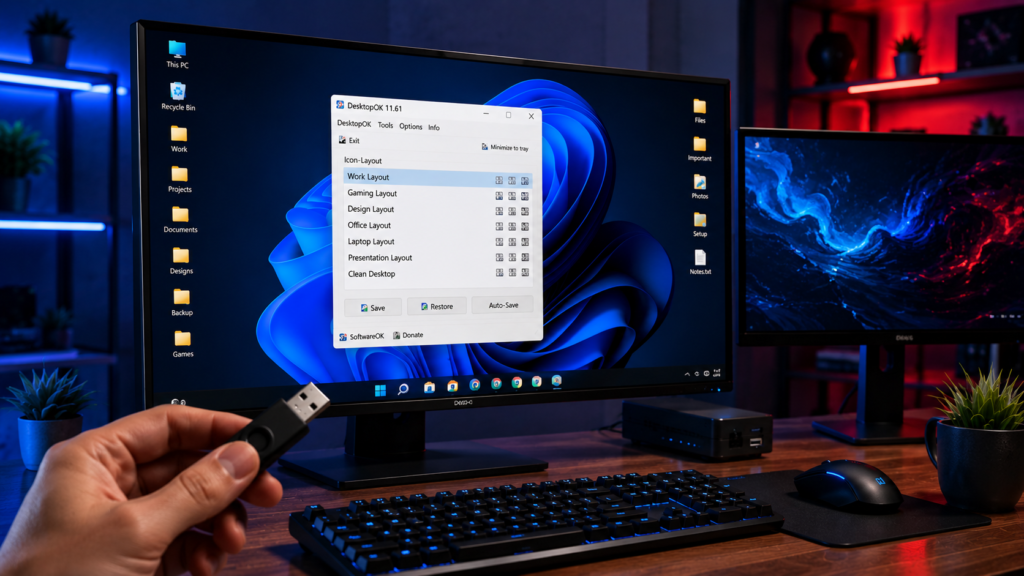
DesktopOK portable version is a single program file that runs without installation. You download it, open the file, and it starts right away.
Its settings live in its own INI file, stored next to the program file. That file holds your saved desktop icon layouts. Move the program and the INI file together, and your layouts travel with you.
This guide shows you how to set it up, carry it between PCs, and keep it updated. It also compares portable use with an installed copy. By the end, you will know how to keep your icon layouts safe on any Windows PC.
What the Portable Version Is
The portable version is the same DesktopOK utility in a form you can carry anywhere. It is a free Windows utility from SoftwareOK that saves and restores desktop icon positions. It helps when icons move after a screen resolution change, a Windows update, or a Remote Desktop session.
Because it needs no installation, it leaves almost no trace on the PC you run it on. It does not add itself to Windows startup or change system settings. You can run it from a folder on your desktop, a USB stick, or an external drive.
Why Choose the Portable Version
The portable version suits anyone who uses more than one PC. Office workers, students, and IT administrators can keep the same layouts on every machine they touch. There is nothing to install, so it also works on PCs where you cannot add new software.
DesktopOK is a lightweight utility with a small download size. Its focused feature set keeps the program simple and quick to open. You get the full layout tools without a heavy program in the background.
How to Set Up the Portable Version
Setting up the portable version takes only a few minutes. You need a Windows PC, a folder or USB stick to hold the program, and the download file from this site. The steps below walk you through the whole process.
Step 1: Get the Program
Get the program from this site’s own download page, which covers DesktopOK for Windows 11, 10, 8, and 7. The download is a small ZIP archive hosted on this site. Grab the DesktopOK.zip file and keep it somewhere easy to find, such as your Downloads folder.
Step 2: Place It in a Folder or on a USB Stick
Open the ZIP file and extract its contents into a folder of your choice. For everyday use, a folder such as DesktopOK in your Documents works well. For travel, extract the files straight onto a USB stick instead.
The extracted folder holds DesktopOK.exe and the 64-bit version, DesktopOK_x64.exe. Use the 64-bit file on 64-bit Windows and the standard file on 32-bit Windows. Keep every extracted file together in that one folder.
Step 3: Run It and Save Your Layout
Double-click the program file that matches your version of Windows. DesktopOK opens in a small window that lists your saved layouts. Arrange your desktop icons the way you like them, then click the Save button in the program window.
Give the layout a clear name, such as Work or Home, so you can find it later. DesktopOK records every icon position and stores it in a layout profile. When your icons move, select the profile and click Restore to put them back.
Carrying DesktopOK Between PCs
The portable version is easy to carry because everything it needs sits in one folder. Copy that folder to a USB stick and plug the stick into another Windows PC. Run the program file from the stick, and your saved layouts are ready to use there.
This is handy for office workers who move between desks and for IT administrators who fix layouts on several workstations. It also helps on shared or borrowed PCs, where installing software is not an option. Your layouts stay on the stick, not on the PC.
Using It on a Shared PC
On a shared PC, run DesktopOK from your USB stick and restore your layout when you sit down. When you leave, close the program and take the stick with you. Nothing about your layout stays on that PC.
Save a fresh layout before you go if you changed anything during your session. That way, your newest arrangement is stored in the INI file on the stick. The next PC you plug into will show the same layout.
Keeping the INI File With the Program
DesktopOK stores its settings in a file called DesktopOK.ini, kept next to the program file. That file holds your saved layouts and program settings. Whenever you copy or move the program, copy the INI file with it.
If the INI file is left behind, the program still runs, but your saved layouts will be missing. Check the folder before you travel and make sure the INI file is there. A quick backup of the folder to a second stick keeps your layouts safe.
Backing Up Your Layouts
Your layouts are only as safe as the INI file that holds them. Copy the whole DesktopOK folder to a second USB stick or a backup folder on your PC from time to time. That copy holds the program, the INI file, and every saved layout.
If a stick is lost or damaged, the backup gives you your layouts back in seconds. You can also export a layout to a .dok file from inside the program for extra safety. Keep at least one backup away from the stick you carry every day.
Updating the Portable Version
Updating the portable version is as simple as replacing the program file. Download the newest ZIP file from this site’s download page and extract it. Then replace the old program file in your folder with the new one.
Do not delete the INI file when you update. Your saved layouts live in that file, so keeping it means your layouts survive the update. After replacing the file, run the program once to check that your layouts are still listed.
Portable vs Installed Use
The portable version and an installed copy do the same job: they save and restore desktop icon layouts. The difference is where they live and what they change. The portable version stays in its own folder and writes its settings to its own INI file.
An installed copy places files in system folders and adds entries to Windows. If you use one PC and want the program always at hand, either form works. If you move between PCs, the portable version is the simpler choice. Learn more in our guide to what DesktopOK is and how it works.
Conclusion
DesktopOK portable version gives you a simple way to keep your desktop icons in place on any Windows PC. One file, one settings file, and no installation are all it takes. Put it on a USB stick, and your layouts go wherever you go.
Download the program from this site, save your first layout, and keep the INI file beside it. Your desktop will stay tidy through resolution changes, updates, and moves between PCs. That is the whole idea behind the portable version.