
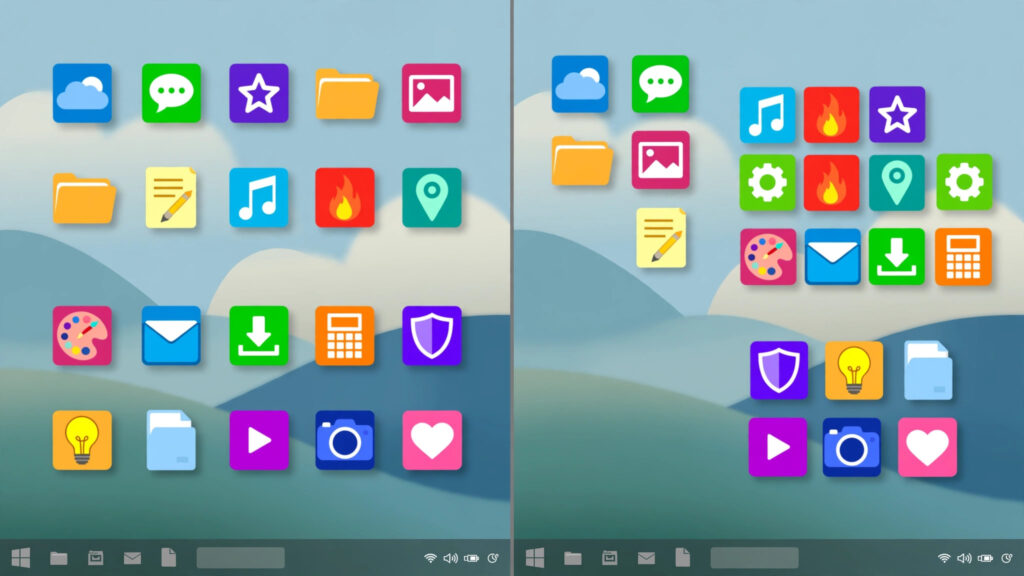
DesktopOK is the most popular free tool for saving and restoring desktop icon layouts on Windows, and for good reason: it is tiny, portable, and does exactly one job well. But it is not the only way to protect your icon arrangement from the chaos of resolution changes, display swaps, and Windows updates. Whether DesktopOK is not quite fitting your workflow, or you simply want to know what else is out there, this guide walks through six genuinely useful alternatives and methods — from dedicated free utilities to manual techniques that cost nothing at all.
Each method below is compared honestly: what it does well, where it falls short, and who it is best for. If you are new to DesktopOK itself, start with our DesktopOK vs. Fences comparison to see how the baseline stacks up against the most famous commercial rival.
1. ReIcon
ReIcon is the closest thing to a spiritual sibling of DesktopOK. It is a free, portable utility that does one thing — save and restore desktop icon layouts — with a deliberately minimal interface. You can save multiple named layouts, restore them with a double-click or a command-line call, and even automate restoration on Windows startup.
Pros: Completely free, no installation required, very light on system resources, supports command-line restore for scripting. It handles multiple monitor setups reasonably well.
Cons: The interface feels dated and offers fewer conveniences than DesktopOK — no automatic save timers, no per-resolution layout memory, and no exportable layout files in a documented format.
Best for: Users who want a second, backup tool alongside DesktopOK, or a dead-simple portable utility on a USB stick.
We put the two head to head in detail — see DesktopOK vs. ReIcon: full comparison if you are trying to choose between them.
2. Desktop Restore (by Jamie O’Connell)
Desktop Restore takes a different approach: instead of a standalone program, it installs as a shell extension that lives in your right-click menu. Right-click the desktop, save the layout; right-click again, restore it. It can save several named layouts and restores icon positions per screen resolution, which is exactly the scenario that scrambles most desktops — docking a laptop, for instance.
Pros: Integrated directly into the desktop context menu, so there is nothing to launch and no window cluttering your taskbar. Free for personal use and very stable on both Windows 10 and 11.
Cons: It requires installation (no portable version), its saved layouts are less portable than DesktopOK’s exportable .DOK files, and the project is maintained by a single developer with infrequent updates.
Best for: Anyone who dislikes extra running applications and wants layout save/restore a right-click away.
Our DesktopOK vs. Desktop Restore comparison breaks down which one fits which workflow.
3. IconRestorer
IconRestorer is a lightweight freeware utility from FSL that saves icon positions and restores them automatically when it detects a change — for example, after a resolution switch or a driver crash. Its signature feature is automatic restoration: you save a layout once, and IconRestorer silently puts icons back if they get moved, without you lifting a finger.
Pros: True set-and-forget automation, extremely small footprint, saves separate layouts for different resolutions.
Cons: Development stalled years ago, so compatibility with the latest Windows 11 builds is not guaranteed. It also offers no way to name, organize, or export multiple layouts the way modern tools do.
Best for: Users on older Windows 10 systems who want automatic repair of scrambled layouts with zero interaction.
4. Stardock Fences
Fences is the premium option. Rather than merely saving icon positions, it organizes your desktop into labeled, resizable “fences” — shaded containers that group related icons together. Layouts (called “snapshots”) can be saved and restored at any time, and Fences includes rules that automatically sort new files into the right fence.
Pros: The most powerful organization system of the bunch — snapshots, auto-sorting rules, page-based desktops, and a polished interface. Rock-solid on Windows 11 with active development and support.
Cons: It is paid software (around $10 for a single license after the trial), heavier than any free utility here, and arguably overkill if all you want is a simple layout backup.
Best for: Power users and professionals who live on their desktop and want organization plus layout protection in one package. Our DesktopOK vs. Fences article digs into whether the paid features are worth it for you.
5. Manual registry backup
Here is the method that costs nothing and uses no software at all. Windows stores desktop icon positions in the registry, under the Shell Bags keys (in HKEY_CURRENT_USER\Software\Microsoft\Windows\Shell\BagMRU and Bags). Export those keys with Registry Editor while your layout is perfect, and you can merge the .reg file back later to restore it.
Pros: Zero downloads, works on any Windows machine, and the backup is a plain text file you can keep anywhere.
Cons: It is fiddly and fragile: you must restart Explorer (or reboot) for the restore to take effect, the registry structure differs between Windows 10 and 11, and editing the registry always carries a small risk if you make a mistake. It also saves only the current state — no named layouts, no automation.
Best for: Advanced users who distrust third-party tools, or anyone who needs a one-off snapshot before a driver or OS upgrade.
6. DesktopOK itself — used the smart way
Sometimes the best alternative to DesktopOK is simply DesktopOK, configured properly. Many people install it, save one layout, and never touch its deeper features — then conclude it “didn’t work” when a multi-monitor swap scrambles everything. Enable automatic saving on a timer or at shutdown, turn on auto-restore at Windows startup, and use the punch-the-clock per-resolution memory so each display configuration keeps its own layout. Export your layouts to .DOK files for safekeeping or to transfer them to another PC.
Pros: Free, portable, actively maintained, tiny resource usage, and — once configured — the most reliable of the free options.
Cons: Requires a few minutes of setup to reach its full potential; the interface packs a lot of options into a small window.
Best for: Everyone, honestly — if you have not yet explored its automatic features, try that before shopping around.
Comparison table
| Method | Price | Portable | Auto-save / auto-restore | Multiple named layouts | Best for |
|---|---|---|---|---|---|
| DesktopOK | Free | Yes | Yes (timer + startup) | Yes, per resolution | Best all-round free option |
| ReIcon | Free | Yes | Command-line only | Yes | Simple portable backup |
| Desktop Restore | Free | No | No | Yes | Right-click convenience |
| IconRestorer | Free | No | Yes (automatic) | Limited | Set-and-forget on older Windows |
| Stardock Fences | Paid (~$10) | No | Snapshots on demand | Yes (snapshots) | Power users wanting organization |
| Manual registry backup | Free | N/A | No | No | Advanced users, one-off snapshots |
Which one should you pick?
For most people, the honest answer is simple: stick with DesktopOK, but turn on its automatic features. It beats every other free tool on reliability, portability, and active maintenance. If you specifically want right-click integration, add Desktop Restore. If you want your desktop organized into groups with rules and are willing to pay, Fences is genuinely excellent. ReIcon and the registry method are best kept as secondary safety nets rather than primary tools.
One more tip, whichever tool you choose: save your layout after every major change — new monitor, new resolution, new GPU driver — and keep a backup copy of the saved layout file somewhere safe, like cloud storage. Icon layouts are only ever as reliable as your most recent save.
Frequently Asked Questions
Is there a completely free alternative to DesktopOK?
Yes — several. ReIcon, Desktop Restore, and IconRestorer are all free, and the manual registry backup method costs nothing. That said, DesktopOK itself is free and, in our testing, remains the most reliable of the free options, so many users end up returning to it.
Do these tools work on Windows 11?
DesktopOK, ReIcon, Desktop Restore, and Stardock Fences all work on Windows 11. IconRestorer’s development ended before Windows 11 matured, so treat it as a Windows 10 tool. The registry backup method works on both, though the exact keys can differ between OS versions.
Why do my desktop icons keep rearranging themselves?
The most common culprits are resolution changes (docking/undocking a laptop, switching displays, remote desktop sessions), graphics driver updates, and Windows feature updates. Windows re-flows icons whenever the desktop grid changes, and without a saved layout there is nothing to restore from — which is exactly the problem these tools solve.
Can I transfer my saved icon layout to another computer?
With DesktopOK, yes: export your layouts to .DOK files and import them on the other machine — the resolution and icon set need to match reasonably well for a perfect result. Most other tools store layouts in proprietary formats or the registry, making transfers awkward or impossible.
Is Stardock Fences worth paying for if DesktopOK is free?
It depends on what you want. If your only goal is saving and restoring icon positions, DesktopOK does the job for free and Fences is unnecessary. Fences earns its price through organization — fenced groups, auto-sorting rules, and desktop pages. If a cluttered desktop is your real problem, not just scrambled icons, the upgrade can be worthwhile.
Conclusion
You have six solid ways to protect your desktop icon layout on Windows, and five of them cost nothing. The dedicated free utilities — DesktopOK, ReIcon, Desktop Restore, and IconRestorer — each cover the core job with a different flavor of convenience. Stardock Fences adds premium organization for those willing to pay. And the manual registry backup remains a useful trick for one-off snapshots or locked-down machines where you cannot install software.
Our recommendation for the typical Windows user: run DesktopOK with automatic saving and auto-restore enabled, keep a second export in cloud storage, and you will never lose an icon layout again. Whatever you choose, the important step is simply to save a layout before the next resolution change scrambles it — future you will be grateful.
Pingback: DesktopOK vs Fences: Which Desktop Icon Manager Is Better? - DesktopOK
Pingback: DesktopOK vs ReIcon: Which Desktop Icon Tool Is Better?