
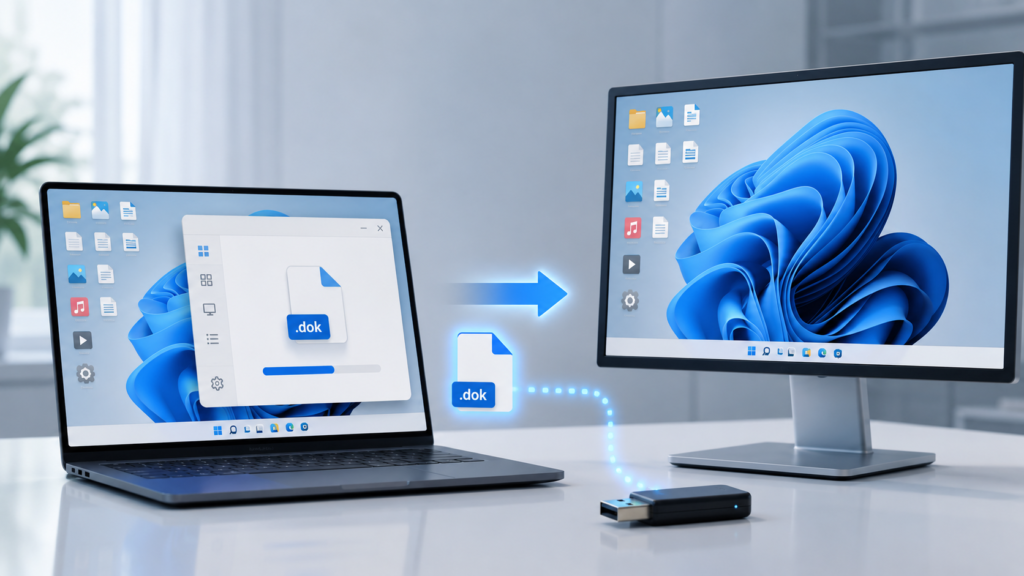
DesktopOK .dok file provides a practical way to save a desktop icon arrangement outside the program’s normal layout list. Instead of keeping every saved layout only inside DesktopOK, users can export selected arrangements as separate files that can be copied, archived, or restored later.
This method is useful when reinstalling Windows, moving to another computer, keeping multiple layout backups, or protecting an important desktop arrangement before changing monitors or display settings. This guide explains what a .dok file contains, how to export and import it, how to transfer it between Windows computers, and how to solve common restoration problems.
What Is a DesktopOK .dok File?
A .dok file is a layout file created by DesktopOK. It records information used to restore the positions of desktop icons. DesktopOK includes dedicated menu options for saving an icon layout as a .dok file and loading an icon layout from an existing .dok file. The program can also register this file type with Windows.
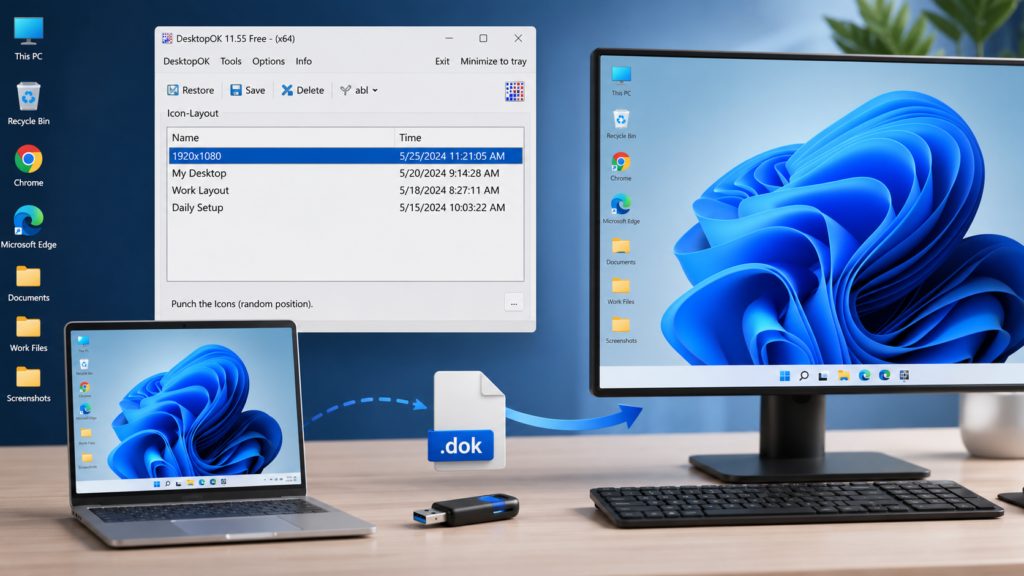
The file should be treated as an icon-position backup rather than a complete desktop backup. It does not replace the shortcuts, folders, applications, or documents stored on the desktop. If an icon or file has been deleted, importing an older layout cannot recreate the missing item.
DesktopOK uses the available icons and attempts to return them to the positions stored in the selected layout. The official documentation also notes that deleted desktop symbols are not restored by a layout file.
Why Export a DesktopOK Layout?
The standard Save button in DesktopOK is suitable for layouts that remain inside the application. Exporting to a .dok file is more useful when the layout needs to exist as a separate, movable backup.
Common reasons to export a layout include:
- Creating an offline backup of an important icon arrangement
- Moving a layout to another Windows computer
- Saving layouts before reinstalling Windows
- Keeping copies on a USB drive or cloud storage folder
- Archiving different work, gaming, or office arrangements
- Protecting layouts before changing display resolution
- Sharing a standard desktop arrangement between similar computers
DesktopOK supports saving layouts in either its configuration data or separate .dok files. The official instructions specifically state that a layout saved as a .dok file can be reloaded on another PC.
What to Check Before Creating a .dok File
Before exporting a DesktopOK layout, prepare the desktop carefully. The exported file will represent the current arrangement, so unwanted icon positions may also be preserved.
Complete these checks first:
- Move every desktop icon into its intended position.
- Confirm that important shortcuts are visible.
- Remove temporary files that should not be part of the arrangement.
- Check the current screen resolution and display scaling.
- Confirm whether one or multiple monitors are connected.
- Disable Windows Auto arrange icons if it conflicts with manual positioning.
- Test the layout using DesktopOK’s regular Save and Restore controls.
It is also helpful to take a normal desktop screenshot before exporting. The screenshot provides a visual reference if some icons cannot be restored later.
How to Export a DesktopOK Layout as a .dok File
DesktopOK provides a dedicated option for saving the icon layout as a separate .dok file. Menu wording can vary slightly between program versions or languages, but the main process remains similar.
Step 1: Arrange the Desktop Icons
Place all desktop icons in the exact positions you want to preserve. Check both sides of the desktop and make sure no icons are hidden behind open windows.
Step 2: Open DesktopOK
Launch DesktopOK and allow it to read the current icon arrangement. The portable edition can normally be started directly from its extracted folder without a traditional installation.
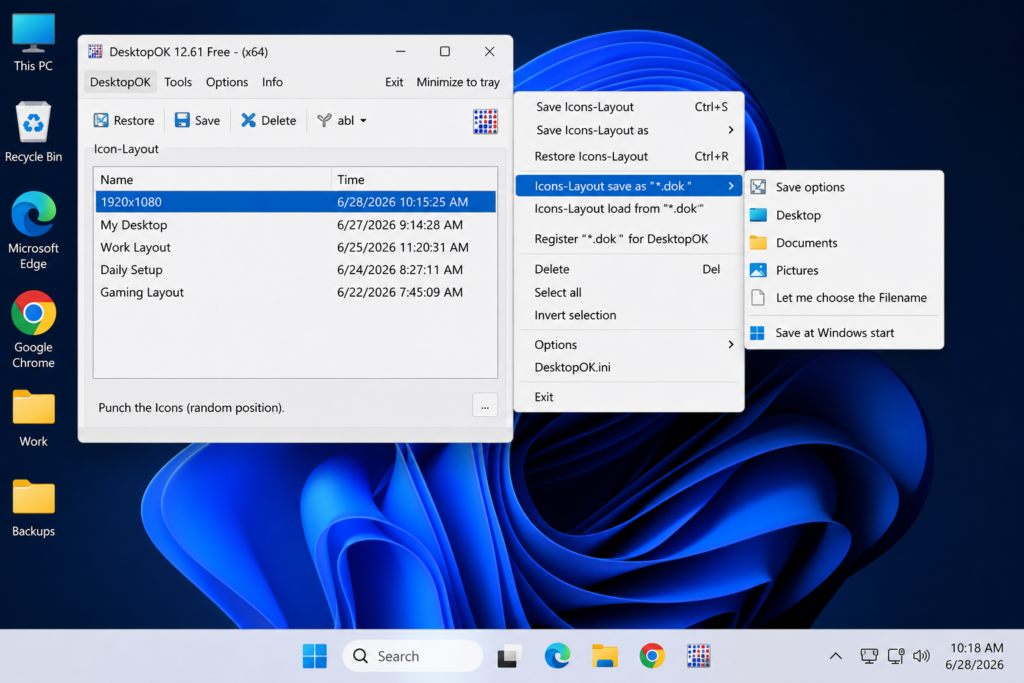
Step 3: Open the DesktopOK Menu
Select the main DesktopOK menu from the program window.
Step 4: Select the .dok Save Option
Choose the option labelled similar to:
Icons-Layout save as “*.dok”
This is different from the normal Save button. The normal button adds an entry to DesktopOK’s internal list, while this command creates a separate file.
Step 5: Choose a Backup Location
Select a folder where the file can be found easily. Suitable locations include:
- A dedicated DesktopOK Backups folder
- An external USB drive
- A secondary internal drive
- A trusted cloud-synchronized folder
- A Windows backup directory
Avoid keeping the only copy on the desktop because it could be lost during a Windows reset or profile problem.
Step 6: Give the File a Clear Name
Use a descriptive filename that identifies the computer, display setup, and date.
Examples:
DesktopOK-Office-PC-1920x1080.dok
DesktopOK-Dual-Monitor-Layout.dok
DesktopOK-Before-Windows-Reinstall.dok
DesktopOK-Laptop-2026-07-27.dok
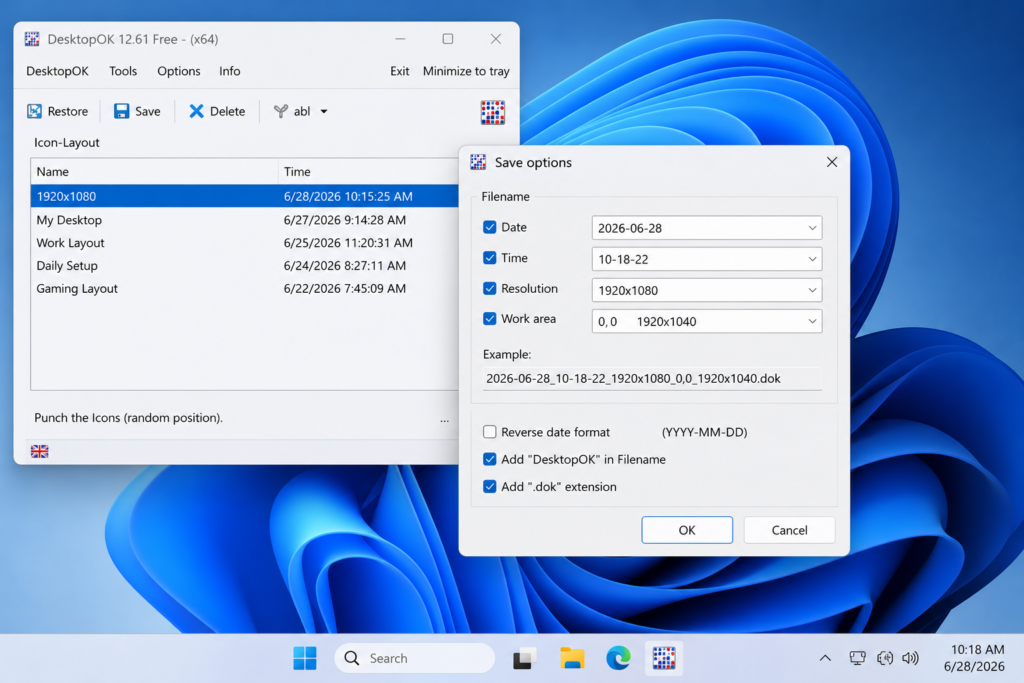
DesktopOK includes .dok save options that can use information such as the date, time, resolution, and working area in filenames. It also supports a reverse date format that is easier to sort chronologically.
Step 7: Verify the Export
Open the destination folder and confirm that the .dok file exists. Do not assume the backup is complete until it has been tested.
The safest test is to move one or two non-critical icons, load the newly created file, and confirm that the icons return to their expected positions.
How to Import and Restore a DesktopOK .dok File
Importing a .dok file allows DesktopOK to read the saved layout and restore matching desktop icons.
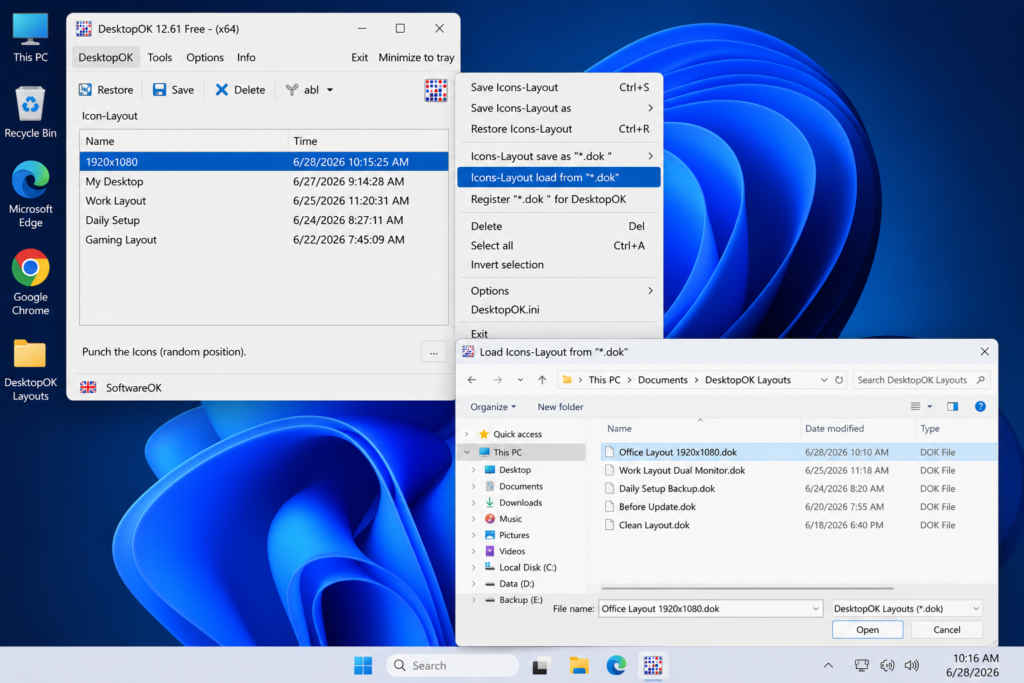
Step 1: Open DesktopOK
Launch the same or a newer compatible version of DesktopOK.
Step 2: Open the Main Menu
Select the DesktopOK menu in the application.
Step 3: Choose the Load Option
Click the option labelled similar to:
Icons-Layout load from “*.dok”
DesktopOK’s official menu resources include separate commands for saving to and loading from .dok files.
Step 4: Select the Correct File
Browse to the folder containing the backup and select the required .dok file.
DesktopOK normally remembers the last folder used for .dok files, which makes repeated backups and restorations easier.
Step 5: Restore the Layout
Allow DesktopOK to apply the saved positions. Avoid moving icons or changing the resolution while the layout is being restored.
Step 6: Inspect the Result
Check whether:
- Icons returned to their expected positions
- The correct monitor received each group of icons
- Newly added icons remained accessible
- No icons overlap
- Display scaling matches the original setup
If the result is incorrect, do not overwrite the .dok file. First correct the display configuration and try loading it again.
How to Transfer a DesktopOK Layout to Another PC
A DesktopOK .dok file can be copied like a normal file. However, successful transfer depends on how closely the destination computer matches the original desktop.
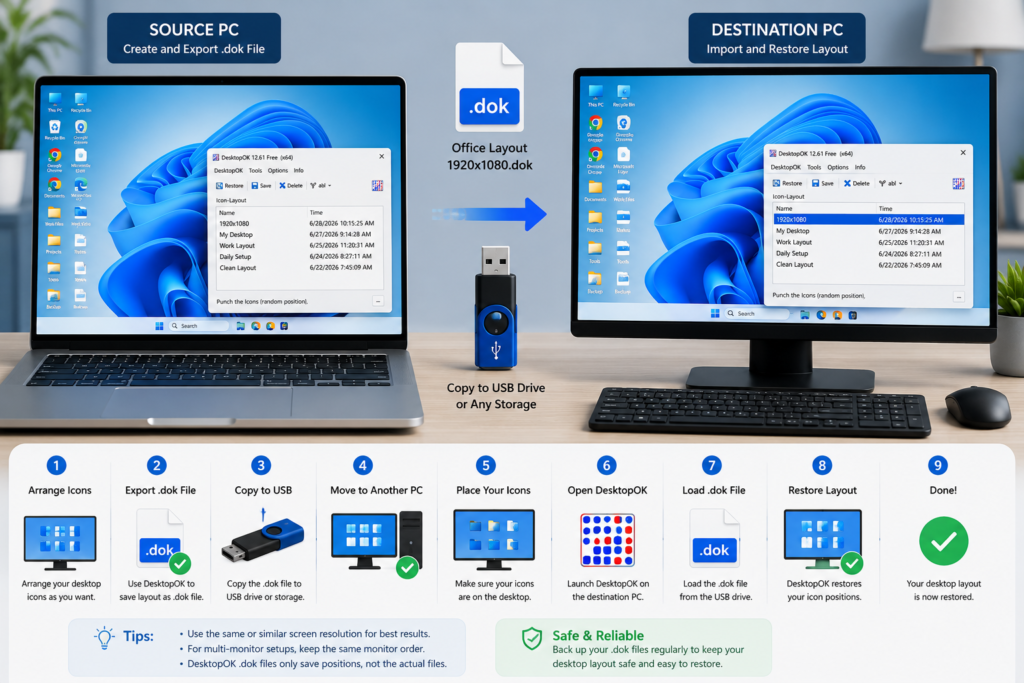
On the Original Computer
- Arrange the desktop icons.
- Export the layout as a
.dokfile. - Save the file to a USB drive, network folder, or cloud storage.
- Copy any required shortcuts or desktop files separately.
- Record the original resolution, scaling, and monitor arrangement.
On the Destination Computer
- Download DesktopOK from its official developer source.
- Place the required shortcuts and files on the desktop.
- Match the original display resolution where possible.
- Match Windows display scaling.
- Connect and arrange monitors in the same order.
- Copy the
.dokfile to the computer. - Open DesktopOK.
- Load the layout from the
.dokfile. - Check the restored positions.
The official DesktopOK guide confirms that layouts saved as .dok files can be reloaded on another PC.
Why Some Icons May Not Transfer Correctly
A .dok file stores layout information, but the destination computer may not contain the same desktop items.
For example, the original computer may have a shortcut called “Project Manager,” while the new computer does not have that shortcut. DesktopOK cannot position an item that is missing.
Differences can also occur because of:
- Different icon names
- Missing applications
- Changed shortcut locations
- Different screen resolutions
- Different display scaling
- Reversed monitor order
- Different Windows user profiles
- Icons added after the layout was exported
- Windows Auto arrange icons being enabled
For the best result, copy the desktop files and shortcuts separately before importing the layout. Then confirm that filenames match the original items.
Using .dok Files with Multiple Monitors
Desktop layouts are strongly affected by screen size, resolution, scaling, and monitor position. A layout created on a dual-monitor desktop may not restore perfectly on a single-monitor laptop.
Before loading a multi-monitor .dok file, check Windows Display Settings and confirm:
- Both monitors are connected.
- The main display is correctly selected.
- Monitor 1 and Monitor 2 are arranged in the correct order.
- Screen resolutions match the original setup.
- Display scaling percentages are similar.
- The desktop is extended rather than duplicated.
DesktopOK can maintain multiple icon arrangements for different display configurations, but the closest matching setup normally produces the most accurate restoration.
How to Organize DesktopOK Backup Files
A clear backup system prevents confusion when several .dok files exist.
Create a folder structure such as:
DesktopOK Backups
Laptop LayoutsOffice PC LayoutsDual Monitor LayoutsBefore Windows UpdatesBefore ReinstallationOld Layouts
Include useful details in every filename:
ComputerName-Resolution-MonitorCount-Date.dok
For example:
OfficePC-2560x1440-Dual-2026-07-27.dok
Do not repeatedly replace the same file unless you are certain that the new layout is correct. Keeping separate dated backups makes it possible to return to an older arrangement.
The official guide notes that newly named saved layouts do not overwrite previous working layout entries.
.dok File vs DesktopOK.ini
DesktopOK can retain layout information in different ways. Two commonly referenced options are .dok files and the DesktopOK.ini configuration file.
DesktopOK .dok File
A .dok file is suitable when you want:
- A separate layout backup
- A file that can be copied or archived
- A layout that can be transferred to another PC
- Clearly named backups for different configurations
- Manual control over where layouts are stored
DesktopOK.ini
The DesktopOK.ini file is connected more closely to the program’s configuration and normal saved entries. It may contain settings in addition to layout-related information.
The official documentation explains that DesktopOK can save desktop layout information in either a .dok file or DesktopOK.ini, and the program includes an option for locating its INI directory.
For transferring one selected layout, a .dok file is generally easier to manage. For backing up the broader portable DesktopOK configuration, preserving the program folder and INI file may also be useful.
How to Register .dok Files with DesktopOK
DesktopOK includes a menu option called:
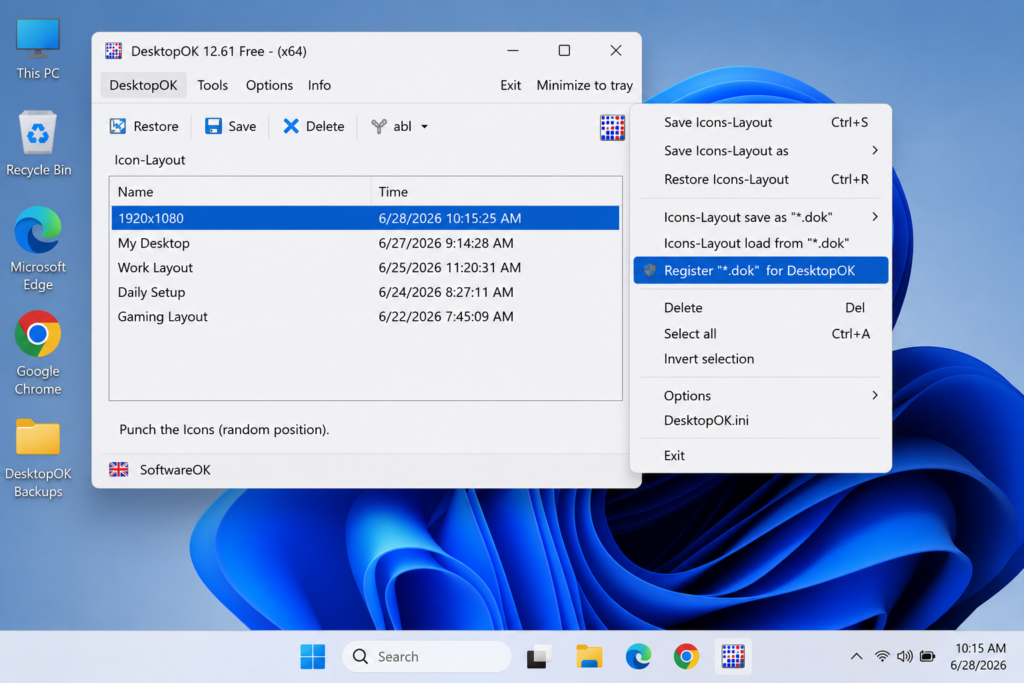
Register “*.dok” for DesktopOK
Registering the file type creates an association between .dok files and DesktopOK. After registration, Windows may allow a .dok layout file to be opened through DesktopOK more directly.
File association is optional. Users can continue loading files manually from inside the program without registering the extension.
Manual loading may be preferable when:
- More than one DesktopOK copy is stored on the PC
- Portable versions are used from different folders
- The user does not want Windows file associations changed
- Administrative restrictions apply
- Layout files should be reviewed before restoration
DesktopOK .dok File Not Restoring Correctly
When a saved layout does not restore properly, work through these checks.
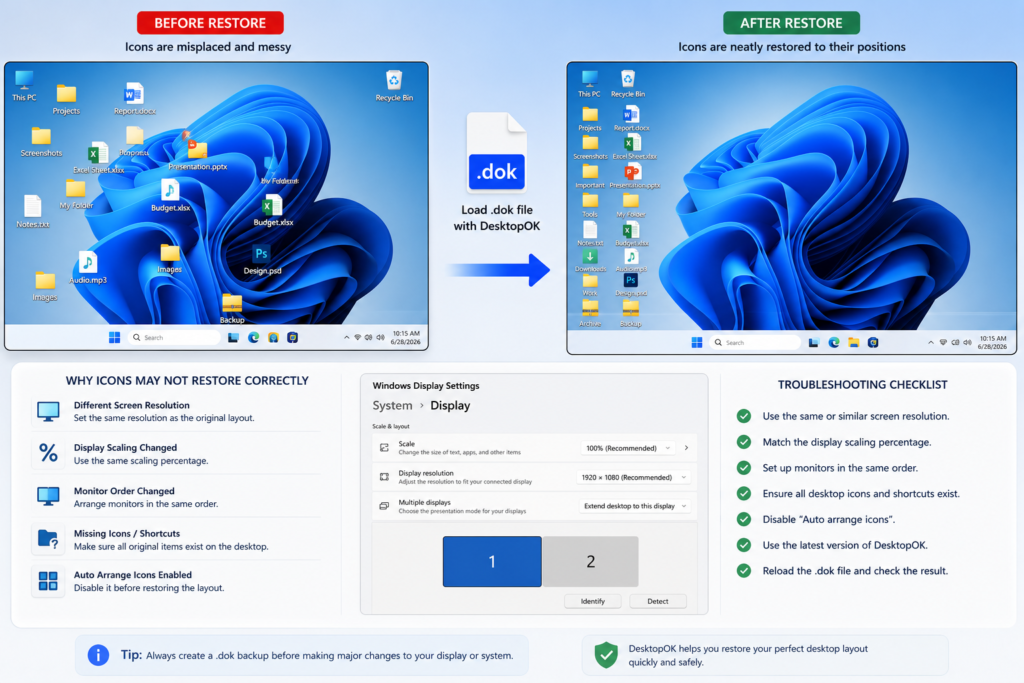
Confirm the Correct File
Check the filename, computer name, date, resolution, and monitor information. The wrong backup may appear valid but contain a different arrangement.
Match the Display Resolution
Set Windows to the same resolution used when the layout was exported.
Check Display Scaling
A layout created at 100% scaling may behave differently when restored at 125% or 150%.
Check Monitor Order
On multi-monitor systems, confirm that the displays are positioned in the same left-to-right arrangement.
Disable Auto Arrange Icons
Right-click the Windows desktop, open View, and check whether Auto arrange icons is enabled. Disable it when manual placement is required.
Confirm That Icons Still Exist
A layout file cannot restore a shortcut, folder, or document that has been deleted or renamed.
Update DesktopOK
Use a current DesktopOK release because newer builds may include fixes and general compatibility improvements. DesktopOK officially supports several Windows desktop and server versions.
Test with a Fresh Layout
Create a new .dok file using the current DesktopOK. Move a test icon and reload the new file. If the new file works, the older backup may no longer match the current configuration.
Can a .dok File Be Opened in a Text Editor?
A .dok file is intended to be loaded through DesktopOK. Editing it manually is not recommended because changing its internal data may prevent the layout from loading correctly.
Keep the original file unchanged. When testing or moving backups, create a copy and retain one verified version in a safe folder.
Does a .dok File Back Up Desktop Files?
No. A .dok file should not be used as a replacement for normal file backup.
It preserves layout information used for positioning available desktop icons. Important documents, folders, installers, shortcuts, and personal files must be backed up separately using File History, cloud storage, an external drive, or another backup method.
For a complete transfer, preserve both:
- The DesktopOK
.doklayout file - The actual desktop files and shortcuts
Is It Safe to Delete an Old .dok File?
Deleting a .dok file removes that exported layout backup. It does not delete the desktop icons or the applications represented by those icons.
Before deletion, confirm that:
- The layout is no longer required
- A newer tested backup exists
- The file is not the only copy
- The filename is not being confused with another setup
Move uncertain files to an archive folder instead of deleting them immediately.
Best Practices for DesktopOK .dok Backups
For reliable layout protection:
- Create a backup before major Windows updates.
- Export a layout before changing monitors.
- Keep more than one dated
.dokfile. - Store one copy outside the system drive.
- Include resolution and monitor details in filenames.
- Test every important backup after creating it.
- Back up desktop files separately.
- Avoid editing
.dokfiles manually. - Keep the DesktopOK program and backup files organized.
- Record display scaling for multi-monitor layouts.
A backup is only useful when it can be located, identified, and restored successfully.
Frequently Asked Questions
What does a DesktopOK .dok file contain?
It contains layout information used by DesktopOK to restore desktop icon positions. It should not be considered a backup of the actual desktop files, applications, or shortcuts.
Can I transfer a .dok file to another computer?
Yes. DesktopOK’s official documentation states that a layout saved as a .dok file can be reloaded on another PC. The destination computer should contain matching icons and a similar display configuration.
Can one .dok file restore deleted desktop files?
No. DesktopOK can reposition available desktop icons, but it does not recreate deleted documents, folders, programs, or shortcuts.
Where should I save DesktopOK .dok files?
Use a dedicated backup folder, secondary drive, USB device, or trusted cloud folder. Avoid storing the only copy on the Windows desktop.
Can DesktopOK remember the last .dok folder?
Yes. The official documentation states that DesktopOK normally remembers the last directory used for .dok files.
Do I need to register the .dok extension?
No. Registration is optional. You can load a .dok file manually from the DesktopOK menu without associating the file type with Windows.
Why does a transferred layout look different?
The destination PC may have different icon names, missing shortcuts, another resolution, changed scaling, or a different monitor arrangement.
Should I back up DesktopOK.ini too?
It can be useful when preserving the broader DesktopOK configuration. A .dok file is more convenient for transferring or archiving a selected layout.
Conclusion
DesktopOK .dok files provide a flexible way to export, import, archive, and transfer desktop icon layouts. They are particularly useful before Windows reinstallation, display changes, computer migration, or major system updates.
For dependable restoration, keep clearly named backups, match the original screen configuration, preserve the actual desktop files separately, and test each important .dok file after creating it. A well-organized backup can restore a familiar desktop arrangement without requiring every icon to be positioned manually again.