
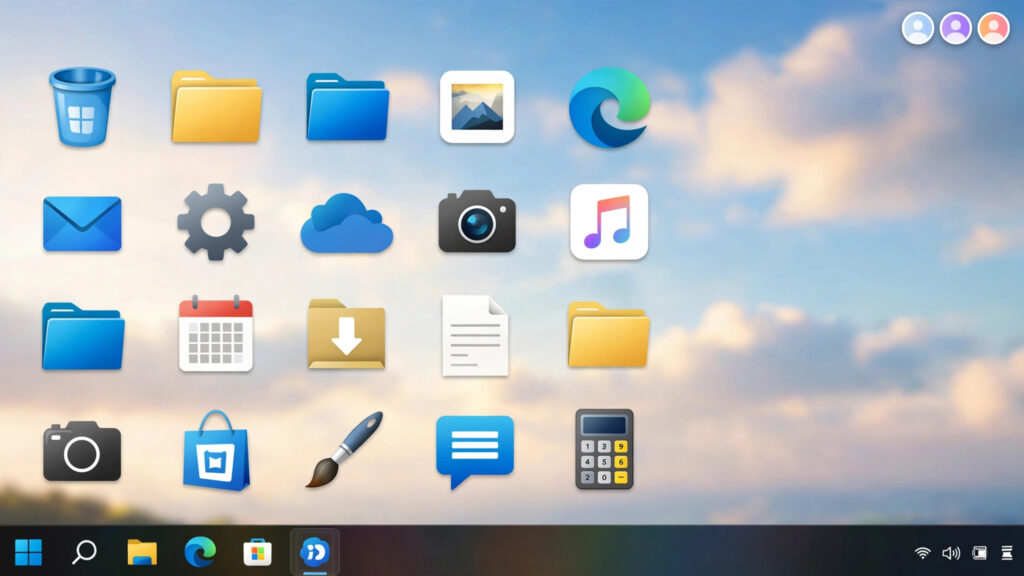
On a shared family PC or a work computer with several accounts, the desktop can become a battleground. One person likes a clean screen with just a few shortcuts, another wants every project folder within reach, and a third keeps games front and centre. Every time someone logs in and tidies up, the next person finds their own arrangement gone. A resolution switch or a new monitor can still shuffle everything out of place.
DesktopOK solves this by letting each Windows user save, restore, and protect their own layout separately. Set up correctly, each profile gets its own saved layouts, startup behaviour, and backup files, so nobody’s arrangement overwrites anyone else’s. This guide explains how Windows profiles handle icon layouts, how to configure DesktopOK per user, and how to fix layouts overwriting each other.
How Windows User Profiles Store Icon Layouts
Windows treats every user account as a separate world. Each profile has its own desktop folder, registry settings, and record of where desktop icons sit. When you log in as one user, Windows loads that profile’s icon positions; when another user logs in, it loads theirs instead. In theory, this separation should already prevent conflicts.
In practice, icon positions are fragile. They are tied to screen resolution, monitor arrangement, and icon size. If a user logs in while a monitor is disconnected, or after a graphics driver update changes the resolution, Windows may rearrange the icons and save that rearranged state. DesktopOK adds a safety net: a saved snapshot that can be restored in one click, no matter what Windows did in the meantime.
Setting Up DesktopOK for Each Windows User
The setup is simple, but it must be repeated for every account that needs protection. DesktopOK is a portable tool, so there is no system-wide installer that configures every profile at once. Follow these steps while logged in as each user.
Step 1: Give Each User Their Own DesktopOK Folder
Place a copy of DesktopOK in a location that belongs to the individual user, such as a folder inside that user’s Documents folder, rather than a single shared folder on the C: drive. This keeps each user’s settings file, saved layouts, and backup files separate. If everyone runs the same copy from a shared folder, the settings can clash and one user’s saves may overwrite another’s.
Step 2: Save Each User’s Layout Separately
Once DesktopOK is running under a user’s account, arrange the desktop exactly as that user wants it, then save the layout with a clear name that includes the user, such as “Sarah Work Layout”. Repeat for every account, logging in as each user in turn. For the basics, see how to save and restore desktop icons with DesktopOK. The key point is that saving must happen inside each profile: a layout saved by one user will not show up in another user’s list.
Step 3: Name .DOK Files Clearly Per User
DesktopOK can export layouts as .DOK files, handy for backups and moving a layout to another PC. On a shared computer, name these files so there is never doubt about who they belong to: username plus purpose plus date, for example sarah-work-layout-2026-10-26.dok. Store each user’s exports in their own Documents or backup folder, not one shared folder where similar names get confused. Exporting is also the safest backup before a big change, such as adding a monitor or reinstalling Windows; see the guide to DesktopOK .DOK file export, import, and transfer layouts.
DesktopOK Startup for Each User
DesktopOK only protects a layout if it is running when something goes wrong. On a shared PC, that means enabling startup separately for every user who wants protection. DesktopOK’s autostart setting applies to the current user profile only, so turning it on while logged in as one person does not enable it for anyone else.
Log in as each user, open DesktopOK, and enable the option to start with Windows. This per-user approach also lets each person choose different behaviour: one may want automatic restore at every login, while another prefers manual restore only when needed.
For step-by-step setup, see how to run DesktopOK automatically at Windows startup. If DesktopOK never starts for one user, the usual cause is that startup was only enabled under a different account.
Shared PC and Family PC Tips
A few habits make multi-user setups far smoother on a family computer.
- Use separate Windows accounts, not one shared account. DesktopOK’s per-user separation only works if people actually log in as themselves. If everyone shares one account, everyone shares one desktop and one set of saved layouts.
- Save a layout before any hardware change. Before connecting a new monitor, changing resolution, or updating graphics drivers, each user should save their current layout. Hardware changes are the most common trigger for icon shuffling.
- Keep a “clean” fallback layout per user. Besides a daily working layout, save one simple fallback layout with just the essential icons. If a layout restore ever looks wrong, the fallback gives a known-good starting point.
- Do not share .DOK files between users casually. Importing another user’s .DOK file will rearrange your desktop to match theirs. Only import a file when you genuinely want that person’s arrangement.
- Teach each user the one-click restore. Show every user how to open DesktopOK and restore their own saved layout, so a shuffled desktop is a ten-second fix.
Multiple Users and Multiple Monitors
Multi-monitor setups add another layer of complexity on shared PCs, because each user may use the monitors differently. One person may work with two monitors side by side, while another uses only the laptop screen. DesktopOK saves icon positions per screen resolution and monitor arrangement, so a layout saved on a dual-monitor setup may not restore neatly on a single screen.
The fix is to save a layout for each display arrangement a user actually uses, such as one for dual monitors and one for the laptop screen alone. See the guide to DesktopOK multi-monitor setup for how saved layouts interact with different monitor configurations.
Comparison: One Shared Account vs Separate User Profiles
The table below summarises why separate profiles, combined with DesktopOK, are the better setup for a shared PC.
| Feature | One shared Windows account | Separate user profiles with DesktopOK |
|---|---|---|
| Icon layout per person | No, everyone shares one desktop | Yes, each user keeps their own layout |
| Saved layouts | One shared list, easy to overwrite | Separate saved layouts per user |
| Startup behaviour | Same for everyone | Each user chooses their own autostart setting |
| .DOK backup files | Mixed together, easy to confuse | Named and stored per user |
| Recovery after icon shuffle | Restores someone else’s layout | Restores your own layout in one click |
| Privacy | Everyone sees everyone’s files and shortcuts | Each profile keeps its own desktop and files private |
Troubleshooting: When One User’s Layout Overwrites Another’s
If layouts seem to be overwriting each other, work through these causes in order.
Everyone Is Running the Same DesktopOK Copy
If all users launch DesktopOK from one shared folder, they share one settings file and one list of saved layouts. One user’s save can then replace another’s. Move DesktopOK into each user’s own folder and re-save each layout from inside the correct profile.
Everyone Logs In to the Same Windows Account
DesktopOK cannot separate layouts for people who share a single Windows account, because Windows itself gives them one desktop. Create a separate Windows user account for each person, then set up DesktopOK inside each account.
A Shared .DOK File Was Imported by Mistake
Importing a .DOK file replaces the current icon arrangement with the one stored in the file. If a user imported a file belonging to someone else, their desktop will now match that person’s layout. Restore the correct layout from that user’s own saved list, and rename shared backup files clearly to prevent a repeat.
Automatic Restore Is Enabled With the Wrong Layout
If DesktopOK is set to restore a layout automatically at startup, it will restore whichever layout is selected for that user. Check the selected layout while logged in as the affected user, and make sure the automatic restore points to their own layout rather than a layout saved under a different name or by a different person.
Frequently Asked Questions
Does DesktopOK work with multiple Windows users?
Yes. DesktopOK stores its settings and saved layouts per Windows user profile, so each account can save and restore its own desktop icon layouts separately, provided each user runs their own copy and saves layouts while logged in as themselves.
Do I need to install DesktopOK separately for each user?
DesktopOK is portable, so there is no traditional installation. You do need to set it up per user: place a copy in each user’s own folder, enable startup for each user, and save each user’s layout from inside their own account.
Can one user see another user’s saved layouts?
No, not under normal setup. Saved layouts live in the profile that created them, so another user’s DesktopOK list will not show your layouts. The exception is exported .DOK files stored in a shared folder, which anyone with access to that folder can import.
What happens if two users share one Windows account?
They share one desktop, one icon arrangement, and one set of DesktopOK saves. DesktopOK cannot separate layouts within a single Windows account, so the real fix is to create separate Windows accounts for each person.
Why does my layout change when someone else logs in?
Usually because Windows rearranged icons after a monitor or resolution change, or because a shared DesktopOK copy or a shared .DOK file was involved. Check that each user has their own DesktopOK folder, restore your own saved layout, and save a fresh copy for the current display setup.
Conclusion
DesktopOK works well with multiple Windows users when the setup respects how Windows profiles work. Give each user their own DesktopOK folder, save each layout from inside the correct account, name .DOK backup files per user, and enable startup separately for everyone who wants protection. With those habits in place, each person logs in to their own arrangement, and any shuffle is fixed with a single restore.
Pingback: DesktopOK Multi Monitor Setup Guide for Windows Users