
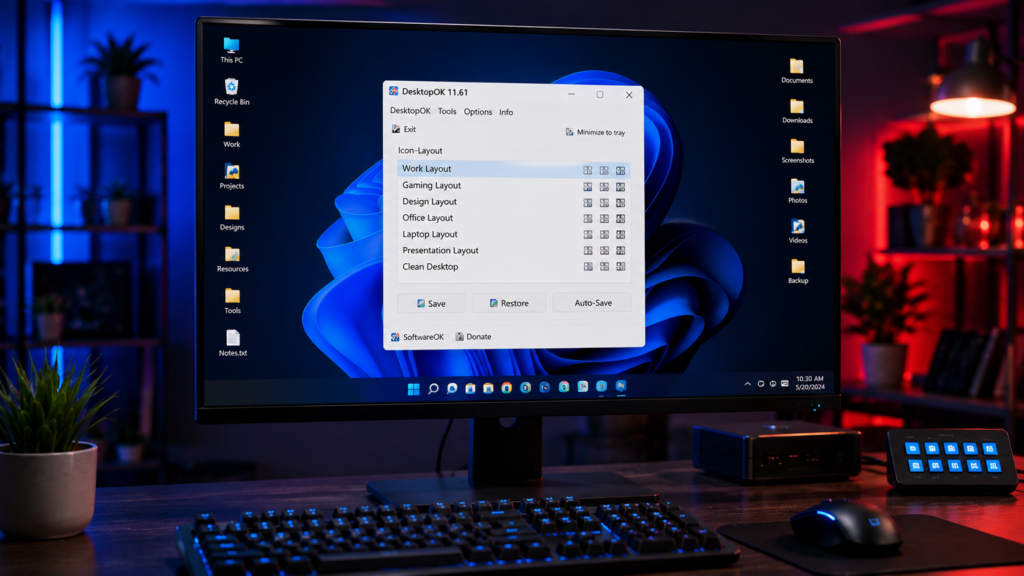
If your desktop icons move after changing screen resolution, connecting another monitor, updating Windows, or using Remote Desktop, DesktopOK can save your current icon positions and restore them later.
With DesktopOK, you can create a backup of your desktop layout, keep multiple saved profiles, and quickly restore misplaced icons without arranging everything manually again.
This guide shows you how to save and restore desktop icons with DesktopOK on Windows 11, Windows 10, Windows 8, and Windows 7.
What Is DesktopOK?
DesktopOK is a lightweight Windows utility that saves and restores desktop icon positions. It can store multiple layout profiles, which is useful when your icons move after display, monitor, or resolution changes.
Why Desktop Icons Change Position
Desktop icon layouts may change because of:
- Screen resolution changes
- Multi-monitor setup adjustments
- Graphics driver updates
- Windows updates
- Remote Desktop sessions
- Display scaling modifications
- Docking and undocking laptops
DesktopOK prevents these situations from permanently affecting your preferred desktop arrangement.
Download and Launch DesktopOK
Before saving icon layouts, download the latest version of DesktopOK and extract the ZIP file.
After extraction:
- Open the DesktopOK folder
- Run DesktopOK.exe
- Allow the application to start
- The main interface will appear
Since DesktopOK is portable, no installation process is required.
How to Save Desktop Icons Using DesktopOK
Saving your icon layout takes only a few seconds.
Step 1: Arrange Your Desktop
Organize your icons exactly how you want them.
You can group folders, shortcuts, applications, and documents according to your workflow.
Step 2: Open DesktopOK
Launch DesktopOK from the extracted folder.
The main window displays available layout profiles and management options.
Step 3: Create a New Backup
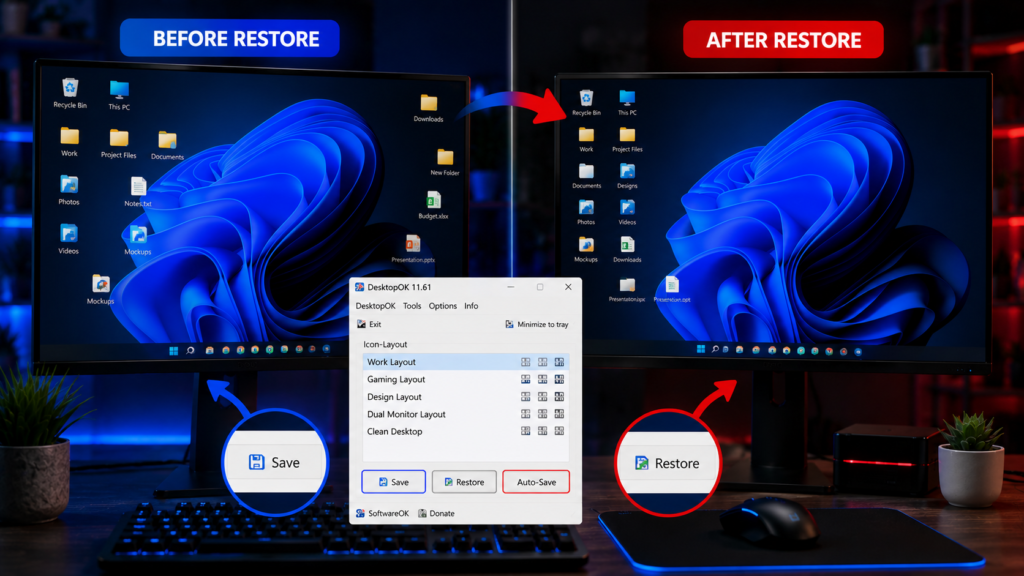
Click the Save button.
DesktopOK immediately records the current icon positions and stores them as a layout profile.
Step 4: Name the Layout
You can assign a custom name to identify the backup later.
Examples include:
- Work Setup
- Gaming Layout
- Office Monitor Setup
- Laptop Display Mode
Naming layouts makes management easier when multiple profiles are stored.
How to Restore Desktop Icons Using DesktopOK
When your icons become disorganized, restoring them is simple.
Step 1: Open DesktopOK
Launch the software.
The saved layouts will appear in the profile list.
Step 2: Select a Saved Layout
Choose the backup profile you want to restore.
DesktopOK displays all previously saved desktop arrangements.
Step 3: Click Restore
Press the Restore button.
The software instantly returns every desktop icon to its saved position.
The process usually takes less than a second.
Managing Multiple Desktop Layouts
One of the most useful DesktopOK features is support for multiple layout profiles.
Users can create different desktop arrangements for:
Work
Organize productivity tools, documents, and business applications.
Gaming
Place game launchers and communication software in dedicated sections.
Multi-Monitor Setups
Create separate layouts for dual monitor and single monitor configurations.
Presentation Mode
Prepare clean desktop arrangements for meetings and demonstrations.
Switching between layouts requires only a few clicks.
Using Automatic Layout Backups
DesktopOK can create automatic layout backups so recent icon positions are available if the desktop changes unexpectedly. For detailed Auto-Save settings and troubleshooting, use the dedicated Auto-Save guide.
Advantages of Saving Desktop Layouts
Saving icon positions offers several benefits.
Improved Productivity
A well-organized desktop reduces the time spent searching for files and shortcuts.
Faster Recovery
Restore layouts immediately after display changes.
Better Workspace Organization
Maintain consistent icon placement across different work environments.
Multi Monitor Compatibility
Keep desktop arrangements intact even when monitor configurations change.
Reduced Frustration
Avoid manually repositioning dozens of icons after every display adjustment.
Common Issues and Solutions
Desktop Icons Still Move After Restoring the Layout
Make sure Windows Auto Arrange Icons is disabled if it conflicts with your preferred layout.
Layout Not Restoring Correctly
Save a fresh backup after major monitor or resolution changes.
Missing Icons
Verify that files and shortcuts still exist in their original locations.
DesktopOK restores positions but cannot recover deleted files.
Best Practices for DesktopOK
To get the best results:
- Create backups regularly
- Keep multiple layout profiles
- Save layouts before changing display settings
- Backup before Windows updates
- Use descriptive profile names
- Store DesktopOK in a permanent folder
These practices make restoration faster and more reliable.
Who Should Use DesktopOK?
DesktopOK is useful for:
- Office workers
- Developers
- Designers
- Gamers
- Remote workers
- IT administrators
- Multi-monitor users
Anyone who values an organized desktop can benefit from the software.
Save and Restore Desktop Icons with DesktopOK
DesktopOK provides one of the easiest ways to save and restore desktop icons on Windows. Whether you use a single monitor or a complex multi-display setup, the software ensures your desktop layout remains exactly how you want it.
With quick backups, instant restoration, and support for multiple profiles, DesktopOK helps users maintain an organized workspace while avoiding the frustration of misplaced desktop icons.