
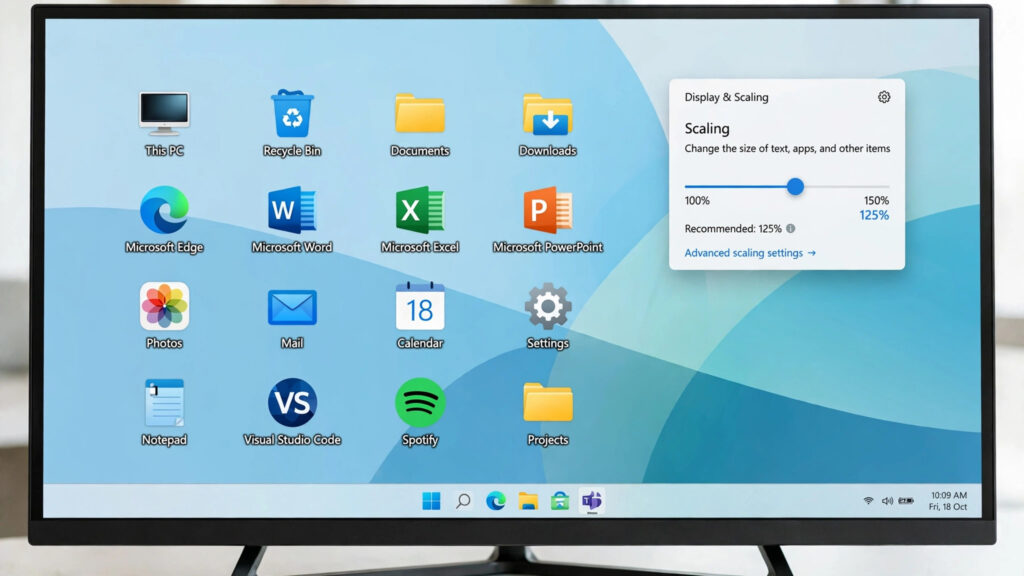
Display scaling changes how Windows draws text, apps, and desktop icons. When you move from 100% to 125% or 150%, Windows recalculates the icon grid. Icons that fit neatly at one scale may no longer fit at another, so they shift, stack, or move to a new position.
The fix is simple: save a separate DesktopOK layout for each scaling level you use. Then, after any DPI change, restore the layout saved for that exact scale. This guide shows how to do that, step by step, and how to stop the problem from returning.
Quick Fix: Restore Your Icons After a Scaling Change
First, check your current scale in Settings > System > Display > Scale. Note whether it is 100%, 125%, 150%, or another value. DesktopOK layouts are tied to resolution, so the scale value matters just as much as the screen size.
Next, open DesktopOK and restore the layout saved for this scale. Your icons should return within seconds. If none exists, arrange the icons once, then save a new layout named clearly, such as “125 percent work setup.”
- Open Settings > System > Display and confirm the Scale value.
- Open DesktopOK and find the layout saved for that scale.
- Click Restore, then check every icon position.
- If no matching layout exists, arrange the icons and save one now.
Why Display Scaling Moves Desktop Icons
Windows places icons on an invisible grid. The grid spacing depends on icon size, screen resolution, and display scaling. When scaling increases, text and icons get larger, so fewer columns fit across the screen.
Windows then reflows the grid to fit the new size. An icon in column twelve at 100% may move to column ten at 125%. Icons near the right edge are most affected, and some may wrap to a new row or cluster together.
The Icon Grid Changes With Scale
At 100% scaling, a 1920 × 1080 screen holds more icon columns than the same screen at 150%. Larger scaling means larger cells, so the grid becomes coarser. Windows does not remember the old grid; it simply rebuilds the layout for the new scale.
This is also why icon size matters. If you use large icons, the effect is stronger, because each icon takes more grid space. Medium icons give Windows more room to keep positions stable across small scaling changes.
Resolution, Scaling, and Monitor Changes Work Together
Scaling rarely changes alone. Many users change scaling when they connect a laptop to a monitor, dock a device, or switch between screens. Each change can trigger a fresh icon rearrangement, even if the resolution looks the same.
For multi-screen setups, save layouts for each monitor combination as well. The DesktopOK multi-monitor setup guide explains how to handle layouts when monitors are added, removed, or rearranged.
Save a DesktopOK Layout for Each Scaling Level
Do not rely on a single layout. A layout saved at 100% will not place icons correctly at 150%, because the grid is different. Instead, build one layout per scaling level you actually use, and label each one with its scale value.
Start at your most common scale, usually 100% or 125%. Arrange the icons exactly as you want them, turn off auto-arrange, and save the layout. Then change the scale, rearrange the icons for the new grid, and save a second layout.
- Set the scale in Settings > System > Display > Scale.
- Right-click the desktop, choose View, and turn off Auto arrange icons.
- Arrange every icon in its preferred position.
- Open DesktopOK, click Save, and name the layout with the scale value.
- Repeat the process for 125%, 150%, or any other scale you use.
Name Layouts So You Can Find Them Fast
Clear names save time when icons move. Use a pattern such as “125% — main monitor” or “150% — laptop only.” Include the monitor setup when it matters, because the same scale can behave differently on different screens.
Avoid vague names such as “Layout 1” or “Backup.” A precise name lets you restore the right layout in seconds, without guessing.
Save Again After Any Deliberate Change
Layouts are snapshots, not live mirrors. If you add a program, move a folder, or tidy the desktop, save a fresh layout after any change you want to keep.
You can keep the old layout as a fallback and save the new one under a slightly updated name. That way, a bad rearrangement never costs you a layout you liked.
Restore the Correct Layout After a Scaling Change
When icons move after a DPI change, do not drag them back one by one. That wastes time and rarely restores the exact grid. Instead, confirm the current scale, open DesktopOK, and restore the layout saved for that scale.
If the restored layout still looks slightly off, check two things. First, confirm the resolution matches the saved layout. Second, confirm auto-arrange is still off, because Windows can re-sort icons if that option is enabled.
- Confirm Scale in Settings > System > Display.
- Confirm the screen resolution has not changed unexpectedly.
- Open DesktopOK and restore the layout for that exact scale.
- Right-click the desktop, choose View, and confirm Auto arrange icons is off.
- Save a corrected layout only after the desktop looks right.
Best DesktopOK and Windows Settings for Scaling
The table below brings the key settings together. Use it as a checklist when you set up a new computer or a new monitor. Small settings, especially auto-arrange, make a large difference to stability.
Keep icon size consistent across layouts. Changing it with scaling adds another variable and makes the grid harder to predict.
| Setting | Recommended value | Why it helps |
|---|---|---|
| Windows Scale | Match your saved layout | Layouts only align when scale matches |
| Auto arrange icons | Off | Stops Windows re-sorting icons automatically |
| Align icons to grid | On | Keeps icons in neat, predictable columns |
| Desktop icon size | Medium, kept consistent | Reduces grid shifts between scales |
| DesktopOK layout name | Includes scale value | Makes the right restore choice obvious |
| DesktopOK save habit | Save after every tidy-up | Keeps snapshots current with real desktop |
Fix Common Scaling Problems
Some scaling problems look like DesktopOK failures, but they come from Windows settings. Check the setting first, then restore the layout. Restoring over a wrong setting will only move the icons again.
If icons move on wake-up, a monitor may be waking late or a dock reconnecting. Save a layout for that state and restore it after the screens settle.
Icons Move After Every Restart
A restart problem is often separate from scaling. If icons move even when scale has not changed, auto-arrange, a display driver update, or a monitor detection delay may be responsible. The guide to stop desktop icons moving after restart in Windows 11 covers those checks in detail.
Once restarts are stable, return to scaling. Save one layout per scale, and test each one by changing scale, restoring, and changing back. That test proves each layout works before you need it urgently.
Icons Look Too Big or Too Small After Scaling
Scaling changes text and app size as well as icons. If icons look wrong after a change, check icon size separately. Right-click the desktop, choose View, and pick Small, Medium, or Large icons to match your saved layout.
Icon spacing also affects the look. If icons feel crowded at 150%, wider spacing can help, but it changes the grid. For spacing and size recovery, see the guide on DesktopOK icon size and spacing restore.
Build a Reliable Scaling Routine
A short routine prevents most scaling surprises. Before changing scale for a presentation, a new monitor, or accessibility needs, save the current layout. After the change, arrange and save the new layout immediately, while the grid is fresh in your mind.
Repeat that habit for every scale you use regularly. Soon you will have a small library of layouts that covers your normal setups, and restoring becomes a one-click task.
Test Each Layout Before You Need It
Testing matters because a layout saved in a hurry may contain one misplaced icon. Change the scale, restore the layout, and scan the desktop. Fix any stray icon, then save again so the correction is stored.
Also test switching back. Go from 125% to 100%, restore the 100% layout, and confirm it. A layout library is only useful if both directions work reliably.
Frequently Asked Questions
Why do my desktop icons move when I change display scaling?
Scaling changes the size of the icon grid. At a larger scale, fewer icons fit in each row, so Windows reflows their positions. Icons near the right edge move first, and some may wrap to a new row.
Can DesktopOK save a different layout for each scaling level?
Yes. Save one layout at 100%, another at 125%, and another at 150% if you use all three. Name each layout with its scale value, then restore the layout that matches your current scale.
Should I turn off auto-arrange icons?
Yes, in almost every case. Auto-arrange lets Windows re-sort icons into grid order, which can undo a careful layout. Keep “Align icons to grid” on for neat placement, but keep auto-arrange off.
What if no saved layout matches my new scale?
Arrange the icons once at the new scale, then save a layout immediately. That first manual arrangement becomes your saved layout for future switches, so you only need to do it once per scale.
Does changing resolution have the same effect as changing scaling?
Yes, in a similar way. Both change how many icon columns fit on screen. That is why layouts should record resolution and scale together, and why multi-monitor layouts need separate saves.
Conclusion
Display scaling moves icons because it changes the grid Windows uses to place them. A saved layout for each scale turns a frustrating rearrangement into a quick restore.
Save a layout at 100%, 125%, and 150% if you use those values, name each one clearly, and keep auto-arrange off. For the basic workflow, see how to save and restore desktop icons with DesktopOK. Then, whenever scaling changes your desktop, restore the matching layout.
Pingback: DesktopOK Multi Monitor Setup Guide for Windows Users
Pingback: DesktopOK Windows Update Restore: Fix Icon Layout After Update - DesktopOK