
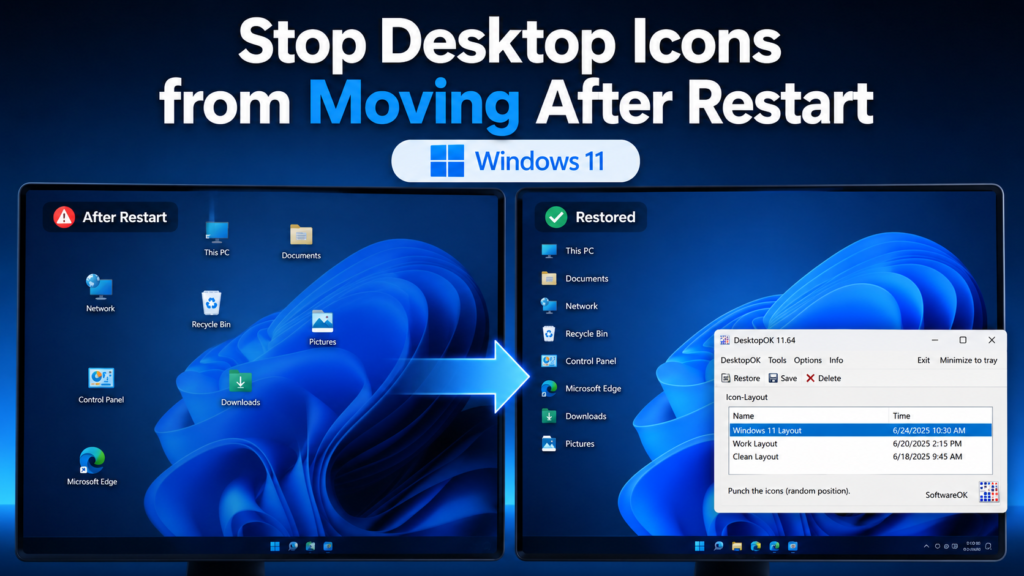
If your desktop icons keep moving after a restart in Windows 11, first turn off Auto arrange icons and keep Align icons to grid enabled. Also check your display resolution, scaling, and primary monitor settings, as changes to these can cause Windows 11 to rearrange desktop icons.
If the problem keeps returning, DesktopOK can save your preferred desktop icon positions and restore the layout after Windows rearranges them. This is especially useful after restarts, display-resolution changes, graphics-driver updates, or switching between monitors.
In this guide, you’ll go through the fixes in order, starting with Windows 11 settings before using DesktopOK to save and restore your desktop icon layout.
Quick fix: Right-click the desktop → View → turn off Auto arrange icons → enable Align icons to grid. Arrange the icons where you want them, restart Windows, and check whether their positions stay saved.
Why Do Desktop Icons Move After a Restart in Windows 11?
Windows normally remembers desktop icon positions, but certain changes can force it to calculate the layout again.
Common causes include:
- Auto Arrange Icons is enabled.
- The display resolution changes during startup.
- Windows uses a different scaling percentage.
- An external monitor is disconnected or detected late.
- A graphics driver update changes display settings.
- Windows starts with a temporary display configuration.
- A game or application changes the screen resolution.
- The primary monitor changes in a multi-monitor setup.
Microsoft recommends using the display resolution and scale values marked Recommended, because unsupported or lower resolutions can affect how items appear on the screen.
1. Turn Off Auto Arrange Icons
The first setting to check is Auto-arrange icons. When this option is enabled, Windows automatically places icons into rows and columns. It may prevent you from keeping icons in manually selected positions.
Follow these steps:
- Right-click an empty area of the desktop.
- Move the pointer to View.
- Make sure Auto-arrange icons is unchecked.
- Enable Align icons to grid.
- Move your icons into the positions you prefer.
- Restart the computer and check whether the layout remains unchanged.
Aligning icons to the grid keeps icons neatly aligned while still allowing you to choose their positions. Windows includes desktop View settings for icon size, automatic arrangement, grid alignment, and showing or hiding desktop icons.
2. Use the Recommended Display Resolution
Windows may rearrange desktop icons when the screen resolution changes. This commonly happens after a graphics driver update, when starting a full-screen game, or when connecting another monitor.
To check your resolution:
- Press Windows + I to open Settings.
- Select System.
- Open Display.
- Find Display resolution under Scale & layout.
- Choose the option marked Recommended.
- Restart the computer.
Microsoft advises users to stay with the recommended display resolution because lower or unsupported resolutions can make the desktop appear stretched, centered, or incorrectly sized.
Avoid changing the resolution repeatedly after arranging your icons. A layout created at 1920 × 1080 may not fit in the same way at a lower resolution.
3. Keep the Display Scaling Consistent
Display scaling changes the size of text, apps, and desktop elements. Switching between 100%, 125%, and 150% scaling can affect the usable desktop area and cause icon positions to shift.
To check scaling:
- Open Settings.
- Go to System > Display.
- Find the Scale option.
- Select the percentage marked Recommended.
- Sign out or restart Windows if requested.
Microsoft recommends using the scaling option marked Recommended for the selected display.
For a multi-monitor setup, check the scaling setting separately for every monitor. Different scaling values can sometimes cause icons to move when Windows changes the active display.
4. Check Your Primary Monitor
Desktop icons may move to another screen when Windows changes which monitor is considered the main display.
To select the correct primary monitor:
- Open Settings > System > Display.
- Click Identify to see the number assigned to each monitor.
- Select the monitor you use as your main screen.
- Expand Multiple displays.
- Enable Make this my main display.
- Restart the computer.
Try to connect your monitors before Windows starts. If an external monitor is connected after login, Windows may temporarily arrange the desktop according to the smaller display.
You should also use the same display ports whenever possible. Moving a monitor from HDMI to DisplayPort may cause Windows to detect it as a different display configuration.
5. Save Your Desktop Icon Layout with DesktopOK
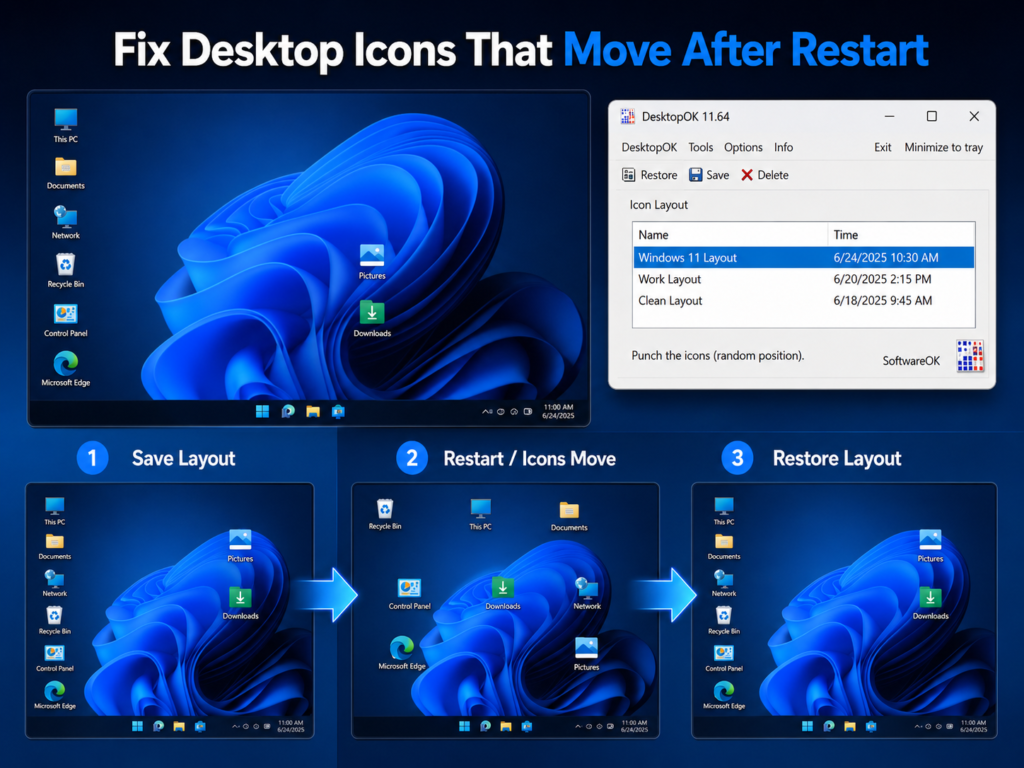
Windows settings may reduce the problem, but they cannot guarantee that icons will never move again. A safer approach is to save a backup of your desktop layout with DesktopOK.
DesktopOK is designed to save desktop icon positions and restore them when they are changed by a restart, resolution adjustment, or another display-related event. The official developer describes it as a portable tool that can save and restore icon positions without requiring installation.
How to save your icon layout
- Arrange your desktop icons exactly where you want them.
- Open DesktopOK.
- Click Save.
- Give the saved layout a clear name, such as:
- Windows 11 Main Layout
- Work Desktop
- Laptop Layout
- Dual Monitor Layout
- Confirm that the layout appears in the saved-layout list.
DesktopOK can store multiple layouts, which is helpful when you use different resolutions or monitor arrangements.
How to restore the layout
If the icons move after restarting Windows:
- Open DesktopOK.
- Select the correct saved layout.
- Click Restore.
- Wait a moment while the icons return to their saved positions.
The official DesktopOK instructions confirm that users can select a saved layout and restore desktop icons to their previous positions on Windows 11.
6. Automatically Restore Icons When Windows Starts
DesktopOK can also start with Windows and restore a saved icon layout during login.
To configure automatic restoration:
- Open DesktopOK.
- Open the program’s Options or settings menu.
- Enable Start DesktopOK with Windows.
- Enable Restore by Windows Startup.
- Optionally enable Save by Windows Shutdown.
- Restart your PC to test the configuration.
According to the official DesktopOK documentation, the software can save the icon layout when Windows shuts down and restore it when Windows starts.
Use automatic restoration carefully. First, create and test a manual layout so that DesktopOK does not automatically restore an unwanted arrangement.
7. Enable DesktopOK Auto-Save
If you frequently add, remove, or reposition desktop icons, Auto-Save can create recent layout backups automatically.
To use it:
- Open DesktopOK.
- Find the Auto-Save option.
- Enable automatic saving.
- Choose a suitable interval.
- Enable the option to save only when the layout changes, when available.
DesktopOK’s Auto-Save feature can retain multiple recent layouts and can be configured to save only when the desktop layout changes.
This is helpful when you accidentally overwrite a good layout or discover the problem several restarts later.
8. Prevent Themes from Changing Desktop Icons
Windows themes can change the appearance of standard icons such as This PC, Network, and Recycle Bin. Although this setting mainly affects icon appearance rather than position, disabling it can help keep the desktop configuration more consistent.
Follow these steps:
- Open Settings.
- Select Personalization > Themes.
- Open Desktop icon settings.
- Disable Allow themes to change desktop icons.
- Click Apply, followed by OK.
Microsoft confirms that this setting controls whether themes can change common desktop icons.
9. Update the Graphics Driver
An outdated or unstable graphics driver may cause unexpected resolution changes during startup.
To check for updates:
- Open Settings.
- Select Windows Update.
- Click Check for updates.
- Open Advanced options > Optional updates.
- Install a relevant display driver update if one is available.
- Restart the computer.
Microsoft specifically recommends checking Windows Update when unexpected screen-resolution changes occur.
If the issue began immediately after a driver update, you may need to install a newer corrected driver from your computer or graphics-card manufacturer.
10. Avoid Resolution-Changing Applications
Some older games and full-screen applications temporarily switch Windows to a lower resolution. When the application closes, the original resolution returns, but the desktop icons may remain rearranged.
Possible solutions include:
- Use borderless-windowed mode instead of exclusive full-screen mode.
- Select the monitor’s native resolution inside the game.
- Avoid closing Windows while a resolution-changing application is running.
- Save a DesktopOK layout before opening the application.
- Restore the layout after closing the program.
Creating a dedicated layout for gaming can also make restoration faster.
Desktop Icons Still Moving After Restart in Windows 11?
When the issue continues, use this order:
- Disable Auto arrange icons.
- Select the recommended resolution.
- Select the recommended scaling value.
- Confirm the correct primary monitor.
- Update the graphics driver.
- Save the desktop layout with DesktopOK.
- Enable Restore by Windows Startup.
- Create separate layouts for different monitor configurations.
DesktopOK is particularly useful when you frequently switch between a laptop screen, an external monitor, projector, or a gaming display. It can restore the correct layout instead of forcing you to move every icon manually.
Frequently Asked Questions
Why do my desktop icons move every time I restart Windows 11?
The most likely causes are automatic icon arrangement, display-resolution changes, scaling changes, graphics-driver behavior, or a different monitor configuration during startup.
Should Auto Arrange Icons be turned on or off?
Turn Auto Arrange Icons off when you want to position icons manually. You can keep Align icons to grid enabled to maintain clean spacing.
Can Windows 11 save multiple desktop icon layouts?
Windows 11 does not provide a straightforward built-in interface for saving multiple named icon layouts. DesktopOK can save multiple arrangements and restore the one you need.
Can DesktopOK restore icons automatically after a restart?
Yes. DesktopOK includes options to start with Windows and restore an icon layout at Windows startup.
Does DesktopOK need to be installed?
No. The official developer states that DesktopOK can run as portable software without installation.
Is DesktopOK compatible with Windows 11?
Yes. The official download page lists Windows 11 as a supported operating system.
Why do my desktop icons keep rearranging themselves in Windows 11?
Desktop icons can rearrange themselves when Auto Arrange is enabled or when Windows detects changes in screen resolution, display scaling, graphics settings, or monitor configuration. Turn off Auto Arrange Icons and keep your recommended display settings consistent. Saving the layout with DesktopOK also gives you a quick way to restore the icon positions if they move again.
How do I permanently keep desktop icons from moving after restart?
Start by turning off Auto Arrange Icons, using the recommended resolution and scaling, and keeping the same primary monitor configuration. Windows can still rearrange icons after certain display or driver changes, so saving your preferred layout with DesktopOK provides a reliable way to restore the positions when needed.
Stop Desktop Icons from Moving After Restart in Windows 11
Desktop icons usually move after a restart because Windows detects a different display area, resolution, scaling value, or monitor configuration. Turning off Auto Arrange Icons and using the recommended display settings may solve the problem.
For long-term protection, save your preferred layout with DesktopOK. If Windows rearranges the icons again, you can restore the complete desktop layout instead of manually moving every shortcut.