
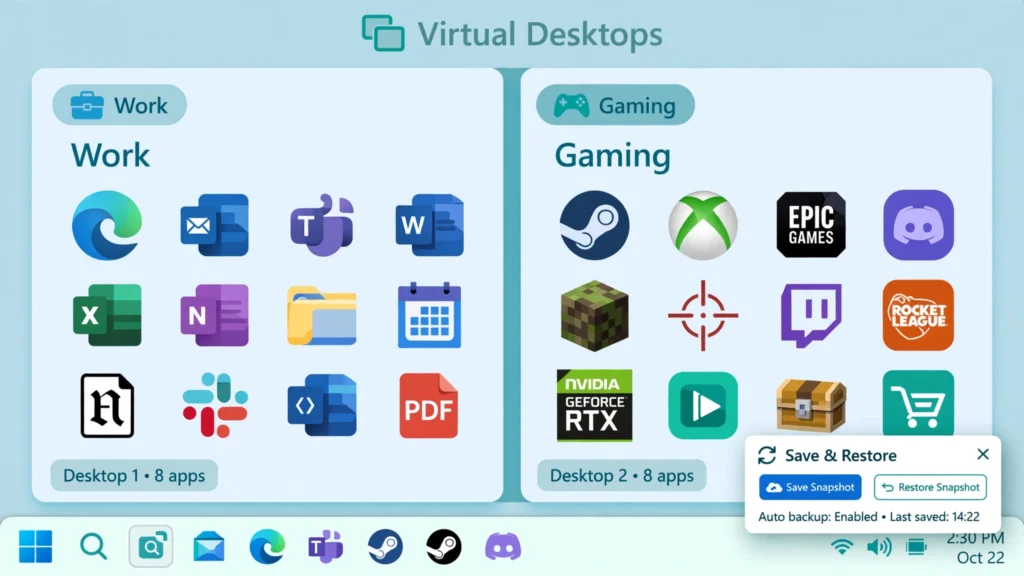
DesktopOK virtual desktops help Windows 11 users keep tidy icon layouts across workspaces. Windows 11 shares the same icons across virtual desktops, so switching never changes which icons appear. DesktopOK fills that gap with named layouts you restore in seconds.
DesktopOK virtual desktops work best when each saved layout acts as a workspace preset: one for Work, one for Gaming, one for Study. Restore the right layout after switching desktops.
How Virtual Desktops Handle Icons in Windows 11
Windows 11 virtual desktops are separate workspaces for open windows, not for icons. Every virtual desktop shows the same icons in the same positions. Adding a desktop with Win+Ctrl+D never creates a fresh icon arrangement.
This shared icon set surprises many users. They expect each virtual desktop to remember its own icons. Windows 11 does not work that way: the icon layer sits underneath all virtual desktops.
What Changes When You Switch Desktops
Switching desktops with Win+Ctrl+Left or Win+Ctrl+Right changes only open windows. Your taskbar apps, browser windows, and documents move with each desktop. Desktop icons stay exactly where they were.
Wallpaper can differ per virtual desktop, which adds to the confusion. A different background makes each desktop feel separate, but the icons remain shared across every desktop.
What DesktopOK Adds
DesktopOK saves icon positions as named layouts tied to your screen and resolution. It does not create per-desktop icon sets inside Windows. Instead, it lets you restore a saved arrangement whenever you switch to a different kind of work.
That restore takes one click or one hotkey. It feels like each virtual desktop has its own layout, even though Windows still shares one icon set. Name layouts clearly.
Why Saved Layouts Still Help
A Work desktop needs project folders, documents, and work apps front and centre. A Gaming desktop needs game shortcuts and launchers instead. One shared arrangement cannot serve both well.
DesktopOK solves this with named layouts. Save a Work layout with work icons arranged your way, and a Gaming layout with game shortcuts in their own spots. Restore the matching layout after each switch.
Save One Layout per Virtual Desktop Workflow
Start by arranging icons for your first workflow. Place work folders on the left, work apps along the top, and reference files on the right. Leave room so new icons never land on existing ones.
Open DesktopOK and save the arrangement as “Work”. Repeat for each workflow: arrange gaming shortcuts, save as “Gaming”, then do the same for Study or Personal. Our guide to managing multiple DesktopOK layouts shows how to organise them without clutter.
- Switch to that workflow’s virtual desktop with Win+Tab.
- Arrange the icons exactly how you want them for that kind of work.
- Open DesktopOK and save the layout with a workflow name, such as “Work”.
- Repeat for each workflow, keeping one saved layout per virtual desktop.
Switch Layouts Fast After Changing Desktops
Speed matters, because the point is a one-second switch. DesktopOK offers two fast routes: the system tray menu and keyboard hotkeys. The tray menu lists every saved layout, so click the matching name after switching desktops.
Hotkeys are faster still. Assign one hotkey per layout, such as Ctrl+Alt+1 for Work and Ctrl+Alt+2 for Gaming. Press it after switching desktops. See the full list in our DesktopOK hotkeys and keyboard shortcuts guide before choosing combinations.
What Happens When You Add or Close a Virtual Desktop
Adding a virtual desktop never disturbs your icons. The new desktop inherits the same shared icon set and positions. Save a layout for the new workflow, or restore an existing one.
Closing a virtual desktop moves its open windows to a neighbouring desktop. Your icons do not move at all. They stay where the last restored layout put them.
Watch for Icon Drift After Resolution Changes
Resolution changes cause most icon drift. Docking a laptop or waking a monitor can shuffle icons. Virtual desktops never cause this themselves.
When drift happens, restore the layout for your current workflow. DesktopOK puts every icon back in its saved spot. Our DesktopOK multi-monitor setup guide covers saving layouts per display.
Layout Approaches Compared
Three approaches cover most users. One layout per workflow fits people who switch contexts often. A single layout suits users with the same icons everywhere. Export files back up layouts for reinstalls.
| Approach | Best for | Effort | Downside |
|---|---|---|---|
| One layout per workflow | Work, Gaming, Study users | One hotkey per switch | Restore after each switch |
| One layout for all desktops | Single-purpose users | Almost none | Icons never match the task |
| .dok export files | Reinstalls and new PCs | Occasional export | Not for daily switching |
Two-Desktop Work and Personal Setup
A Work and Personal pair is the most common virtual desktop routine. Keep work apps and project folders on the first desktop. Keep personal files, photos, and entertainment shortcuts on the second. Two layouts make the split feel real.
Set up the Work desktop first. In Win+Tab, create a second desktop and name them “Work” and “Personal”. Arrange work icons, save the layout as “Work”, then switch desktops and do the same for Personal.
- Create two virtual desktops with Win+Ctrl+D and name them Work and Personal.
- On the Work desktop, arrange work icons and save as “Work”.
- On the Personal desktop, arrange personal icons and save as “Personal”.
- Assign a hotkey to each layout for one-press switching.
Per-Desktop Wallpaper vs Icon Layout
Windows 11 lets you set a different wallpaper for each virtual desktop. Right-click a desktop thumbnail in Task View and choose a background. That cue helps you tell Work and Personal apart at a glance.
Wallpaper and icon layout are separate settings. A new wallpaper never changes icon positions, and restoring a layout never changes wallpaper. Together they make each desktop instantly recognisable.
FAQ
Does DesktopOK give each virtual desktop its own icons?
No. Windows 11 shares one icon set across all virtual desktops. DesktopOK saves named layouts you restore after switching, with the same practical effect.
Can DesktopOK switch layouts automatically when I change virtual desktops?
No, DesktopOK does not detect virtual desktop switches. Restore the matching layout from the tray menu or with a hotkey after each switch.
How many layouts should I save for virtual desktops?
Save one layout per workflow, such as Work, Gaming, and Study. Three or four named layouts cover most users.
Do my icons move when I close a virtual desktop?
No. Closing a virtual desktop moves its open windows to another desktop. Your icons stay where the last restored layout put them.
Why did my icons shift after switching virtual desktops?
The switch itself never moves icons. A resolution or monitor change is the usual cause. Restore the layout for your current workflow. New to saving layouts? See our guide on how to save and restore desktop icons with DesktopOK.
Conclusion
DesktopOK virtual desktops work through named layouts, not separate icon sets. Windows 11 shares icons across every virtual desktop, so the routine is simple: save one layout per workflow, then restore it with a hotkey after each switch.
Set up Work and Personal layouts today, assign each a hotkey, and pair them with distinct wallpapers. Your icons will always match the task, and switching workspaces will feel effortless.