
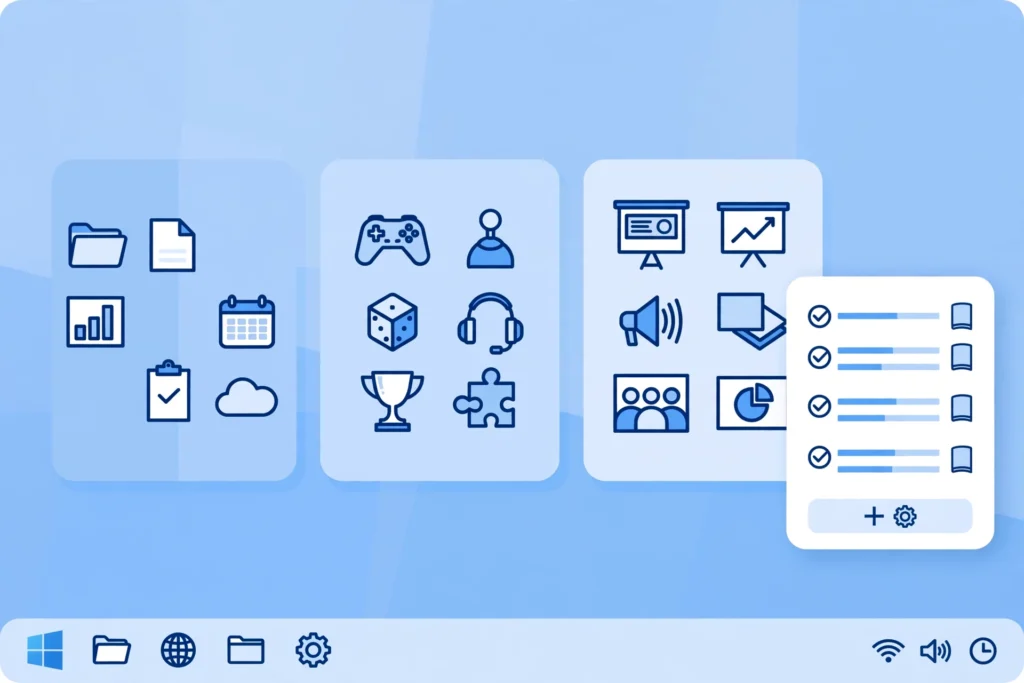
DesktopOK multiple layouts let you save a separate icon arrangement for every way you use your PC. One layout holds your work icons, another holds your gaming shortcuts, and a third keeps a clean desktop for presentations.
DesktopOK multiple layouts work through named profiles stored inside the program. Each profile remembers every icon position on every monitor. This guide covers creating profiles, exporting .dok files, auto-switching, and fixing stubborn layouts.
Why Use More Than One Layout
A single icon layout cannot serve every task. Work needs folders and documents front and centre, while gaming needs launchers grouped by genre. Presentations need an empty desktop so nothing distracts the audience.
With multiple layouts, you arrange the icons once per task and recall the arrangement whenever the task changes. The switch takes two clicks.
Create Your First Layout Profiles
Arrange your icons for one task, open DesktopOK, click Save, and the arrangement becomes a saved layout. Repeat for each task you want a profile for.
Every saved layout appears in the main list with a timestamp. Click any entry and choose Restore to apply it instantly. For the full workflow, see how to save and restore desktop icons with DesktopOK.
Name Profiles So You Recognise Them
Right-click a saved entry and rename it with a short, clear label. Use names such as Work Dual Monitor, Gaming 1440p, or Presentation Clean. A good name states the task and the screen setup in a few words.
Avoid vague names such as Layout 1 or New. With six profiles, vague names force you to restore each one to find the right layout.
Switch Between Profiles in Seconds
To switch, select the profile in the list and click Restore. DesktopOK moves every icon to its saved position at once. You can also double-click a saved entry to restore it immediately.
Test each profile right after you create it. Switch to another layout, then switch back. If the icons land where you expect, the profile is good.
Export and Import Layouts With .dok Files
DesktopOK stores layouts as .dok files, which you can copy to another PC or keep as a backup. Export a layout to a USB drive or cloud folder, then import the file on another computer to restore the same arrangement.
Exported .dok files also protect you against a lost profile. If Windows resets your desktop, import the file and your layout returns. The full process is covered in DesktopOK .dok file export, import and transfer layouts.
Move Layouts to a Second Computer
Copy the .dok file to the second PC and import it through DesktopOK. The icons restore only if the same icons exist on that computer. Matching screen resolution also matters, since positions are saved per pixel.
If the second PC has a different resolution, import the layout and nudge any misplaced icons into place. Save the corrected version under a new name, such as Work Laptop 1080p.
Auto-Switch Layouts for Monitors and Resolutions
DesktopOK can save a layout automatically whenever your screen setup changes. Turn on auto-save and the program records a layout each time the resolution changes or a monitor connects.
Auto-save works best when combined with named profiles. Let DesktopOK record the automatic snapshots, then rename the useful ones and delete the duplicates. Learn the settings in the DesktopOK auto-save feature guide.
Use Separate Profiles per Monitor Setup
Multi-monitor users need one profile per monitor arrangement. Save a profile with both monitors active, then another with only the laptop screen. Name each one with the monitor count, such as Dual 27 inch or Laptop Only.
When you dock or undock, restore the matching profile instead of dragging icons by hand. DesktopOK remembers positions per monitor.
Schedule Layout Changes With Command Line
Advanced users can trigger a layout restore from a shortcut or script. DesktopOK supports command-line switches that load a specific layout without opening the window.
A morning shortcut can restore the work profile, while an evening shortcut restores the gaming profile. See the DesktopOK command-line guide for the exact switches and examples.
Layout Profiles Compared
Four profiles cover the setups most people use. Copy this set and adjust the names to match your desktop.
| Profile Name | Best For | Typical Icons | Switch Trigger |
|---|---|---|---|
| Work Dual Monitor | Daily office tasks | 12–18 | Docking the laptop |
| Gaming 1440p | Evening gaming sessions | 8–14 | Launching a game night |
| Presentation Clean | Meetings and demos | 0–3 | Connecting a projector |
| Laptop Only | Travel and single screen | 10–16 | Undocking the laptop |
Fix Layouts That Will Not Switch
A layout that refuses to switch usually has a simple cause. Work through the fixes below in order, testing the switch after each step.
Layout Switches but Icons Land in Wrong Spots
This happens when the saved resolution differs from the current one. Check your display settings and confirm the resolution matches the one used when you saved the profile. Restore the layout only after the resolution is correct.
If the resolution already matches, re-save the profile. Arrange the icons, save over the old entry, and test the switch again. A fresh save overwrites any damaged position data.
Profile Missing After a Restart
A missing profile often means DesktopOK saved its data to a different folder than the one it reads now. Check that you are running the same copy of the program from the same folder. Portable copies keep their layouts beside the program file.
If you moved the program folder, move the layout files with it or import your exported .dok backups.
FAQ
How many layouts can DesktopOK save?
DesktopOK has no practical limit on saved layouts. Most users keep three to eight profiles, one per task or screen setup.
Can I use the same layout on two monitors with different sizes?
You can, but a layout saved at 1440p will not map cleanly onto a 1080p screen. Save a separate profile for each monitor size and name it with the resolution.
Do .dok files include the icon files themselves?
No, a .dok file stores icon positions and names only. The actual icons and shortcuts must already exist on the target computer.
Will DesktopOK switch layouts automatically when I plug in a monitor?
DesktopOK can save a layout automatically on a resolution change, but restoring a chosen profile still needs one click. Auto-save snapshots plus a named profile make that switch take seconds.
What should I do before a Windows update?
Export your main profiles to .dok files first. Updates sometimes reset icon positions, and a fresh import restores everything in under a minute.
Conclusion
DesktopOK multiple layouts turn a messy desktop into a set of tidy workspaces you can switch in seconds. Save one profile per task, name each one clearly, and back the important ones up as .dok files.
Start with three profiles today: work, gaming, and presentation. Test each switch, and your desktop will always match the task in front of you.