
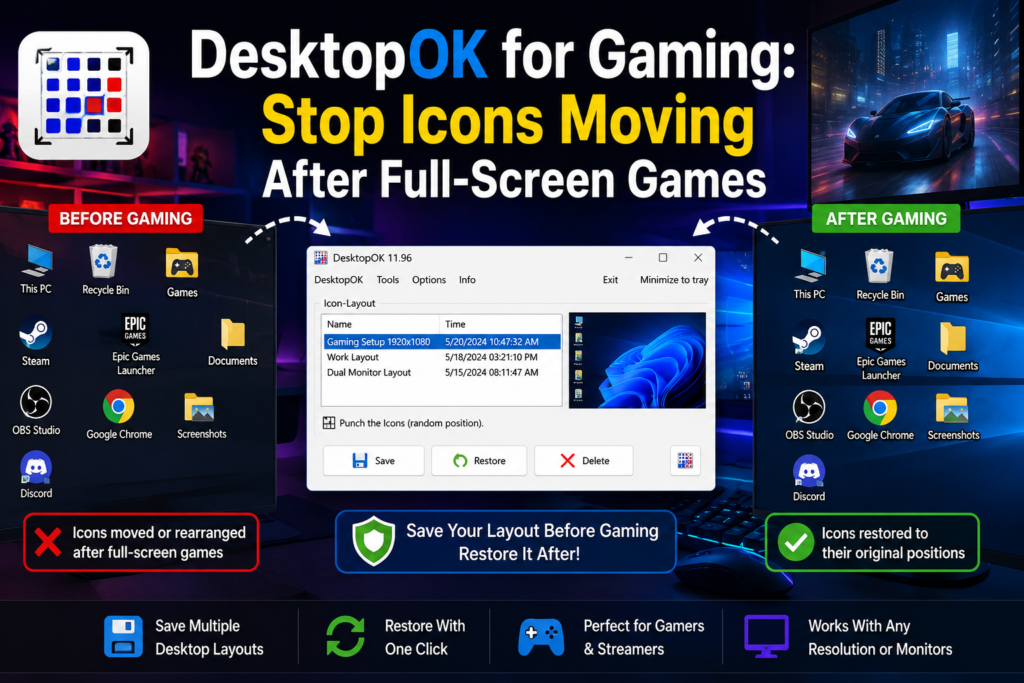
Launching a full-screen game should not leave your Windows desktop in a mess. However, some games temporarily change the screen resolution, display scaling, refresh settings, or active monitor. When Windows returns to the desktop, icons may appear in different positions, move to another monitor, or collect along one side of the screen.
DesktopOK for gaming provides a simple way to protect your preferred desktop arrangement. You can save the icon layout before starting a game and restore it afterward with only a few clicks.
DesktopOK is particularly useful for gamers who switch between different resolutions, use more than one monitor, connect a television, or regularly play older games that do not use the display’s native resolution. The developer specifically identifies games and resolution changes as common situations in which desktop icons may become rearranged.
Quick Answer
To stop full-screen games from permanently rearranging your desktop icons:
- Arrange the desktop icons in your preferred positions.
- Open DesktopOK.
- Select Save to create a new icon layout.
- Give the layout a clear name, such as “Gaming Desktop 1920×1080.”
- Start your game normally.
- After closing the game, wait for Windows to return to its normal resolution.
- Open DesktopOK and select Restore.
DesktopOK saves the positions of desktop icons and allows the saved layout to be restored whenever resolution or display changes move them.
Why Do Desktop Icons Move After Playing Games?
Desktop icons are positioned according to the usable desktop area, screen resolution, icon spacing, scaling, and monitor arrangement. When one of these display conditions changes, Windows may recalculate where the icons should appear.
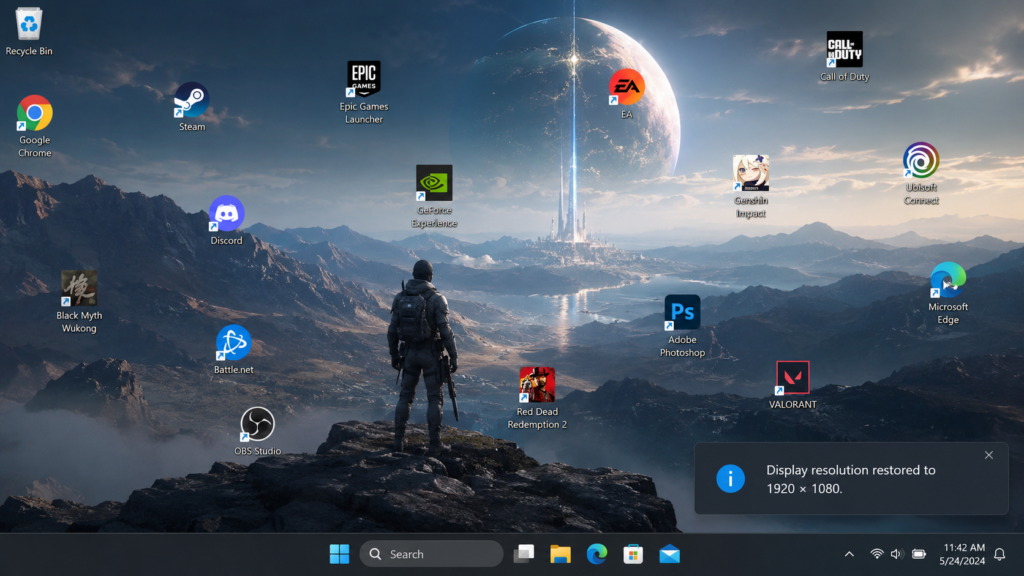
Microsoft recommends using the display’s marked Recommended resolution because lower or different resolutions can make the desktop appear stretched, smaller, centered, or otherwise differently arranged.
The Game Changes the Screen Resolution
Some games run at a different resolution from the Windows desktop. For example, Windows may use 2560×1440 while a game is configured to run at 1920×1080.
When the available desktop area becomes smaller, Windows may move icons so they remain inside the visible screen area. The icons may not return to their original locations when the game closes.
DesktopOK is designed for users who frequently change screen resolution and can save preferred icon positions for different display configurations.
An Older Game Uses a Low Resolution
Older PC games may open at resolutions such as 1024×768, 1280×720, or another non-native setting. A temporary low-resolution desktop has less usable space, so icons positioned near the right or bottom edges may be moved.
When the original resolution returns, Windows may keep the newly calculated positions instead of restoring the previous arrangement.
Display Scaling Changes
Windows scaling controls the size of text, applications, and other interface elements. If display scaling changes during a gaming session, the amount of usable desktop space can also change.
Microsoft places scaling and display resolution together under Settings > System > Display, and recommends using the scaling and resolution values marked as recommended for the connected display.
A Second Monitor Disconnects or Becomes Inactive
A game may launch on a different display, disable an external screen, or temporarily make one monitor the primary display.
Icons stored on an inactive monitor can be moved to the remaining active screen. When the second monitor becomes available again, Windows may not automatically return every icon to its earlier location.
Graphics Driver or Windows Changes
Display-driver updates, Windows updates, monitor reconnections, and resolution adjustments can also disturb icon positions. DesktopOK’s developer lists graphics-driver updates, Windows updates, monitor changes, and gaming resolution changes among common reasons for saving an icon layout.
How DesktopOK Helps Gamers
DesktopOK creates a record of the positions of desktop icons. When a full-screen game moves those icons, the saved layout can be selected and restored.
The software does not need to remain over the game or change how the game runs. Its purpose is to save and restore the Windows desktop arrangement.
Save Your Preferred Gaming Desktop
Before launching a game, arrange shortcuts, folders, documents, and application icons exactly where you want them.
DesktopOK records that arrangement when you select Save. The saved entry can then be used as a recovery point for the desktop.
Restore Icons After Closing the Game
After exiting the game, allow Windows a few seconds to return to its normal resolution and monitor configuration. Open DesktopOK, select the correct saved layout, and use Restore.
DesktopOK’s main controls include saving a layout, restoring a selected layout, and deleting layouts that are no longer needed.
Keep Separate Layouts for Different Resolutions
You can create multiple layouts rather than depending on a single saved arrangement.
For example:
- Gaming Desktop – 1920×1080
- Main Desktop – 2560×1440
- Dual Monitor Gaming
- Laptop Screen Only
- TV Gaming Setup
- Work and Gaming Monitors
DesktopOK supports saving preferred icon locations for different screen resolutions, making separate layouts useful when you regularly switch between displays or gaming setups.
How to Set Up DesktopOK Before Gaming
Follow these steps before starting a full-screen game.
Step 1: Set Windows to Its Normal Resolution
Open:
Settings > System > Display
Check that your main display is using its normal resolution. Microsoft generally recommends selecting the resolution marked Recommended.
Do not create the main gaming backup while Windows is temporarily using an incorrect or unusually low resolution.
Step 2: Arrange Your Desktop Icons
Move every desktop icon into the position you want to preserve.
You may organize icons by:
- Games
- Launchers
- Work applications
- Folders
- Utilities
- Streaming tools
- Recording software
Make sure no icon is partly outside the visible desktop area.
Step 3: Check the Windows Auto Arrange Setting
Right-click an empty part of the desktop and open View.
Windows provides an Auto arrange icons option. When enabled, Windows automatically places icons in an ordered arrangement. When disabled, icons can be positioned manually.
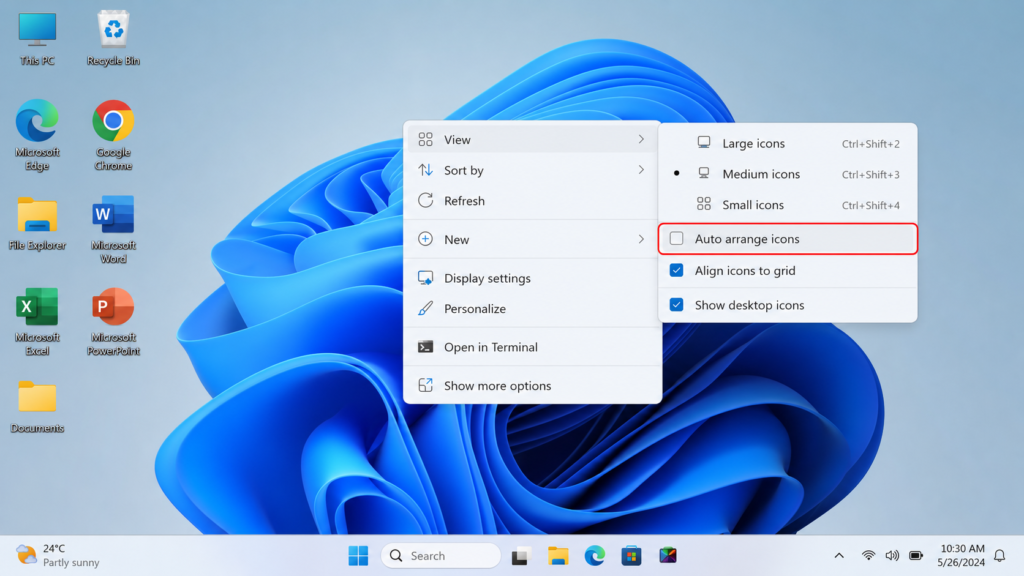
For a manually designed gaming desktop, keep Auto arrange icons disabled. You may leave Align icons to grid enabled if you want icons to remain evenly spaced.
Step 4: Open DesktopOK
Launch DesktopOK after arranging your desktop.
The portable version can be run from its extracted folder, while the installed version can be opened through its Windows shortcut.
Step 5: Save the Icon Layout
Select the Save button in DesktopOK.
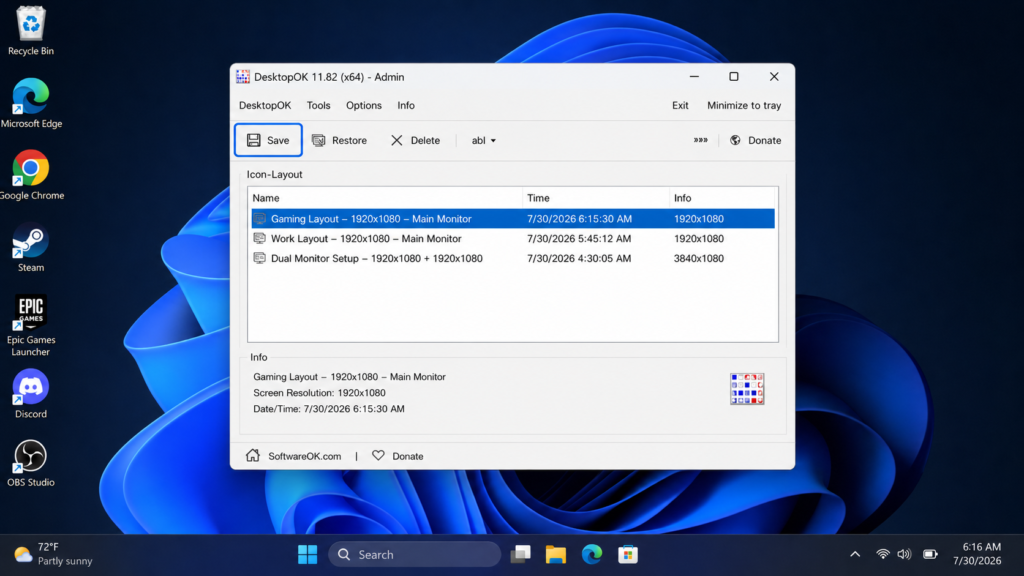
Create a descriptive name that identifies the monitor setup and resolution. For example:
Gaming Layout – 1920×1080 – Main Monitor
Clear layout names become important when several saved arrangements are available.
Step 6: Minimize DesktopOK to the System Tray
DesktopOK can remain accessible through the Windows system tray. Its help documentation explains that the application can be minimized to the tray for quick access, allowing layouts to be saved or restored without keeping the main window open.
Step 7: Launch the Game
Start the game normally.
You do not need to keep the DesktopOK window open over the game. The saved layout remains available after the game closes.
Step 8: Restore the Desktop Layout
After exiting the game:
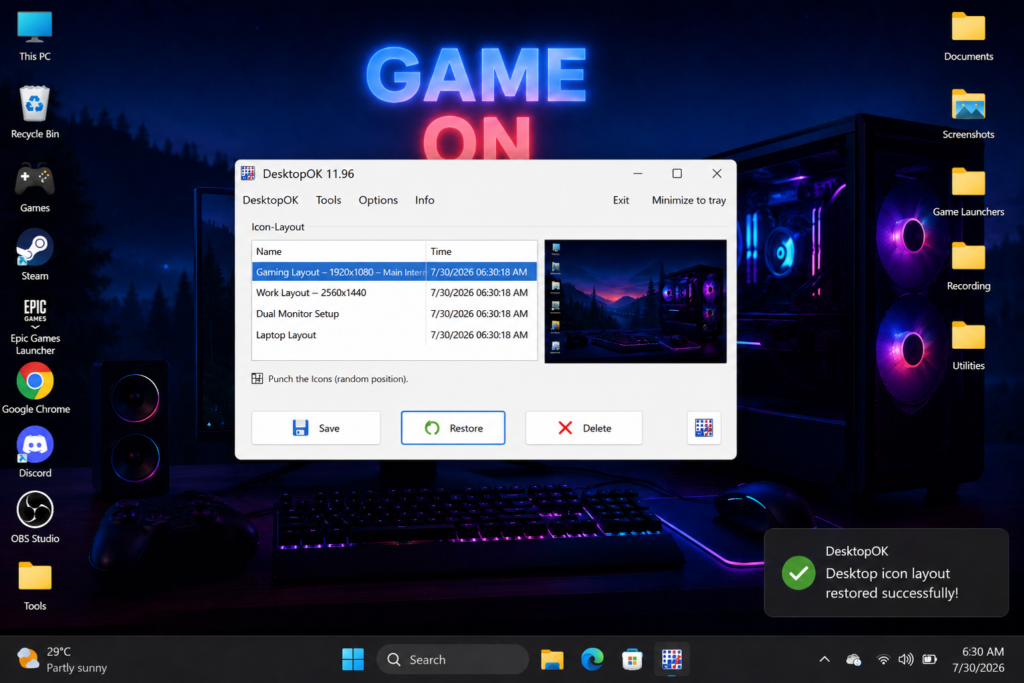
- Wait until Windows returns to the normal resolution.
- Confirm that all monitors are active.
- Open DesktopOK.
- Select the saved gaming layout.
- Choose Restore.
The icons should return to the positions stored in that layout.
Best DesktopOK Settings for Gaming
The following settings can make DesktopOK more convenient for regular gaming use.
Use Clear Layout Names
Avoid names such as “Layout 1” or “New Save.”
Include useful information in the name:
- Resolution
- Number of monitors
- Gaming or work setup
- Primary monitor
- Date, when necessary
A name such as “Gaming Dual Monitor 2560×1440” is easier to recognize than a generic title.
Save a Fresh Layout After Major Desktop Changes
Create a new save after:
- Installing a new game launcher
- Adding desktop shortcuts
- Changing monitor positions
- Replacing a monitor
- Changing display resolution
- Adjusting Windows scaling
- Moving the taskbar
- Changing desktop icon size
Do not overwrite a reliable layout until the new arrangement has been tested.
Create One Layout Per Display Configuration
A layout saved for one monitor may not match a two-monitor desktop. Similarly, a layout created at 1920×1080 may not produce the intended arrangement at 2560×1440.
Keep separate saves for every setup you use regularly.
Keep DesktopOK Available in the Tray
Minimizing DesktopOK to the tray makes it easier to restore icons immediately after closing a game. The application’s tray controls are intended to provide quick access to saved layouts.
Consider Starting DesktopOK With Windows
DesktopOK includes options for starting with Windows and saving or restoring layouts during startup or shutdown. These options can be useful when a gaming crash or display change leaves the desktop rearranged after restarting the PC.
Use automatic restoration carefully when you have multiple monitors because Windows should detect and configure every display before the saved layout is restored.
Full-Screen Gaming vs Borderless Windowed Mode
A full-screen game may use a resolution that differs from the Windows desktop. A practical way to reduce display switching is to configure the game to use the monitor’s native resolution whenever that option is available.
Borderless windowed mode may also avoid some display transitions because the game generally runs within the existing Windows desktop environment. However, behavior varies by game, graphics driver, monitor configuration, and game engine.
DesktopOK remains useful even when borderless mode is enabled because monitor reconnections, scaling changes, driver updates, or Windows updates can still rearrange icons.
Using DesktopOK With Multiple Gaming Monitors
Multi-monitor gaming requires more careful layout management because Windows tracks icons across a larger combined desktop area.
Save the Layout With Every Monitor Connected
Connect and activate all monitors before saving the layout.
If a layout is saved while one monitor is disconnected, DesktopOK records the arrangement available under that reduced display configuration.
Keep the Monitor Order Consistent
Open Settings > System > Display and check the numbered display arrangement.
Make sure the monitor positions match their physical locations. Microsoft allows displays to be selected and dragged into their correct arrangement within Display settings.
Wait Before Restoring
After closing a game, wait until Windows has detected every monitor and returned to the normal resolution.
Restoring too early may apply the saved layout while the desktop area is still changing.
Save Separate Single-Monitor and Multi-Monitor Layouts
Create at least two layouts when you frequently disconnect a gaming monitor:
- Main Monitor Only
- Full Multi-Monitor Setup
This gives you a suitable recovery option for both configurations.
What to Do When DesktopOK Does Not Restore the Correct Gaming Layout
DesktopOK may restore an unexpected arrangement when the current display environment does not match the environment used to create the layout.
Confirm the Current Resolution
Check that Windows is using the same resolution that was active when the layout was saved.
A layout created for one resolution may not align correctly when restored under another resolution.
Confirm That All Monitors Are Connected
A dual-monitor layout cannot be reproduced properly when only one monitor is active.
Reconnect the missing display, wait for Windows to detect it, and restore the layout.
Select the Correct Saved Layout
Review the layout name, resolution, date, and monitor configuration before choosing Restore.
Clear naming prevents the wrong save from being applied.
Check Whether Auto Arrange Is Enabled
Right-click the desktop, open View, and check Auto arrange icons.
When automatic arrangement is active, Windows may reorganize icons instead of preserving manually selected positions. Microsoft documents that disabling Auto Arrange allows icons to be positioned manually.
Check Whether the Shortcuts Still Exist
DesktopOK can restore positions for icons that Windows can still identify. It cannot restore a deleted shortcut, an uninstalled game, or a desktop file that has been moved to another folder.
Recreate the missing shortcut before saving a new layout.
Save a New Layout After Hardware Changes
Create a fresh layout after replacing a monitor, graphics card, dock, television, or display cable.
Hardware changes can alter the monitor identity, resolution, scaling, and available desktop area.
Use an Updated DesktopOK Version
The developer repeatedly recommends using the latest DesktopOK release when troubleshooting layout-saving and restoration features.
Can DesktopOK Prevent Games From Changing Resolution?
DesktopOK does not control a game’s resolution settings. It also does not prevent Windows, a graphics driver, or a game from changing the active display mode.
Instead, it provides a recovery method. You save the correct icon arrangement before gaming and restore it if a display change causes the icons to move.
To reduce resolution switching, configure the game to use:
- The monitor’s native resolution
- The same aspect ratio as Windows
- The correct primary monitor
- A suitable borderless mode, when available
- Stable display-scaling settings
DesktopOK should be used as a layout backup rather than a graphics or game-configuration utility.
Is DesktopOK Useful for Competitive Gaming?
DesktopOK does not increase frame rate, reduce input delay, improve network latency, or change game performance.
Its value is desktop organization. It can help competitive players, streamers, content creators, and users with several launchers or monitoring applications restore a familiar workspace after a game changes the display configuration.
A consistent desktop layout can make it easier to locate:
- Game launchers
- Voice-chat applications
- Recording software
- Streaming tools
- Performance monitors
- Screenshot folders
- Configuration utilities
DesktopOK Gaming Workflow
Use this simple routine before and after gaming.
| Stage | Recommended action |
|---|---|
| Before playing | Confirm the normal Windows resolution |
| Before playing | Arrange and save the desktop layout |
| Before playing | Minimize DesktopOK to the tray |
| During the game | Play normally |
| After closing | Wait for the native resolution to return |
| After closing | Confirm all monitors are active |
| After closing | Restore the saved DesktopOK layout |
| After desktop changes | Create an updated layout backup |
Frequently Asked Questions
Why do my desktop icons move after closing a game?
A game may temporarily change screen resolution, display scaling, monitor selection, or the available desktop area. Windows may reposition icons to keep them visible under the temporary display configuration. DesktopOK’s developer identifies gaming resolution changes as a common reason for displaced icons.
Can DesktopOK stop icons from moving during a game?
DesktopOK does not block the game or Windows from changing the display configuration. It saves the preferred icon positions and restores them afterward.
Should DesktopOK remain open while I play?
The main window does not need to remain open. You can save the layout and minimize DesktopOK to the system tray for quick access after closing the game.
Does DesktopOK affect gaming performance?
DesktopOK is an icon-layout management utility rather than a gaming-performance tool. Its purpose is to save and restore desktop positions, not to change frame rates or graphics quality.
Can I create separate layouts for different games?
Yes. You can create multiple saved layouts and name them according to the game, resolution, or monitor configuration.
Should I restore the layout before or after closing the game?
Close the game first. Wait for Windows to return to its normal resolution and detect all connected monitors, and then restore the saved layout.
Can DesktopOK restore icons across two monitors?
DesktopOK can save layouts for multi-monitor configurations. For reliable results, save and restore the layout while the same monitors are connected and arranged in the same order. The software is intended for users with changing resolutions and multi-display desktop structures.
What happens if the game crashes?
After Windows returns to the desktop, open DesktopOK and restore the saved layout. Starting DesktopOK with Windows may also provide easier access after a forced restart.
Should I disable Auto Arrange Icons?
Disable Auto Arrange when you want to position icons manually. Windows documentation explains that Auto Arrange automatically organizes icons, while removing the setting allows manual placement.
Can DesktopOK recover deleted game shortcuts?
No. It can restore the position of an existing desktop icon, but it cannot recreate a shortcut or file that has been deleted.
Does it work with Windows 11?
DesktopOK supports saving and restoring desktop icon layouts on Windows 11, including layouts affected by resolution changes or screen rotation.
How many gaming layouts should I save?
Save at least one layout for every resolution and monitor configuration you regularly use. Users with a laptop screen, external monitor, and television may benefit from three separate layouts.
Conclusion
DesktopOK for Gaming is a practical solution when full-screen games, older resolutions, graphics changes, or multi-monitor setups rearrange desktop icons. It does not modify the game or prevent resolution changes, but it gives you a reliable way to recover your preferred desktop organization.
Arrange the icons once, save the layout under a clear name, and restore it after Windows returns to the normal display configuration. Gamers who use multiple resolutions or monitors should keep separate layouts for each setup and update those saves whenever their desktop organization changes.
With a saved DesktopOK gaming layout available, you no longer need to manually reorganize every shortcut after leaving a full-screen game.