
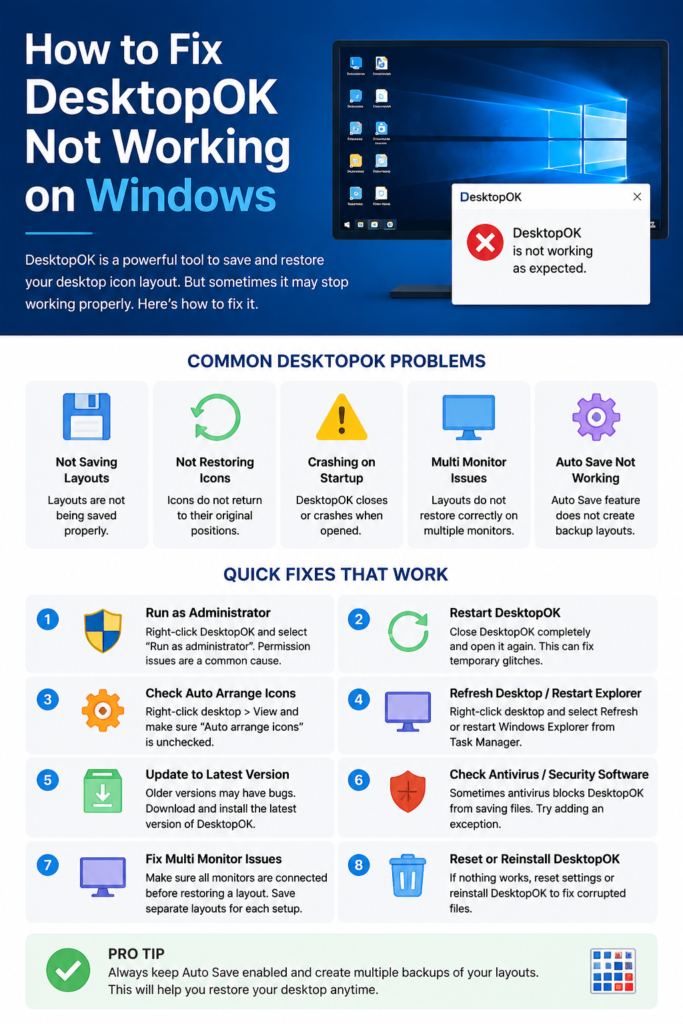
If DesktopOK is not working on Windows, first close and reopen the program, confirm that your desktop layout was saved correctly, and check whether Windows Auto Arrange Icons is enabled. Problems can also occur with permissions, Auto Save settings, monitor changes, or outdated DesktopOK versions.
If DesktopOK saves a layout but does not restore icon positions correctly, make sure you are selecting the correct saved profile and that your monitor, resolution, and display scaling match the setup used when the layout was saved.
This guide covers the most common DesktopOK problems on Windows 11 and other supported Windows versions, including layout saving and restoring, startup issues, Auto Save, permissions, and multi-monitor issues.
Quick Info
Software: DesktopOK
Developer: SoftwareOK
License: Freeware
Platform: Windows
Website Note: DesktopOK.net is an independent informational guide. SoftwareOK develops DesktopOK.
Common DesktopOK Problems
Users typically encounter one of the following issues:
- DesktopOK is not saving layouts
- DesktopOK is not restoring icons
- DesktopOK not opening
- DesktopOK is crashing on startup
- Auto Save feature not working
- Multi-monitor layouts are not restoring correctly
- Desktop icons remain misplaced after restoration
Before attempting advanced fixes, identify which issue you are experiencing.
Restart DesktopOK
The simplest solution is often the most effective.
Steps
- Close DesktopOK completely.
- Open Task Manager.
- Ensure no DesktopOK process is running.
- Launch DesktopOK again.
Temporary glitches can often be resolved with a simple restart.
Run DesktopOK as Administrator
Windows permissions sometimes prevent DesktopOK from saving layout information properly.
Steps
- Right-click DesktopOK.
- Select Run as administrator.
- Try saving and restoring a layout.
If the issue disappears, Windows permission restrictions were likely causing the problem.
Verify Desktop Layout Saving
Some users believe DesktopOK is not working when the layout was never saved successfully.
Test Procedure
- Save a new layout.
- Move several desktop icons.
- Restore the saved layout.
If the icons return to their original positions, DesktopOK is functioning correctly.
Update to the Latest Version
Older versions may experience compatibility issues with newer Windows updates.
Why Updating Helps
- Bug fixes
- Improved Windows 11 support
- Better monitor detection
- Stability improvements
Always use the latest DesktopOK release whenever possible.
Check Windows Desktop Settings
Windows can automatically rearrange icons under certain conditions.
Disable Auto Arrange Icons
- Right-click on the desktop.
- Select View.
- Disable Auto Arrange Icons if enabled.
This setting can interfere with DesktopOK restoration processes.
Fix DesktopOK Not Saving Layouts
If DesktopOK cannot save new layouts, try the following:
Check Write Permissions
Ensure DesktopOK has permission to write files in its folder.
Move the Application
Avoid running DesktopOK from protected system folders.
Good locations include:
- Desktop
- Documents
- Downloads
- Dedicated utility folders
Test Portable Version
The portable version often helps identify permission-related problems.
Fix DesktopOK Not Restoring Icons
Sometimes layouts save successfully, but restoration fails.
Verify Correct Layout Selection
Ensure the correct saved profile is selected before restoring.
Refresh Desktop
After restoring:
- Right-click the desktop.
- Select Refresh.
This forces Windows to redraw icon positions.
Restart Windows Explorer
- Open Task Manager.
- Locate Windows Explorer.
- Click Restart.
This often resolves desktop display inconsistencies.
Fix Auto Save Not Working
DesktopOK Auto Save requires proper configuration.
Check Auto Save Settings
Open DesktopOK settings and verify:
- Auto Save is enabled
- Save intervals are configured
- DesktopOK remains running
Keep DesktopOK Active
Closing the application may disable automatic backup operations.
For best results, allow DesktopOK to run in the background.
Quick Fixes to Try First
If DesktopOK is not opening, extract the ZIP file properly and run DesktopOK.exe again. If layouts are not restoring, select the correct saved layout profile. If icons keep moving, check Windows desktop arrangement settings and create separate layouts for different monitor or resolution setups.
Fix Multi-Monitor Issues
Multi-monitor environments can introduce additional challenges.
Save Separate Layouts
Create unique profiles for:
- Single monitor mode
- Dual monitor mode
- Triple monitor mode
Connect Monitors Before Restoring
Always restore layouts after all displays are connected.
Update Graphics Drivers
Outdated graphics drivers may cause monitor detection problems.
Keeping display drivers current improves compatibility.
Check Security Software Notifications
Some antivirus or security tools may occasionally flag small utility programs or block them from writing configuration files.
If DesktopOK stops saving settings or does not launch correctly:
- Check your antivirus or Windows Security notification history.
- Confirm whether DesktopOK was blocked or quarantined.
- If you downloaded DesktopOK from a trusted source and believe the detection is a false positive, review the security alert details before allowing the file.
- Avoid disabling your antivirus protection completely just to test the program.
If the issue started after a security-software update, download a fresh copy of DesktopOK from the developer’s official source and test again.
Reset DesktopOK Settings
Corrupted configuration files can sometimes cause unexpected behavior.
Steps
- Close DesktopOK.
- Back up existing settings.
- Remove configuration files.
- Restart DesktopOK.
The application will automatically generate fresh settings.
Download a Fresh Copy of DesktopOK
If DesktopOK still does not work after trying the previous fixes, replace the current program files with a fresh copy.
Before doing this, back up any DesktopOK settings or saved layouts that you want to keep.
Steps
- Close DesktopOK completely.
- Back up your existing settings and saved layouts.
- Download a fresh copy of DesktopOK from the developer’s official source.
- Extract the downloaded ZIP file to a new folder.
- Launch DesktopOK and test it with a new layout.
- If it works correctly, restore any settings or layouts you backed up.
This can help when the existing program files are incomplete, outdated, or damaged.
DesktopOK Not Working After Windows Update
If DesktopOK stops saving or restoring icon layouts after a Windows update, first restart Windows and check whether your display configuration changed during the update.
Try These Fixes
- Restart Windows and DesktopOK.
- Check that the correct monitor is set as the primary display.
- Verify that screen resolution and display scaling have not changed.
- Open DesktopOK and select the correct saved layout.
- Save a new layout if the previous one was created with a different monitor or resolution configuration.
- Update DesktopOK if a newer version is available.
If the problem only affects icon positions after restarting Windows, also check whether Auto Arrange Icons is enabled on the desktop.
Prevent Future Problems
Follow these best practices:
Keep DesktopOK Updated
Use the latest available version.
Create Multiple Backups
Maintain several layout profiles.
Enable Auto Save
Automatic backups provide extra protection.
Use Consistent Monitor Configurations
Frequent display changes increase the likelihood of desktop layout issues.
Backup Important Profiles
Store important layouts before making major system changes.
Frequently Asked Questions
Why does DesktopOK not restore icons correctly?
This usually occurs due to monitor changes, Windows settings, or an incorrect layout selection.
Does DesktopOK work on Windows 11?
Yes. Current versions support Windows 11.
Can antivirus software block DesktopOK?
In rare situations, security software may interfere with file creation or settings storage.
Does reinstalling DesktopOK delete layouts?
Existing layouts may be removed unless they are backed up beforehand.
Why is DesktopOK not saving my icon layout?
DesktopOK may fail to save a layout if it cannot write its settings correctly, if the program files are incomplete, or if the application is running from a restricted folder. Try moving DesktopOK to a normal user folder, confirm write access, and create a fresh layout again.
Why does DesktopOK restore icons to the wrong positions?
This usually happens when the saved layout was created with a different monitor setup, screen resolution, scaling value, or primary display. Match the current display configuration to the one used when the layout was saved, then restore the correct profile.
Fix DesktopOK Not Working on Windows
DesktopOK is generally a stable and reliable utility, but occasional issues can occur due to Windows updates, permission restrictions, monitor changes, or configuration problems.
Most problems can be fixed by updating the software, running it with proper permissions, checking desktop settings, or recreating layout profiles. By following the troubleshooting steps in this guide, users can quickly restore DesktopOK functionality and continue managing desktop icon layouts without frustration.