
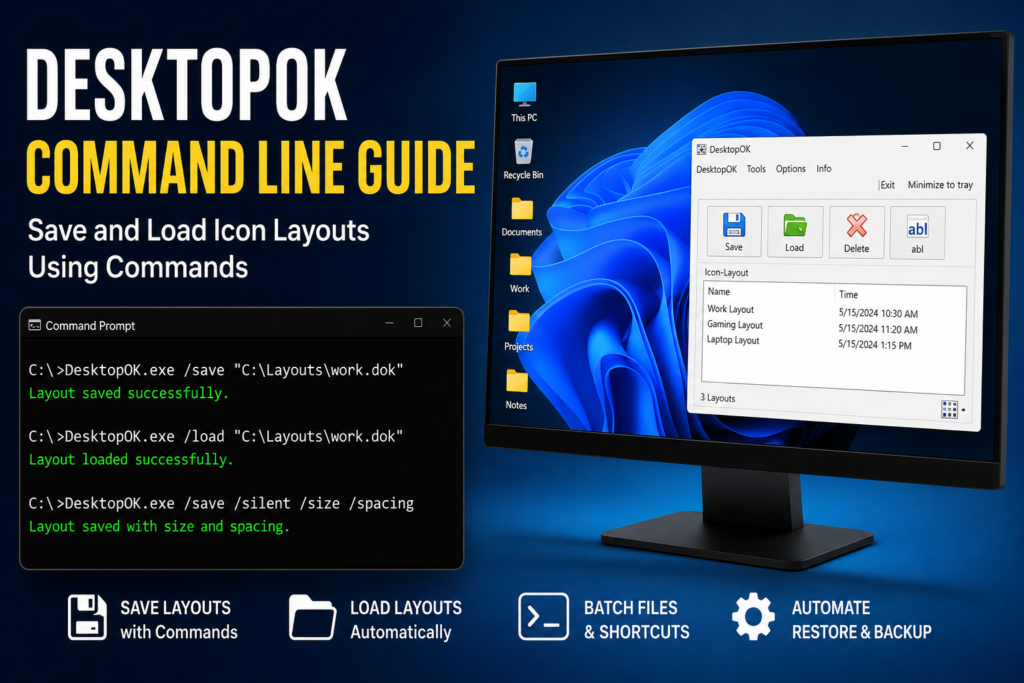
DesktopOK command-line commands let you save and restore desktop icon layouts without manually using the program’s graphical interface. This is useful for advanced Windows users who want to automate layout backups with Command Prompt, PowerShell, batch files, shortcuts, or Windows Task Scheduler.
DesktopOK can save the current icon arrangement to a .dok file and load that file later to restore the saved layout. Its command-line options include /save, /load, /silent, /spacing, /size, and /report, giving users additional control over layout backup and restoration.
This guide explains how to use DesktopOK command-line options step by step, including basic save and restore commands, one-click shortcuts, batch files, startup automation, multi-monitor layouts, and common command-line problems.
Quick answer: Use
DesktopOK.exe /savefollowed by a.dokfile path to save a layout. UseDesktopOK.exe /loadfollowed by the same file path to restore it.
What Is the DesktopOK Command Line?
The DesktopOK command line lets you run specific DesktopOK actions by typing commands rather than clicking buttons in the application.
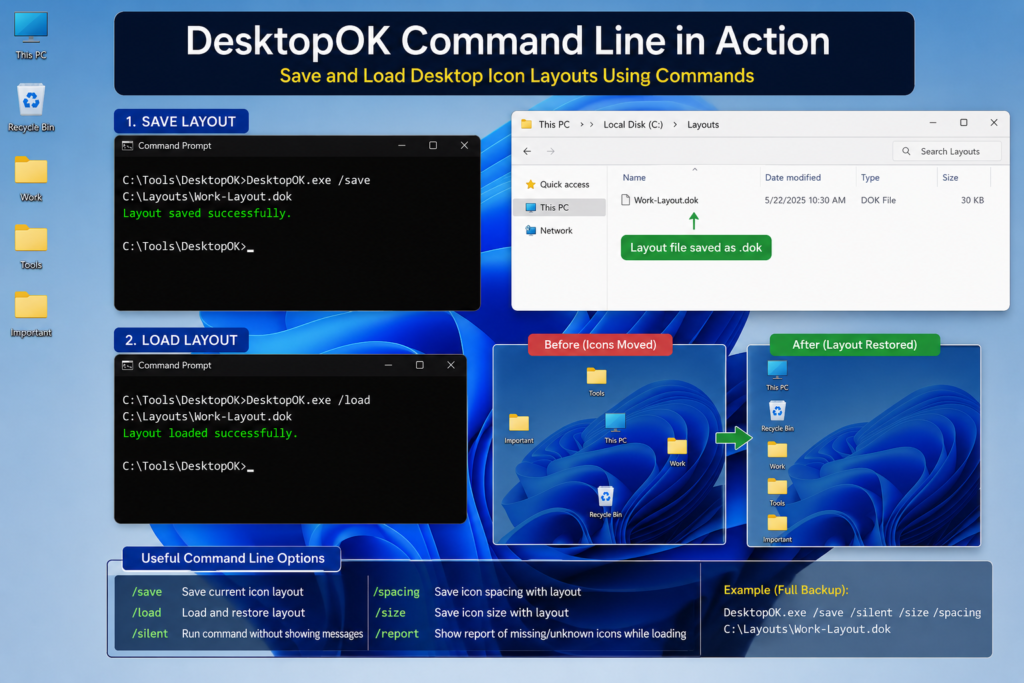
For example, this command saves your current desktop icon layout:
DesktopOK.exe /save "C:\DesktopLayouts\main-layout.dok"This command restores that layout:
DesktopOK.exe /load "C:\DesktopLayouts\main-layout.dok"DesktopOK stores exported icon layouts in files ending with the .dok extension. The developer also provides graphical options for loading and saving these files, including transferring layouts to another computer.
Why Use DesktopOK from the Command Line?
The normal DesktopOK interface is suitable for most users, but commands provide additional flexibility.
You can use them to:
- Save an icon layout with one shortcut.
- Restore a layout without opening the main window.
- Create separate layouts for different monitors.
- Run automatic backups through batch files.
- Restore icons when Windows starts.
- Save icon size and spacing with the layout.
- Check which icons could not be restored.
- Integrate DesktopOK into an existing Windows script.
Command-line automation is especially useful on PCs where icons regularly move after restarting Windows, changing resolution, connecting another display, or launching full-screen applications.
Before You Start
Complete these steps before running the commands:
- Download and extract DesktopOK.
- Create a permanent folder for the program.
- Create another folder for saved layout files.
- Arrange the desktop icons in your preferred positions.
- Confirm that Auto-arrange icons is disabled.
An example folder structure is:
C:\Tools\DesktopOK\DesktopOK.exe
C:\DesktopLayouts\
Keeping DesktopOK in a permanent location is important. A batch file or scheduled task will stop working if you later move or rename the executable.
The official developer notes that DesktopOK can be used as a portable program. A DesktopOK.ini file placed in the application folder allows the program to keep its settings there rather than using the default AppData location.
How to Open Command Prompt in the DesktopOK Folder
The simplest method is to open the Command Prompt directly inside the folder containing DesktopOK.exe.
- Open File Explorer.
- Navigate to your DesktopOK folder.
- Click the address bar.
- Type:
cmd- Press Enter.
A Command Prompt window should open with the DesktopOK folder selected.
You can now run commands beginning with:
DesktopOK.exeIf Command Prompt is open in another folder, use the complete executable path:
"C:\Tools\DesktopOK\DesktopOK.exe"Always put quotation marks around paths containing spaces.
How to Save a Desktop Icon Layout Using a Command
Arrange your desktop icons exactly where you want them, then run:
DesktopOK.exe /save "C:\DesktopLayouts\main-layout.dok"If Command Prompt is not open inside the DesktopOK directory, use:
"C:\Tools\DesktopOK\DesktopOK.exe" /save "C:\DesktopLayouts\main-layout.dok"This creates a layout file named:
main-layout.dok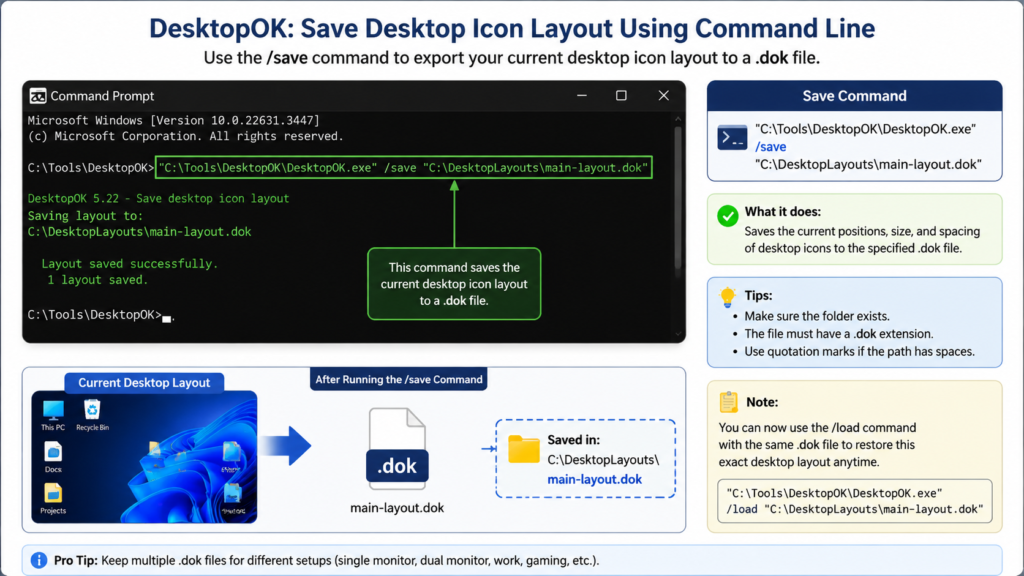
DesktopOK’s official command-line example uses /save followed by a .dok destination path. It also confirms that paths containing spaces can be placed inside quotation marks.
Save without displaying error messages
Add the /silent parameter:
DesktopOK.exe /save /silent "C:\DesktopLayouts\main-layout.dok"According to the official documentation, /silent prevents DesktopOK from displaying error messages during command processing. This option is useful for scheduled tasks and unattended scripts.
Important file-extension rule
The saved filename should end with:
.dokFor example:
work-layout.dok
gaming-layout.dok
dual-monitor-layout.dok
The developer describes the .dok requirement as protection against accidentally overwriting unrelated system files.
How to Load an Icon Layout Using a Command
To restore the saved layout, run:
DesktopOK.exe /load "C:\DesktopLayouts\main-layout.dok"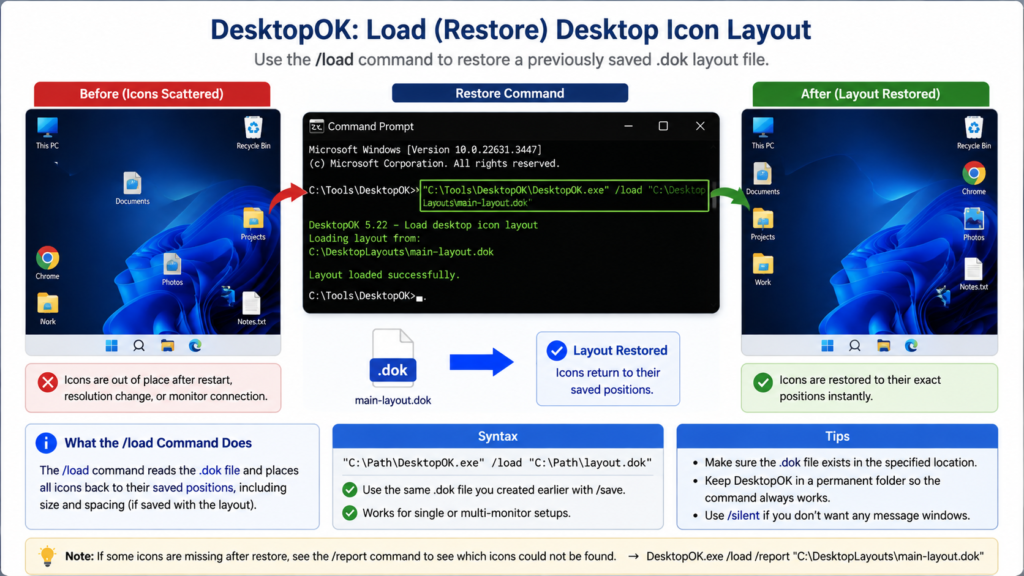
Using a complete program path:
"C:\Tools\DesktopOK\DesktopOK.exe" /load "C:\DesktopLayouts\main-layout.dok"DesktopOK will read the saved .dok file and attempt to return the available desktop icons to their recorded positions.
The official command-line instructions use /load followed by the path to the saved .dok file.
Restore silently
For an automatic restoration without error pop-ups, run:
DesktopOK.exe /load /silent "C:\DesktopLayouts\main-layout.dok"This command is suitable for:
- Windows startup scripts
- Scheduled tasks
- Custom desktop shortcuts
- Multi-monitor automation
- Gaming-mode scripts
Save Icon Spacing with the Layout
DesktopOK can include desktop icon spacing when saving a layout by using the /spacing option.
Example:
DesktopOK.exe /save /spacing "C:\DesktopLayouts\main-layout.dok"To combine it with silent mode:
DesktopOK.exe /save /silent /spacing "C:\DesktopLayouts\main-layout.dok"The /spacing parameter is documented by the developer as an option for saving icon spacing with a layout.
This option can be helpful when Windows changes the horizontal or vertical distance between desktop icons.
Save Desktop Icon Size
To save the current desktop icon size, add /size:
DesktopOK.exe /save /size "C:\DesktopLayouts\main-layout.dok"You can combine size and spacing:
DesktopOK.exe /save /silent /size /spacing "C:\DesktopLayouts\main-layout.dok"The official DesktopOK documentation lists /size as the parameter for saving icon size and /spacing for saving spacing.
A complete layout-backup command could therefore be:
"C:\Tools\DesktopOK\DesktopOK.exe" /save /silent /size /spacing "C:\DesktopLayouts\complete-layout.dok"Display a Restore Report
DesktopOK includes a /report parameter that can show which icons were found or could not be resolved during restoration.
Example:
DesktopOK.exe /load /report "C:\DesktopLayouts\main-layout.dok"The developer states that /report works together with /load and displays a list of resolved or unresolved desktop symbols.
Use this option when:
- Some icons do not return to their saved positions.
- A shortcut has been deleted.
- A file has been moved to another folder.
- An application shortcut has changed.
- The layout was created on another computer.
If an icon no longer exists, DesktopOK cannot restore its position until the corresponding desktop item is available again.
DesktopOK Command-Line Options Summary
| Parameter | Purpose | Example |
|---|---|---|
/save | Saves the current desktop icon layout | /save layout.dok |
/load | Loads and restores a saved layout | /load layout.dok |
/silent | Suppresses error messages | /save /silent layout.dok |
/spacing | Includes desktop icon spacing | /save /spacing layout.dok |
/size | Includes desktop icon size | /save /size layout.dok |
/report | Reports found or unresolved icons during loading | /load /report layout.dok |
These options are documented on the official DesktopOK command-line help page.
Create a One-Click Layout Backup Shortcut
You can create a desktop shortcut that saves the layout without opening Command Prompt manually.
- Right-click an empty part of the desktop.
- Select New > Shortcut.
- Enter this command:
"C:\Tools\DesktopOK\DesktopOK.exe" /save /silent /size /spacing "C:\DesktopLayouts\main-layout.dok"- Select Next.
- Name it:
Save Desktop Layout- Select Finish.
Double-clicking this shortcut will update the specified .dok layout file.
Be careful: saving to the same filename may replace the previously stored layout. Use separate filenames when you want to preserve multiple arrangements.
Create a One-Click Restore Shortcut
Create another shortcut using:
"C:\Tools\DesktopOK\DesktopOK.exe" /load /silent "C:\DesktopLayouts\main-layout.dok"Name it:
Restore Desktop LayoutYou can now restore your preferred icon positions with a double-click.
Create a Batch File to Save the Layout
A batch file is useful when you want to combine DesktopOK with other commands.
Open Notepad and paste:
@echo off

set "DESKTOPOK=C:\Tools\DesktopOK\DesktopOK.exe"
set "LAYOUT=C:\DesktopLayouts\main-layout.dok"

"%DESKTOPOK%" /save /silent /size /spacing "%LAYOUT%"

exit /b
Save the file as:
save-desktop-layout.batIn the Save as type field, select All Files so Notepad does not add .txt to the filename.
Create a Batch File to Restore the Layout
Use this script:
@echo off

set "DESKTOPOK=C:\Tools\DesktopOK\DesktopOK.exe"
set "LAYOUT=C:\DesktopLayouts\main-layout.dok"

"%DESKTOPOK%" /load /silent "%LAYOUT%"

exit /b
Save it as:
restore-desktop-layout.batDouble-click the batch file whenever Windows rearranges the desktop icons.
Save Different Layouts for Different Uses
You do not have to use only one .dok file. Create separate layout files for different situations.
Main work layout
DesktopOK.exe /save /silent "C:\DesktopLayouts\work-layout.dok"Gaming layout
DesktopOK.exe /save /silent "C:\DesktopLayouts\gaming-layout.dok"Laptop-only layout
DesktopOK.exe /save /silent "C:\DesktopLayouts\laptop-layout.dok"Dual-monitor layout
DesktopOK.exe /save /silent "C:\DesktopLayouts\dual-monitor-layout.dok"Restore the appropriate file when your monitor configuration changes:
DesktopOK.exe /load /silent "C:\DesktopLayouts\dual-monitor-layout.dok"DesktopOK supports saving multiple icon arrangements and is intended for situations where users change screen resolutions or display configurations.
Automatically Restore the Layout at Windows Startup
You can place a restore batch file in the Windows Startup folder.
- Press Windows + R.
- Enter:
shell:startup- Press Enter.
- Place a shortcut to
restore-desktop-layout.batin the folder. - Restart Windows and test the result.
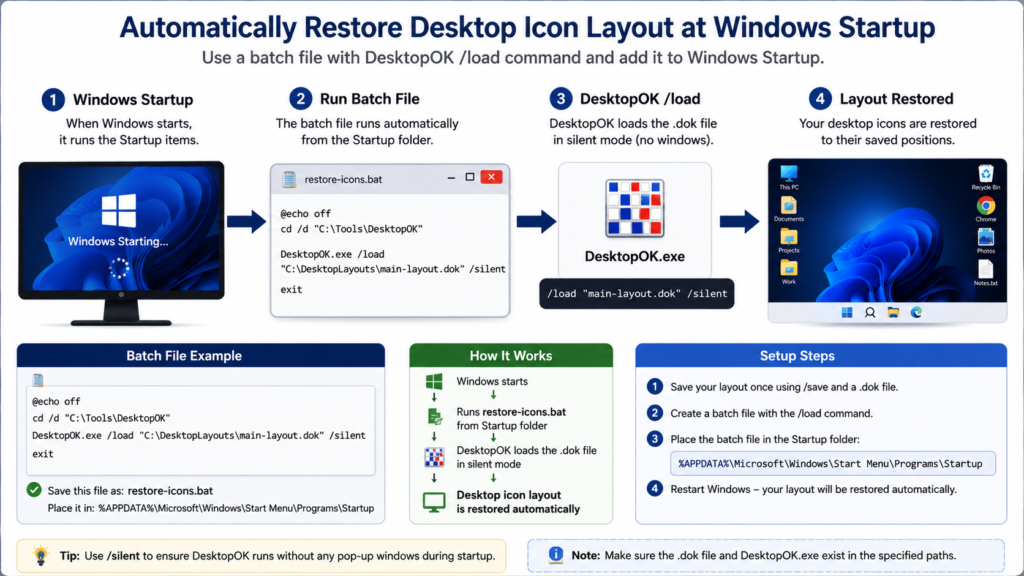
Alternatively, DesktopOK includes built-in options to start with Windows, save a layout during shutdown, and restore it during Windows startup.
Using the built-in startup option may be easier for beginners. A command-line startup script offers greater control over which exact .dok file is restored.
Restore the Layout with a Short Delay
Windows may need a few seconds to detect all monitors during login. If DesktopOK restores the layout too early, add a delay to your batch file:
@echo off

timeout /t 10 /nobreak >nul

"C:\Tools\DesktopOK\DesktopOK.exe" /load /silent "C:\DesktopLayouts\dual-monitor-layout.dok"

exit /b
This example waits 10 seconds before restoring the layout.
A delay may help when:
- An external monitor takes time to wake up.
- A docking station is detected after login.
- Windows temporarily starts at a lower resolution.
- Display scaling is applied after the desktop appears.
Common DesktopOK Command-Line Problems
“DesktopOK.exe is not recognized”
This means Command Prompt cannot find the executable.
Use the complete path:
"C:\Tools\DesktopOK\DesktopOK.exe" /save "C:\DesktopLayouts\main-layout.dok"Also, verify that the executable filename has not been changed.
The path contains spaces
Place the entire path inside quotation marks:
DesktopOK.exe /save "C:\My Desktop Layouts\main layout.dok"The layout file is not created
Check that:
- The destination folder already exists.
- Your account has permission to write to the folder.
- The filename ends with
.dok. - The file is not being saved inside a protected Windows directory.
- The command contains the correct path.
The developer recommends avoiding protected Windows folders when using DesktopOK in portable mode.
Icons are not restored correctly
Right-click the desktop and open View. Make sure Auto-arrange icons is disabled.
The DesktopOK developer identifies automatic icon arrangement as one of the most common reasons a restored layout does not remain in the expected positions.
Also check that:
- The same monitor is connected.
- The resolution matches the saved layout.
- Display scaling has not changed.
- The desktop shortcut still exists.
- You selected the correct
.dokfile.
The command runs, but nothing appears
If you used /silent, DesktopOK may complete the action without displaying a message. Remove /silent temporarily while testing:
DesktopOK.exe /load "C:\DesktopLayouts\main-layout.dok"Once the command works correctly, add /silent again.
Some icons are missing
Use the report option:
DesktopOK.exe /load /report "C:\DesktopLayouts\main-layout.dok"This can help identify icons that no longer exist or could not be matched.
Best Practices for DesktopOK Commands
Use these practices to avoid losing a working layout:
- Create the destination folder before running the command.
- Always use filenames ending in
.dok. - Use quotation marks around full paths.
- Test commands without
/silentfirst. - Keep DesktopOK in a permanent folder.
- Create separate files for different monitors and resolutions.
- Back up important
.dokfiles. - Use
/reportwhen restoration is incomplete. - Do not overwrite your only working layout during testing.
- Use the latest stable DesktopOK version.
Frequently Asked Questions
Can DesktopOK save layouts from the Command Prompt?
Yes. Use /save followed by the destination .dok file:
DesktopOK.exe /save "C:\DesktopLayouts\layout.dok"DesktopOK officially supports saving and loading layouts through command-line parameters.
How do I restore a DesktopOK layout from a command?
Use:
DesktopOK.exe /load "C:\DesktopLayouts\layout.dok"What does /silent do?
It prevents DesktopOK from displaying error messages while the command runs. It is useful for unattended scripts and scheduled automation.
What is a .dok file?
A .dok file is used by DesktopOK to store exported desktop icon-layout information. It can be loaded later or transferred to another computer.
Can command-line layouts include icon size and spacing?
Yes. Use /size and /spacing while saving:
DesktopOK.exe /save /size /spacing "C:\DesktopLayouts\layout.dok"Both options are documented by the developer.
Can I automatically restore a layout when Windows starts?
Yes. You can use a startup batch file or enable DesktopOK’s built-in Windows startup restoration option.
Does DesktopOK need to be installed?
No. DesktopOK supports portable use. The application and its configuration can be kept in a dedicated folder.
Conclusion
DesktopOK command-line options offer a fast and flexible way to save and restore Windows desktop icon layouts. The two most important commands are:
DesktopOK.exe /save "C:\DesktopLayouts\layout.dok"and:
DesktopOK.exe /load "C:\DesktopLayouts\layout.dok"Advanced users can add /silent, /size, /spacing, and /report, then place the commands inside shortcuts or batch files.
Start by testing one manual save and restore command. Once both commands work, you can automate them during Windows startup or use separate .dok files for work, gaming, laptop, and multi-monitor layouts.