
Learning how to run DesktopOK automatically at Windows startup ensures that the utility is available as soon as you sign in. You no longer need to locate and open DesktopOK manually after every restart, and features such as automatic layout saving, system-tray access, or startup restoration can begin without an additional step.
DesktopOK includes its own Windows startup option, which is usually the easiest method. However, the built-in option may not work when the executable has been moved, the program is running from a temporary folder, Windows has disabled its startup entry, or the portable version is stored on an unavailable drive.
This guide explains four reliable startup methods, shows how to keep DesktopOK minimized in the notification area, and provides practical fixes when it does not launch after signing in.
Why Start DesktopOK Automatically?
DesktopOK can save and restore the positions of Windows desktop icons. It is especially useful when icon layouts change after a resolution adjustment, display-driver update, full-screen game, Remote Desktop session, or multi-monitor switch.
Starting the program automatically provides several benefits:
- DesktopOK remains available in the notification area.
- Auto Save can begin without manually opening the program.
- Saved layouts can be accessed immediately after sign-in.
- A selected layout can be restored during startup.
- Shutdown and startup layout options can work consistently.
- Users with multiple monitors do not have to launch the utility after every display change.
Automatic startup does not mean that DesktopOK must remain visible on the screen. It can launch and then stay minimized in the system tray.
Before You Configure DesktopOK Startup
Place DesktopOK in a permanent folder before creating any startup entry.
A suitable location is:
C:\Tools\DesktopOK
Avoid running it directly from:
- A compressed ZIP archive
- The browser’s temporary download directory
- A disposable extraction folder
- An external drive that is not always connected
- A network folder that loads slowly
- A folder that you regularly rename or move
The official DesktopOK troubleshooting guidance specifically recommends checking that the program is not being launched from a temporary directory when its Windows startup option fails.
After moving the program, open it from the permanent location and confirm that it runs normally. When using the portable edition, keep DesktopOK.exe and its related configuration file together unless you intentionally use a different configuration location.
Method 1: Enable Start DesktopOK with Windows
The built-in startup option is the recommended method for most users because it does not require manually creating a shortcut or scheduled task.
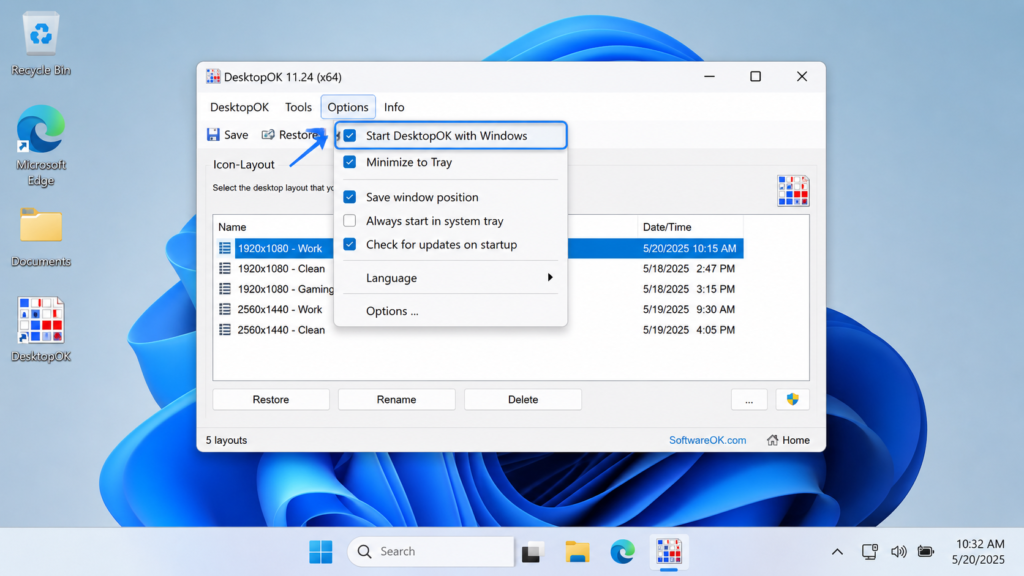
Steps to enable the option
- Open
DesktopOK.exe. - Open the Options menu.
- Find the startup-related settings.
- Enable Start DesktopOK with Windows.
- Enable Minimize to Tray when you do not want the main window to remain visible.
- Close the DesktopOK window normally.
- Restart Windows.
- Sign in and check the notification area.
The DesktopOK developer confirms that the Start DesktopOK with Windows option must be activated when the program should launch automatically at login.
The wording and menu position can differ slightly between versions or interface languages. Look for options containing terms such as “Start with Windows,” “Windows Startup,” or “Start DesktopOK with Windows.”
Confirm That DesktopOK Is Running
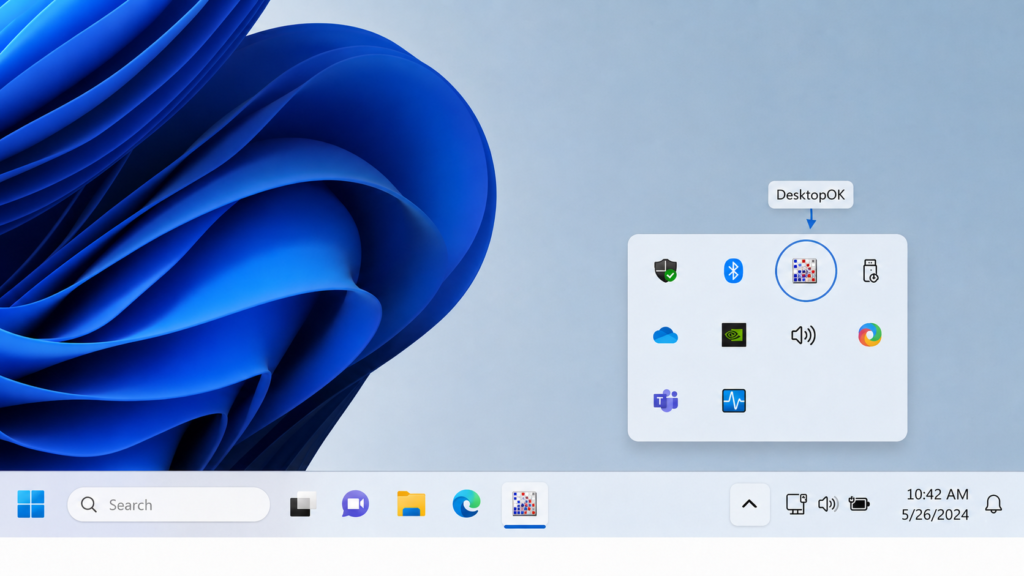
After signing in, DesktopOK may be active without displaying its main window.
Check the lower-right corner of the taskbar:
- Select the upward arrow near the clock.
- Look for the DesktopOK icon in the hidden-icons panel.
- Double-click the icon to reopen the program.
You can also press Ctrl + Shift + Esc to open Task Manager. Search for DesktopOK under Processes or Details.
When the process is visible, automatic startup is working. A missing main window is not a problem when the program is intentionally configured to minimize to the tray.
Method 2: Enable DesktopOK in Windows Startup Apps
Windows 11 and Windows 10 provide a central list for managing applications that run after sign-in.
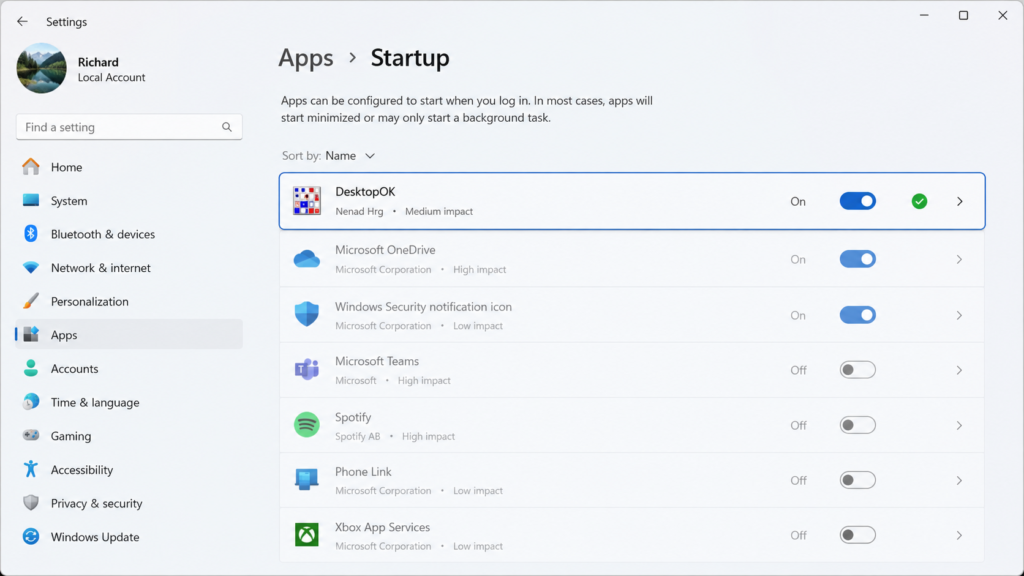
Enable DesktopOK through Settings
- Press
Windows + Ito open Settings. - Select Apps.
- Open Startup.
- Locate DesktopOK.
- Change its toggle to On.
- Restart Windows to test the setting.
Microsoft confirms that applications listed under Settings > Apps > Startup can be enabled by switching their startup toggle on. (support.microsoft.com)
DesktopOK may not appear in this list when you use the portable edition or when its startup registration was not created correctly. In that situation, use the Startup folder method instead.
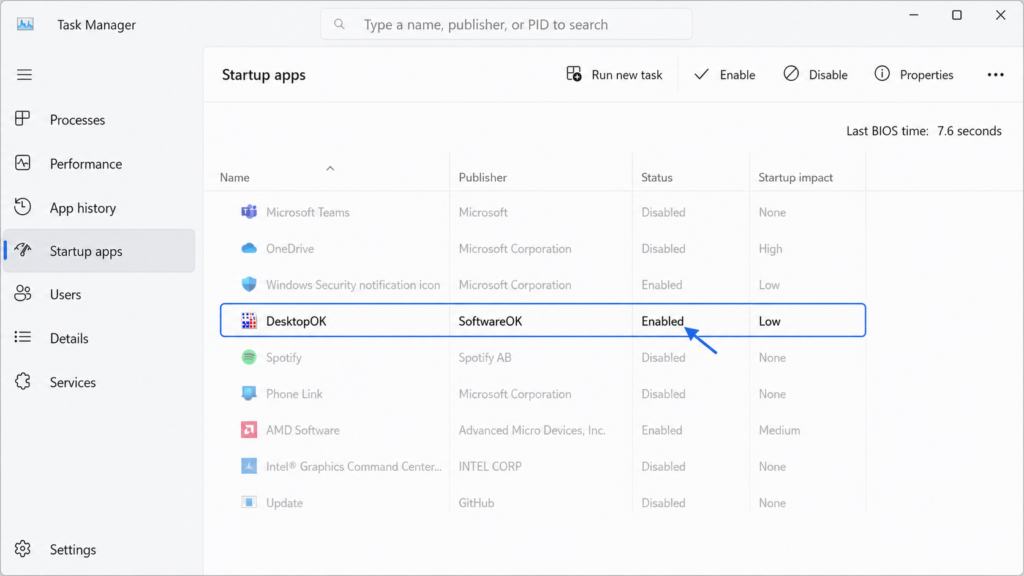
Enable it through Task Manager
You can manage the same startup behavior from Task Manager:
- Right-click the Windows Start button.
- Select Task Manager.
- Open Startup apps.
- Find DesktopOK.
- Select it.
- Click Enable.
Task Manager also displays the estimated startup impact of registered applications. Microsoft identifies Task Manager as one of the Windows tools used to adjust startup applications. (support.microsoft.com)
If DesktopOK is already marked as Enabled, do not create another startup method until you test the existing entry. Multiple startup entries can open duplicate DesktopOK processes.
Method 3: Add DesktopOK to the Startup Folder
The Windows Startup folder is a dependable alternative when DesktopOK does not appear in Startup Apps or its built-in option does not work.
Items placed in this folder are launched after the current user signs in.
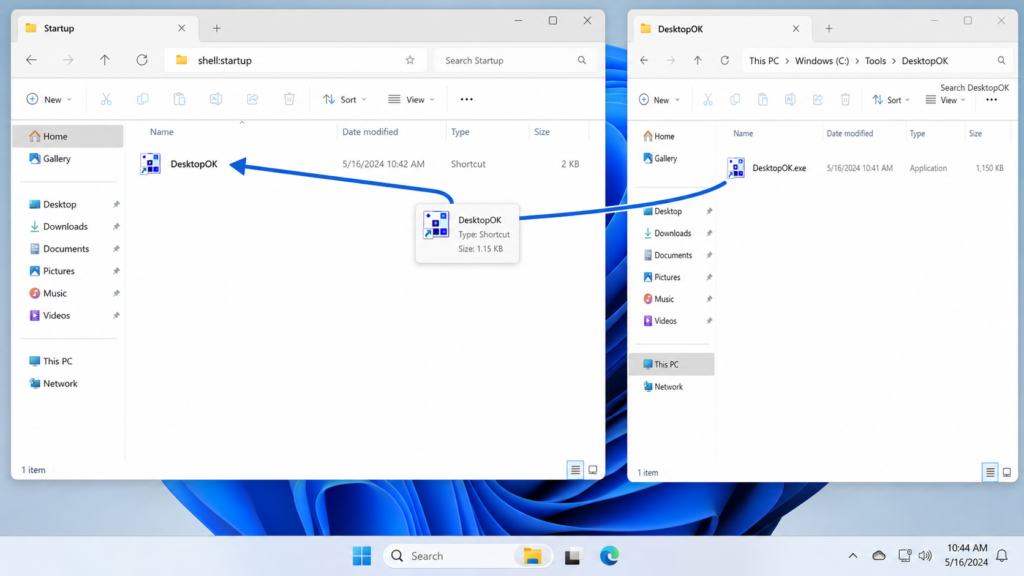
Open the current user Startup folder
- Press
Windows + R. - Enter:
shell:startup
- Press Enter.
A File Explorer window will open.
Create the DesktopOK shortcut
- Open the permanent DesktopOK folder in a second File Explorer window.
- Right-click
DesktopOK.exe. - Select Show more options when required.
- Choose Create shortcut.
- Move the new shortcut into the Startup folder.
- Restart Windows.
Do not copy the executable itself into the Startup folder unless you intentionally want a second program copy. A shortcut keeps the main files and configuration together in their permanent location.
Microsoft documents shell:startup as the startup location for applications that should run when the current user signs in. The common Startup folder can be used when an application must launch for every account on the device. (support.microsoft.com)
Current User vs All Users Startup
Windows provides two Startup folders.
Current user
Use:
shell:startup
This affects only the Windows account currently signed in.
All users
Use:
shell:common startup
This applies to all users who sign in to the computer and may require administrator permission.
For a personal computer, the current-user folder is normally the better option. It prevents DesktopOK from launching for accounts that do not use the same icon-layout configuration.
Desktop icon arrangements are user-specific, so each Windows account should maintain its own DesktopOK settings and layouts.
Configure DesktopOK to Start Minimized
Opening the full DesktopOK window after every login can be distracting. Instead, allow the application to run quietly in the notification area.
Inside DesktopOK, enable the option that minimizes the program to the tray. Depending on the version, the setting may appear as:
- Minimize to Tray
- Start Minimized
- Minimize DesktopOK to Notification Area
- Hide When Minimized
DesktopOK supports starting minimized in the tray area, allowing its background functions to remain available without keeping the main interface open. (softwareok.com)
After restarting Windows, check the hidden-icons panel rather than expecting a full application window.
Startup, Auto Save, and Auto Restore Are Different
Several DesktopOK options mention startup, but they perform different actions.
Start DesktopOK with Windows
This launches the program when you sign in. It does not automatically select or restore a layout unless a restoration option is also enabled.
Auto Save
Auto Save creates new desktop-layout records at selected intervals while DesktopOK is running.
Save on Windows Shutdown
This records the icon arrangement when Windows shuts down or the user signs out.
Restore by Windows Startup
This applies a saved startup-related layout after Windows starts.
The official DesktopOK instructions treat launching the application, saving during shutdown, and restoring during startup as separate options. Each must be enabled according to the required behavior. (softwareok.com)
Enable automatic restoration only when you want DesktopOK to reposition icons during every startup. Users who only want the utility available in the tray should enable automatic launching without forced restoration.
Recommended Setup for Most Users
A balanced setup is:
- Start DesktopOK with Windows: Enabled
- Minimize to Tray: Enabled
- Auto Save: Enabled when regular backups are needed
- Restore by Windows Startup: Disabled initially
- Manual baseline layout: Created and retained
This configuration starts DesktopOK quietly without automatically changing the icon arrangement. You can restore a saved layout manually whenever Windows moves the icons.
After confirming that the correct startup layout is consistently selected, you can consider enabling startup restoration.
Method 4: Launch DesktopOK with Task Scheduler
Task Scheduler is an advanced solution for computers where DesktopOK starts too early, fails during login, or needs a short delay while Windows Explorer and display services initialize.
A logon-triggered task can launch an executable when a specified user signs in. Microsoft documents the logon trigger as a Task Scheduler trigger designed to start a task when a user logs on. (learn.microsoft.com)
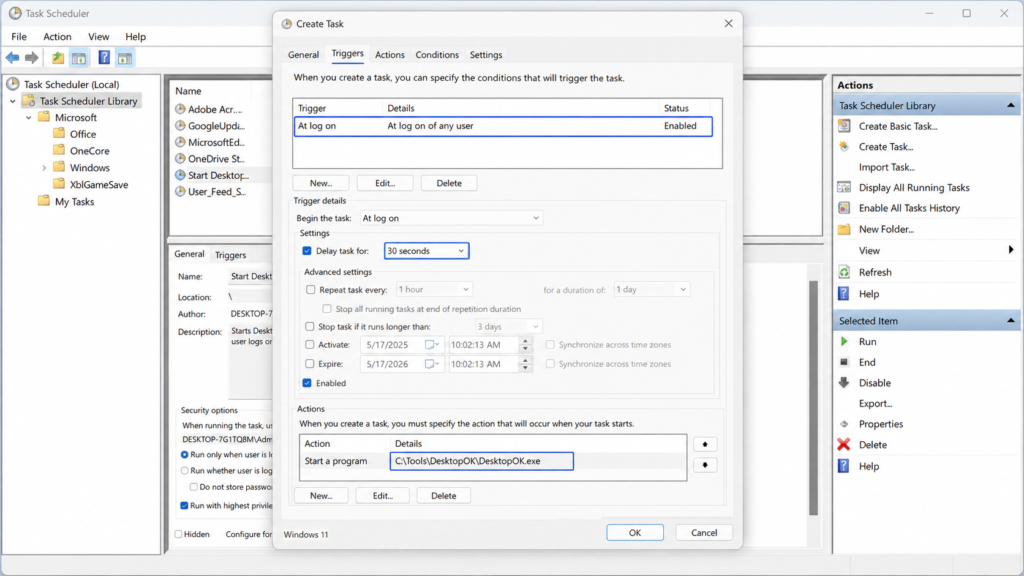
Create a basic scheduled task
- Open the Start menu.
- Search for Task Scheduler.
- Open the application.
- Select Create Task from the Actions panel.
- Enter a name such as:
Start DesktopOK at Login
- Open the Triggers tab.
- Select New.
- Choose At log on.
- Select your Windows account.
- Add a short delay when needed.
- Open the Actions tab.
- Select New.
- Choose Start a program.
- Browse to the correct
DesktopOK.exe. - Save the task.
- Sign out and sign back in to test it.
A delay of several seconds can help when monitor-management software, cloud shortcuts, graphics utilities, or Windows Explorer are still loading during sign-in.
Do not keep the Startup folder shortcut active when the scheduled task is working. Use one reliable startup method to avoid duplicate instances.
How to Test Automatic Startup Properly
Do not test by closing DesktopOK and reopening it manually. Perform a complete sign-in test.
- Open DesktopOK.
- Save a manual layout with a clear name.
- Enable your chosen startup method.
- Configure DesktopOK to minimize to the tray.
- Exit all duplicate DesktopOK processes.
- Restart Windows.
- Sign in normally.
- Wait until the desktop finishes loading.
- Check the hidden notification icons.
- Confirm the process in Task Manager.
- Open DesktopOK from the tray.
- Verify that your layouts and settings are present.
When the program launches but your saved layouts are missing, Windows may be starting a different DesktopOK copy or a different configuration file.
DesktopOK Does Not Start with Windows: Fixes
1. Check the executable path
A startup shortcut stops working when DesktopOK.exe is renamed or moved.
Right-click the Startup folder shortcut, open Properties, and inspect the Target field. It must point to the current executable.
Example:
C:\Tools\DesktopOK\DesktopOK.exe
Delete shortcuts pointing to an old Downloads folder or previous DesktopOK version.
2. Extract DesktopOK completely
Do not launch DesktopOK from inside a ZIP archive. Extract all files into a normal folder before enabling startup.
Windows may assign a temporary path to applications opened directly from compressed folders. That path can disappear after rebooting.
3. Check Windows Startup Apps
A startup entry can exist but remain disabled.
Open:
Settings > Apps > Startup
or:
Task Manager > Startup apps
Turn DesktopOK on when it appears disabled.
4. Remove duplicate startup entries
Search the following locations:
- DesktopOK built-in startup option
- Windows Startup Apps
- Current-user Startup folder
- Common Startup folder
- Task Scheduler
Using several methods simultaneously may open multiple instances, create conflicting tray icons, or load different configuration files.
Keep only one normal startup method. Use Task Scheduler only when the standard option is unreliable.
5. Confirm the portable drive is available
When DesktopOK is stored on a USB drive, it cannot start if the drive is disconnected or receives a different drive letter.
For automatic startup, keep the executable on the internal system drive. Continue using the portable copy separately when you need to carry layouts between computers.
6. Review security notifications
Windows Security or third-party protection software may block an unfamiliar executable from starting automatically.
Check the protection history for a DesktopOK-related event. Verify that the executable came from the official source before allowing it.
Do not disable antivirus protection just to make the startup entry work.
7. Avoid unnecessary administrator mode
DesktopOK generally does not need administrator privileges for normal icon-layout management.
A shortcut configured to run with elevated rights may trigger User Account Control or fail to launch silently. Open the executable properties and check whether Run this program as an administrator is enabled.
Use elevation only when a specific permission issue requires it.
8. Reset the startup registration
Disable the built-in DesktopOK startup option, close the program, reopen it, and enable the option again.
This recreates the program’s startup registration. Restart Windows after making the change.
9. Check the DesktopOK configuration
When startup settings do not remain enabled after reopening the program, DesktopOK may be unable to update its configuration.
Close the program and back up DesktopOK.ini. Confirm that the folder is writable and that the INI file is not marked read-only.
For a complete configuration repair process, read DesktopOK Auto Save Not Working: Complete Fix Guide.
DesktopOK Starts but Does Not Restore Icons
Launching DesktopOK and restoring a layout are separate operations. When the program appears in the tray but icons remain unchanged, startup itself is working.
Check the following:
- Open DesktopOK.
- Confirm that the required layout exists.
- Review the startup restoration option.
- Verify that the layout matches the current resolution.
- Check whether the correct monitor is set as primary.
- Disable Windows Auto arrange icons.
- Test the layout manually before enabling automatic restoration.
Layouts created for a laptop screen may not match a dual-monitor desktop. Create separately named layouts for each important display arrangement.
The DesktopOK Multi Monitor Setup Guide provides a more detailed workflow for monitor-specific layouts.
DesktopOK Opens Twice After Login
Two windows or tray icons usually mean that more than one startup method is active.
For example, DesktopOK may be launched by:
- Its internal startup option
- A shortcut in
shell:startup - A scheduled task
Open Task Manager and end all DesktopOK processes. Remove the unnecessary startup entries, then restart Windows.
Do not delete your configuration or saved layouts merely to resolve duplicate launching. The problem usually concerns startup registration rather than layout data.
Does DesktopOK Slow Down Windows Startup?
DesktopOK is a focused desktop utility rather than a large productivity suite. However, every startup application adds some work during sign-in.
To keep the startup process organized:
- Start only one DesktopOK instance.
- Keep the executable on the internal drive.
- Avoid launching unnecessary duplicate utilities.
- Minimize DesktopOK to the tray.
- Use a delayed scheduled task only when required.
- Review Startup Apps in Task Manager periodically.
When DesktopOK is not needed during every session, remove it from startup and launch it manually before changing monitors or screen resolutions.
Best Practices for Reliable Startup
Follow these practices to prevent future startup problems:
- Keep DesktopOK in a permanent folder.
- Do not rename the executable after creating the startup entry.
- Maintain one startup method.
- Back up
DesktopOK.inibefore resetting the program. - Create a permanent manual icon layout.
- Check the tray icon after major Windows updates.
- Recheck the startup path after updating DesktopOK.
- Use separate layouts for different monitor configurations.
- Test manual restoration before enabling automatic restoration.
- Keep Windows Auto Arrange Icons disabled when using custom icon positions.
These steps protect both the startup configuration and the saved desktop layouts.
Frequently Asked Questions
How do I make DesktopOK start automatically?
Open DesktopOK, access its Options menu, and enable Start DesktopOK with Windows. Restart Windows and check the system tray.
Can DesktopOK start minimized?
Yes. Enable its minimize-to-tray or start-minimized option so the program launches without leaving the full window open.
Why is DesktopOK missing from Windows Startup Apps?
Portable applications do not always register themselves in the Windows Startup Apps list. Use the built-in DesktopOK option or add a shortcut to shell:startup.
What should I put in the Startup folder?
Place a shortcut to DesktopOK.exe in the Startup folder. Keep the actual program in a permanent location such as C:\Tools\DesktopOK.
Does DesktopOK need to be installed?
No. The portable edition can start automatically as long as its executable is stored in a stable location and a valid startup entry points to it. DesktopOK’s official help describes it as usable without installation and capable of launching at Windows startup. (softwareok.com)
Will starting DesktopOK restore my icons automatically?
Not by itself. Launching the application and restoring a saved icon layout are controlled by separate settings.
Why does DesktopOK not start from my USB drive?
The drive may not be connected during sign-in, or Windows may assign it a different drive letter. Store the automatic-start copy on the internal drive.
Can DesktopOK run for every Windows user?
Yes. A shortcut can be placed in the common Startup folder, but each account may need its own layouts and configuration.
Why does DesktopOK open two times?
Two or more startup methods are active. Check the built-in option, Startup folders, Windows Startup Apps, and Task Scheduler.
Should I use Task Scheduler?
Use it when the normal startup option fails or DesktopOK needs to launch after a short delay. Most users do not need Task Scheduler.
Does DesktopOK require administrator permission at startup?
Normal use generally does not require administrator rights. Running it as administrator may introduce a User Account Control prompt.
How do I stop DesktopOK from starting automatically?
Disable its built-in Windows startup option, turn it off under Windows Startup Apps, or remove its shortcut from the Startup folder.
Conclusion
The simplest way to run DesktopOK automatically at Windows startup is to enable Start DesktopOK with Windows from the program’s Options menu and configure it to minimize to the notification area. When the built-in option does not work, enable DesktopOK through Windows Startup Apps or place a shortcut in the shell:startup folder.
Task Scheduler should be reserved for systems that require a delayed or more controlled launch. Regardless of the selected method, keep DesktopOK in a permanent folder, avoid duplicate startup entries, and verify the setup with a full Windows restart.
Once DesktopOK appears in the system tray after sign-in, you can use Auto Save, manual layouts, or startup restoration according to your preferred desktop-management workflow.