
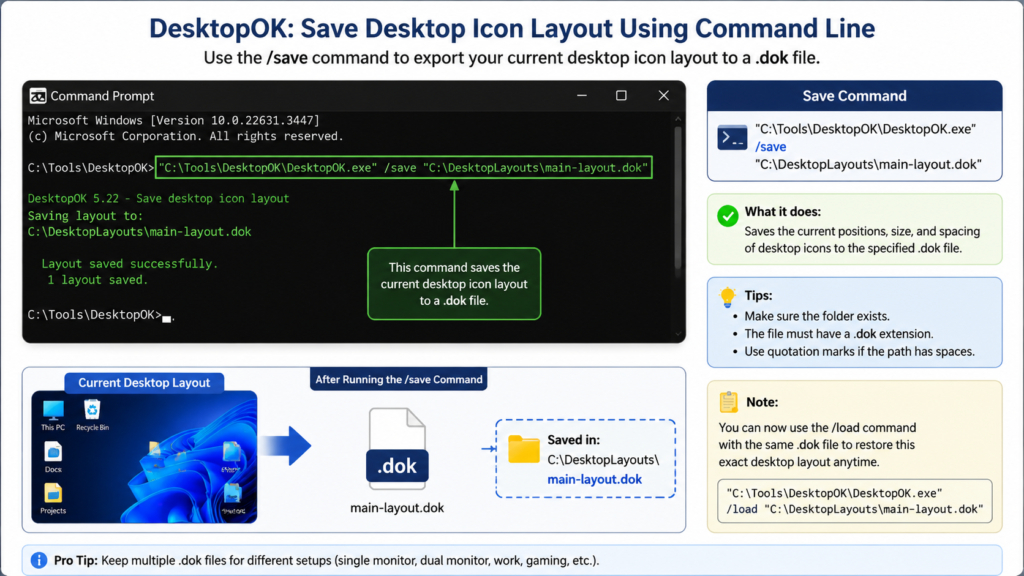
DesktopOK command line use lets you save and restore your desktop icon layout without opening menus or clicking through windows. It gives you a short, repeatable routine that works after a restart, a display change, or a Windows update.
This guide shows the save and restore commands, how to run them quietly, and how to build a small batch file for startup. It also explains where saved layouts live and when this approach helps most.
What the Command Line Can Do in DesktopOK
DesktopOK is a small, free, portable tool for saving and restoring desktop icon layouts on Windows. Its main window gives you buttons for the same jobs. The command line gives you the same control in a form you can repeat, schedule, or share.
If you are new to the program, start with What Is DesktopOK? to see its main features and how it works. Then come back here for the commands.
Save Your Icon Layout with /save
First, arrange your icons the way you want them. Then save that layout from the command line. If you do not have the program yet, download DesktopOK from this site first. The /save switch records the current positions and stores them as a layout file.
Use a full path to the program file, and put quotes around any path that contains spaces. That one habit avoids most errors. A failed save usually means Windows could not find the program or the folder you named.
A Simple Save Command
Open Command Prompt, change to the folder that holds DesktopOK.exe, and run the command below. It saves the layout and then closes the program window. Check that the layout file appears before you move on.
DesktopOK.exe /saveWhere the Saved Layout File Lives
Saved layouts are stored as .dok files in the same folder as DesktopOK.exe. That makes them easy to find, copy, and back up. Keep the program folder in one place so your layouts stay with it.
DesktopOK also keeps its settings in a file called DesktopOK.ini in the application folder. Do not edit that file by hand unless you know what you are changing. For daily use, the .dok layout file is the one that matters.
Restore Your Layout with /load
Restoring a layout means loading a saved .dok file. The command for that step is /load, followed by the path to the layout file. It puts each icon back where it was when you saved it.
Save first, then restore, and you will always have a known good layout to return to. If a layout looks wrong after a display change, save a fresh one at the new resolution. Do not restore an old layout made for a different screen size.
A Simple Restore Command
Run the command below from the folder that holds DesktopOK.exe, with the layout file in the same folder. Use quotes around the file path if it contains spaces. DesktopOK loads the layout, places the icons, and closes.
DesktopOK.exe /load "layout.dok"Run DesktopOK Silently in the Background
The /silent switch runs DesktopOK without showing its main window. Add it to a save or restore command when you do not need to see the program. The job still runs, but nothing pops up on the desktop.
Silent mode is useful for startup scripts and for shared computers, where a window would only confuse the next user. Combine it with /save or /load, and keep the command short. Test it once with the window visible, then add /silent.
Check That a Silent Run Worked
A silent run gives you no window to look at, so check the result another way. Look for the .dok file after a save, and look at the desktop after a restore. If nothing changed, run the same command once without /silent and read any message.
Build a Startup Batch File That Restores Your Layout
A batch file turns the restore command into one double-click, or into a step Windows runs at startup. It is a plain text file with a .bat ending. Keep it in the same folder as DesktopOK.exe and the layout file so its short paths work.
The example below waits five seconds, so Windows can finish placing icons after sign-in. Then it starts DesktopOK in a small window, loads the saved layout, and runs silently. Save it as restore-layout.bat and test it by double-clicking it first.
@echo off
cd /d "%~dp0"
timeout /t 5 /nobreak >nul
start "" /min "%~dp0DesktopOK.exe" /load "%~dp0layout.dok" /silent
Put the Batch File in the Startup Folder
Press Win + R, type shell:startup, and press Enter to open your Startup folder. Copy the batch file there, or create a shortcut to it in that folder. Windows will run it each time you sign in.
Keep the batch file, the program, and the .dok file together in one folder. If you move the program later, update the batch file or move the whole folder as one unit. A broken path is the most common reason a startup restore does nothing.
When Command-Line Use Is Helpful
The command line is not for everyone, and that is fine. It helps most when the same layout must be saved or restored again and again. A typed command is easier to repeat than a set of clicks, and easier to write down.
It also helps when no one should need to learn the program first. A script can do the work in the background while the user simply signs in. That keeps the desktop tidy without adding steps to the day.
Shared PCs
On a shared PC, each user may want the same tidy layout after every sign-in. A startup restore gives everyone the same starting point. It also repairs a desktop quickly after someone moves icons around.
IT Admins and Startup Scripts
IT admins can use the same commands on many PCs without visiting each desk. A script can save a layout before a change, then restore it after the work is done. That reduces support calls about missing or moved icons.
Common Problems and Quick Checks
If a command does nothing, check the path first. Make sure DesktopOK.exe and the .dok file are where the command says they are. Add quotes around paths with spaces, and run the command once without /silent to see what happens.
If icons still move after a restore, the layout may have been saved at a different screen resolution. Save a fresh layout at the current resolution and test it. For deeper fixes, see our guide to fixing DesktopOK when it is not working.
Conclusion
DesktopOK command line use is a small skill with a large payoff. Save with /save, restore with /load, and add /silent when you want the work done quietly. A short batch file can then repeat the restore at every startup.
Start with one saved layout and one tested command. Once that works, add the startup script and share it where it helps. Your icons will stay where you put them, even after a restart.
Pingback: DesktopOK Not Working? Fix Save, Restore & Startup Issues