
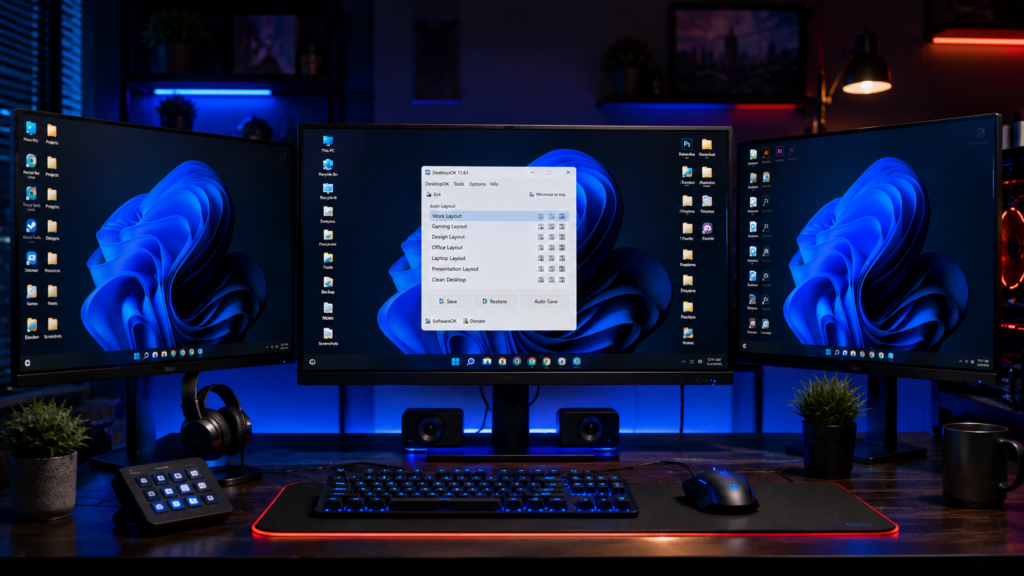
Managing desktop icons across multiple displays can be frustrating, especially when monitors are disconnected, resolutions change, or Windows rearranges icons automatically. DesktopOK solves this problem by allowing users to save and restore desktop layouts on single and multi-monitor setups.
This DesktopOK Multi Monitor Setup Guide explains how to configure the software, create layout backups, and maintain organized desktops across multiple screens.
What Is DesktopOK Multi Monitor Support?
DesktopOK includes built-in support for multi monitor environments. The software can remember icon positions across different display configurations and restore them whenever Windows changes the desktop layout.
This feature is especially useful for:
- Dual monitor users
- Triple monitor workstations
- Gaming setups
- Remote workers
- Designers and developers
- Office professionals
Instead of manually reorganizing icons every time a display changes, DesktopOK can restore everything instantly.
Why Multi-Monitor Users Need DesktopOK
Windows often moves desktop icons when:
- A monitor is disconnected
- Resolution settings change
- A docking station is removed
- Graphics drivers are updated
- Remote Desktop sessions end
- External displays are attached
These situations can leave icons scattered across screens.
DesktopOK prevents this issue by storing desktop layouts and restoring them whenever needed.
Benefits of Using DesktopOK with Multiple Monitors
Faster Workspace Recovery
Restore icon layouts with a single click instead of manually arranging hundreds of icons.
Improved Productivity
Spend more time working and less time fixing desktop organization problems.
Support for Different Monitor Configurations
Save separate layouts for:
- Office setup
- Home workstation
- Laptop only mode
- Presentation mode
- Gaming configuration
Reduced Desktop Clutter
Maintain a consistent workspace regardless of monitor changes.
Setting Up DesktopOK for Multiple Monitors
Step 1: Connect All Displays
Connect all monitors and configure them in Windows Display Settings.
Ensure that:
- All monitors are detected correctly
- Display order is accurate
- Resolution settings are finalized
Step 2: Arrange Desktop Icons
Place icons where you want them across all screens.
You can organize:
- Work applications
- Design tools
- Games
- Project folders
- Frequently used shortcuts
Step 3: Launch DesktopOK
Open DesktopOK and verify that all displays are active.
The software automatically detects the current desktop layout.
Step 4: Save the Layout
Click the Save button and create a new backup.
Recommended naming examples:
- Dual Monitor Office
- Triple Monitor Design Setup
- Gaming Layout
- Laptop Docked Mode
Creating descriptive names makes layout management easier.
Creating Multiple Display Profiles
One of DesktopOK’s strongest features is the ability to save multiple desktop layouts.
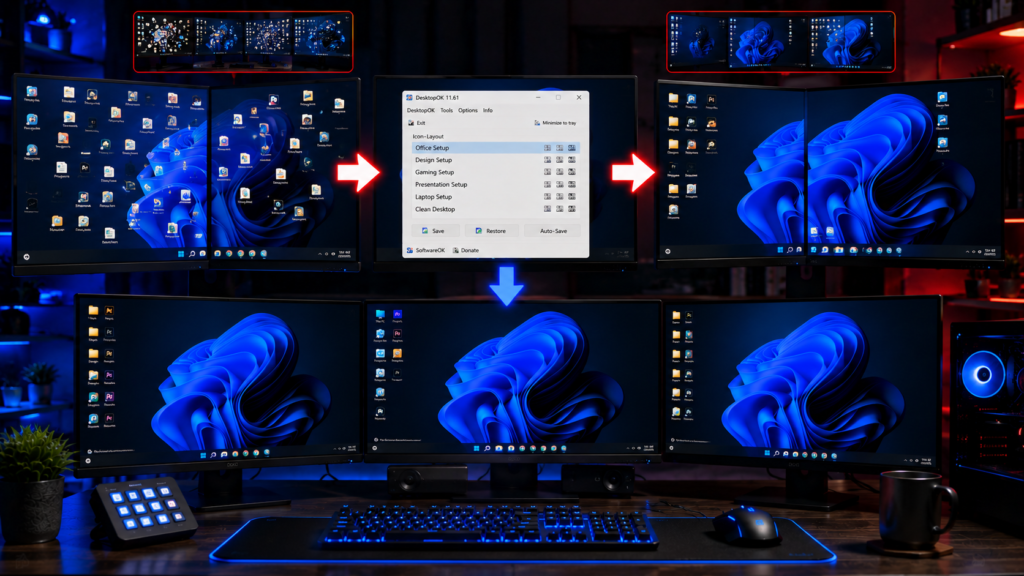
Examples include:
Work Profile
Used during office hours.
Contains:
- Productivity applications
- Business folders
- Project files
Gaming Profile
Optimized for entertainment.
Contains:
- Game shortcuts
- Launchers
- Streaming tools
Design Profile
Ideal for creative professionals.
Contains:
- Adobe software
- Asset folders
- Design resources
Switching between profiles takes only seconds.
Restoring Multi-Monitor Layouts
When Windows changes icon positions:
- Open DesktopOK.
- Select the desired layout.
- Click Restore.
- Wait a few seconds.
DesktopOK returns icons to their saved positions across all connected monitors.
Using DesktopOK with Docking Stations
Laptop users often experience desktop changes when connecting or disconnecting docking stations.
DesktopOK helps by saving:
- Docked workstation layouts
- Mobile laptop layouts
- Home office setups
This allows users to switch environments without losing desktop organization.
Best Practices for Multi-Monitor Users
To achieve the best results:
Save Layouts Frequently
Create new backups after significant desktop changes.
Name Profiles Clearly
Avoid generic names like Layout 1 or Layout 2.
Create Separate Layouts
Use dedicated layouts for different monitor configurations.
Enable Automatic Backups
Automatic saves provide extra protection against unexpected changes.
Keep Desktop Organized
DesktopOK works best when layouts are intentionally structured.
Common Multi Monitor Problems Solved by DesktopOK
Icons Move After Monitor Disconnect
DesktopOK restores its original positions.
Resolution Changes Rearrange Icons
Saved layouts return everything to normal.
Remote Desktop Sessions Change Layouts
DesktopOK quickly restores the workspace.
Docking Station Alters Desktop
Previously saved configurations can be restored instantly.
Windows Updates Rearrange Icons
DesktopOK eliminates the need for manual reorganization.
Who Benefits Most from Multi Monitor Support?
DesktopOK is particularly useful for:
- Software developers
- Graphic designers
- Video editors
- Engineers
- Financial analysts
- Gamers
- IT professionals
- Remote workers
Anyone using two or more displays can benefit from automatic layout restoration.
Frequently Asked Questions
Does DesktopOK Support Dual Monitors?
Yes. DesktopOK works perfectly with dual monitor setups.
Can It Handle Three or More Displays?
Yes. The software supports complex multi monitor configurations.
Will It Save Different Layouts for Different Setups?
Yes. Multiple layout profiles can be created and restored independently.
Does DesktopOK Affect System Performance?
No. The software is extremely lightweight and uses minimal resources.
Can I Use It with a Laptop and an External Monitor?
Yes. This is one of the most common use cases.
Conclusion
DesktopOK Multi Monitor Support is one of the software’s most valuable features. Whether you use two screens for work, three monitors for design projects, or multiple displays for gaming, DesktopOK ensures your desktop remains organized and consistent.
By creating layout backups for different monitor configurations, you can quickly restore icon positions, improve productivity, and eliminate one of the most common frustrations Windows users face when working with multiple displays.