
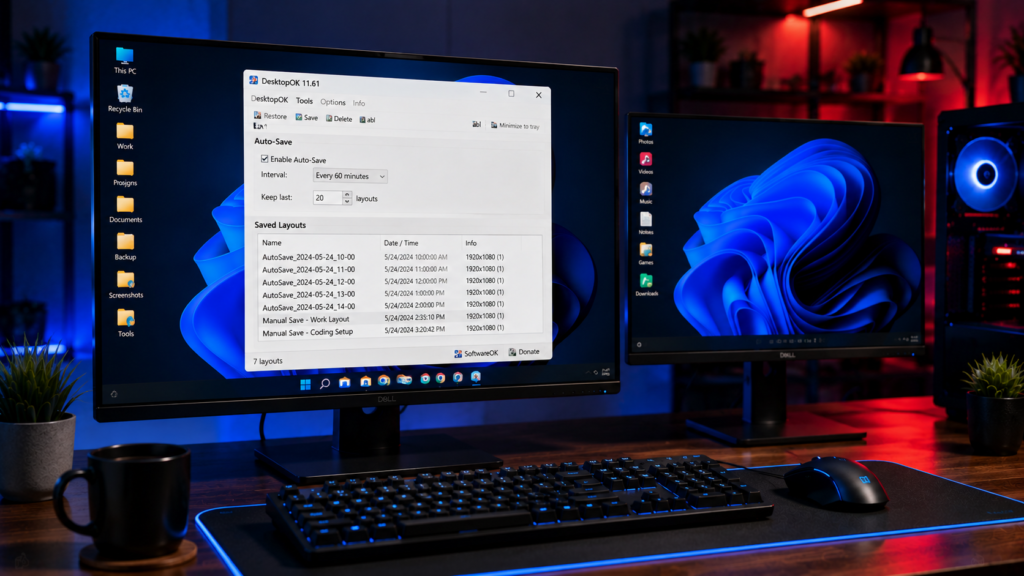
DesktopOK is widely known for helping Windows users save and restore desktop icon layouts. While many users manually create backups, one of the most useful features is the Auto Save function. This feature automatically creates desktop layout backups without requiring manual intervention.
If you frequently change screen resolutions, connect external monitors, use Remote Desktop sessions, or switch between different workspace setups, the Auto Save feature can prevent desktop icon disorder and save valuable time.
This guide explains how DesktopOK Auto Save works, how to configure it properly, and why it is one of the most useful features available in the software.
What Is the Auto Save Feature in DesktopOK?
The Auto Save feature allows DesktopOK to automatically create backups of your desktop icon arrangement at predefined intervals.
Instead of manually saving layouts every time you make changes, DesktopOK performs the process in the background.
This means your latest icon positions are always protected and ready for restoration whenever needed.
The feature is especially useful for users who regularly modify their desktops or work with multiple display configurations.
Why Automatic Desktop Backups Matter
Many Windows users spend considerable time arranging desktop icons into a preferred layout.
Unfortunately, several situations can disrupt that arrangement:
- Windows updates
- Display driver updates
- Screen resolution changes
- Multi-monitor adjustments
- Remote Desktop sessions
- Docking station connections
- Graphic card configuration changes
When these events occur, icons may move to different locations or become scattered across the desktop.
Automatic backups ensure that a recent layout is always available for quick restoration.
Benefits of Using DesktopOK Auto Save
Continuous Protection
Desktop layouts are backed up automatically without requiring user action.
Saves Time
Users do not need to remember to create manual backups.
Prevents Layout Loss
Recent desktop arrangements remain available even after unexpected changes.
Ideal for Multi-Monitor Users
Automatic backups can store different monitor configurations and layouts.
Useful for Professionals
Developers, designers, engineers, and office workers often maintain carefully organized desktops that benefit from automatic protection.
How DesktopOK Auto Save Works
DesktopOK monitors the desktop and creates layout snapshots according to the schedule you choose.
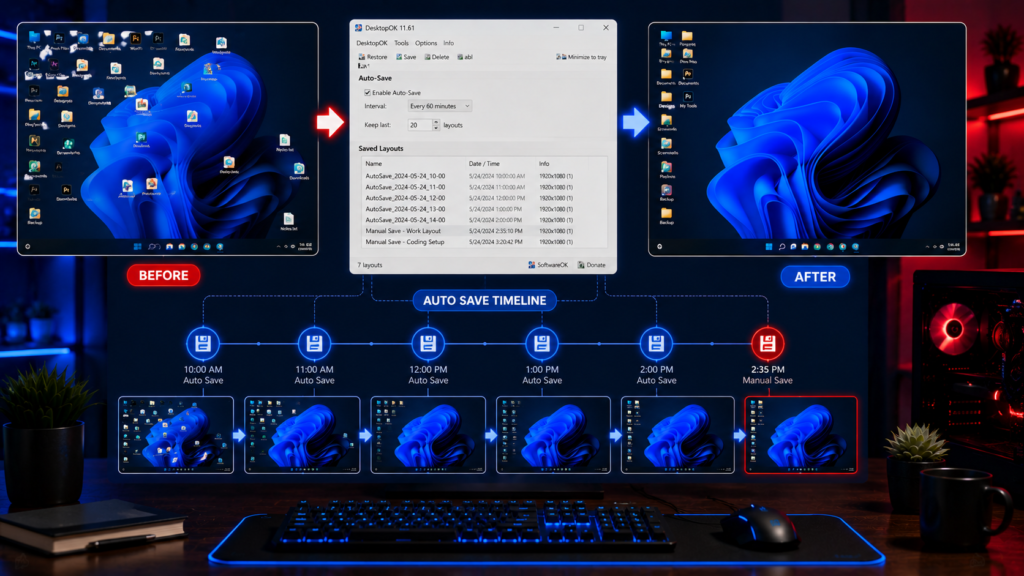
Each snapshot stores:
- Icon positions
- Desktop arrangement
- Screen configuration information
- Monitor layout details
When needed, users can browse saved layouts and restore any previously stored desktop setup.
The process runs efficiently and consumes very few system resources.
How to Enable Auto Save in DesktopOK
Setting up automatic backups takes only a few minutes.
Step 1: Open DesktopOK
Launch DesktopOK from your desktop or portable folder.
Step 2: Access Settings
Open the program menu and locate the Auto Save options.
Step 3: Choose Save Interval
Select how often DesktopOK should create backups.
Common options include:
- Every few minutes
- Every hour
- Daily
- At Windows startup
- At the Windows shutdown
Step 4: Save Configuration
Apply the settings and keep DesktopOK running in the system tray.
DesktopOK will now automatically create layout backups according to your selected schedule.
Recommended Auto Save Settings
Different users require different backup frequencies.
Home Users
Recommended interval:
- Once every day
Office Workers
Recommended interval:
- Every few hours
Designers and Developers
Recommended interval:
- Every hour
Multi-Monitor Users
Recommended interval:
- Before display changes
- Every hour
Remote Desktop Users
Recommended interval:
- Every session
Managing Saved Layouts
As DesktopOK creates backups over time, multiple layouts become available.
Users can:
- Rename layouts
- Delete older backups
- Sort layouts by date
- Restore specific versions
- Organize profiles for different monitor setups
This makes it easy to maintain a clean backup history.
Auto Save vs Manual Save
| Feature | Auto Save | Manual Save |
|---|---|---|
| Runs Automatically | Yes | No |
| User Interaction Required | No | Yes |
| Continuous Protection | Yes | No |
| Suitable for Frequent Changes | Yes | Limited |
| Backup Consistency | High | Depends on User |
For most users, combining both methods provides the best protection.
Best Practices for Auto Save
To get the most from DesktopOK, consider these recommendations:
Keep DesktopOK Running
The software must remain active to perform automatic backups.
Use Meaningful Layout Names
Naming layouts helps identify different workspace configurations.
Remove Old Backups Periodically
Deleting outdated layouts keeps the list organized.
Create Manual Backups Before Major Changes
Although Auto Save is reliable, manual backups before major system modifications add extra protection.
Test Restoration Occasionally
Verify that saved layouts restore correctly on your system.
Common Situations Where Auto Save Helps
Connecting an External Monitor
Desktop icons often shift when a second display is connected.
Switching Resolutions
Changing display settings can move icons unexpectedly.
Gaming Sessions
Many games alter display settings temporarily.
Remote Desktop Connections
Remote sessions frequently rearrange desktop icons.
Windows Updates
System updates sometimes affect desktop layouts.
Auto Save ensures a recent backup is always available for recovery.
Does Auto Save Affect System Performance?
DesktopOK is designed to be lightweight.
The Auto Save function uses very little CPU, memory, and storage space.
Even older computers can run DesktopOK comfortably without noticeable performance impact.
Because desktop layouts contain only position information, backup files remain extremely small.
Is Auto Save Safe?
Yes.
DesktopOK only saves desktop layout information.
The software does not modify personal files, documents, or applications.
Auto Save simply records icon positions and stores them for future restoration.
This makes the feature safe for both personal and professional environments.
Conclusion
The DesktopOK Auto Save feature is one of the software’s most valuable tools. It automatically protects desktop icon layouts, reduces manual work, and ensures quick recovery after display changes, Windows updates, or monitor adjustments.
Whether you use a single monitor, multiple displays, or frequently switch work environments, enabling Auto Save can prevent frustration and keep your desktop organized at all times.
For most users, it is the easiest way to maintain a consistent desktop experience without worrying about lost icon arrangements.