
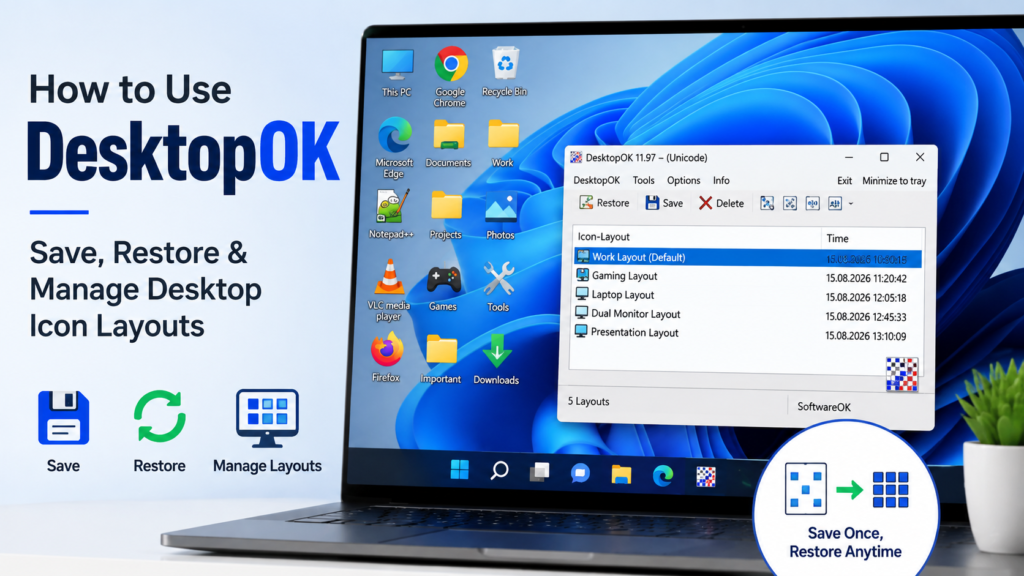
DesktopOK is a lightweight Windows utility that helps you save and restore desktop icon positions. If your icons move after changing screen resolution, connecting another monitor, restarting Windows, or adjusting display settings, DesktopOK lets you return them to a previously saved arrangement without manually reorganizing every shortcut.
For beginners, the basic process is simple: arrange your icons, open DesktopOK, save the layout, and restore that saved layout whenever the icons move.
This guide explains how to use DesktopOK on Windows 11 and Windows 10, from creating your first saved layout to managing multiple profiles, using Auto-Save, working with multiple monitors, and avoiding common beginner mistakes.
What You Need Before Using DesktopOK
Before creating your first desktop layout, make sure your desktop is arranged exactly how you want it.
You will need:
- A Windows 11 or Windows 10 computer
- DesktopOK
- Your desktop icons arranged in their preferred positions
- A stable screen resolution and display configuration
DesktopOK is available as a portable utility, so it can be used without going through a traditional installation process.
If you downloaded DesktopOK as a ZIP file, extract the files into a folder before launching the program. Keeping DesktopOK in a permanent folder is usually better than moving it between different locations frequently.
How to Use DesktopOK: Quick Steps
If you only need the basic workflow, follow these steps:
- Arrange your desktop icons where you want them.
- Open DesktopOK.
- Click Save to create a desktop layout.
- Give the layout a recognizable name if needed.
- Move several desktop icons to test the saved layout.
- Open DesktopOK again.
- Select the layout you previously saved.
- Click Restore.
- Check that the icons return to their saved positions.
Once you understand this workflow, you can create additional layouts for different monitor setups, work environments, or screen resolutions.
1. Open DesktopOK for the First Time
Launch DesktopOK from the folder where you extracted or stored the program.
The main window is focused on saved desktop layouts and the controls used to manage them. Although the interface follows a traditional Windows utility design, the main functions are straightforward once you know what to look for.
The most important options for a beginner are:
- Save – records your current desktop icon arrangement
- Restore – restores a selected saved layout
- Saved layout list – displays layouts you have already created
- Delete or management options – help remove layouts you no longer need
- Options/settings – provide access to additional behavior such as Auto-Save and startup features
You do not need to configure every available option before using DesktopOK. Start by saving and restoring one layout first.
2. Save Your First Desktop Icon Layout
Before pressing Save, arrange the desktop exactly how you want it.
Place your:
- Application shortcuts
- Folders
- Documents
- Game launchers
- Work shortcuts
- Other desktop items
in their preferred positions.
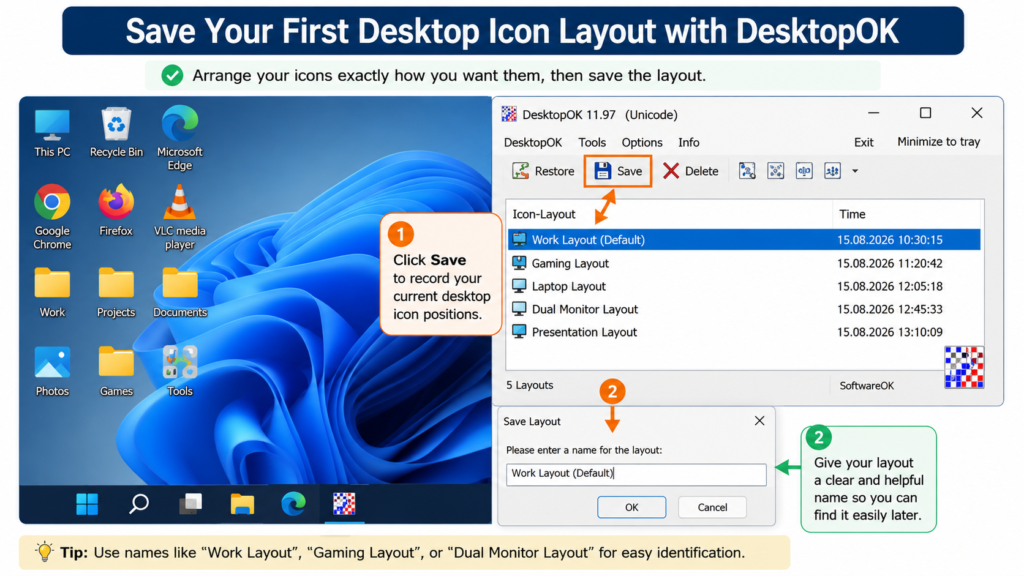
After arranging the icons:
- Open DesktopOK.
- Click Save.
- Confirm that a new saved layout appears in the layout list.
- Give the layout a descriptive name if you plan to keep several layouts.
Useful names could include:
- Main Desktop
- Work Layout
- Laptop Setup
- Gaming Layout
- Dual Monitor Layout
- Presentation Setup
Descriptive names become increasingly useful when you have several saved configurations.
For a more focused walkthrough, see the DesktopOK save and restore desktop icons guide.
3. Restore a Saved Desktop Layout
After saving a layout, test it before relying on it.
Move three or four icons to different positions on the desktop.
Then:
- Open DesktopOK.
- Select the layout you saved earlier.
- Click Restore.
- Check whether the available desktop icons return to their saved positions.
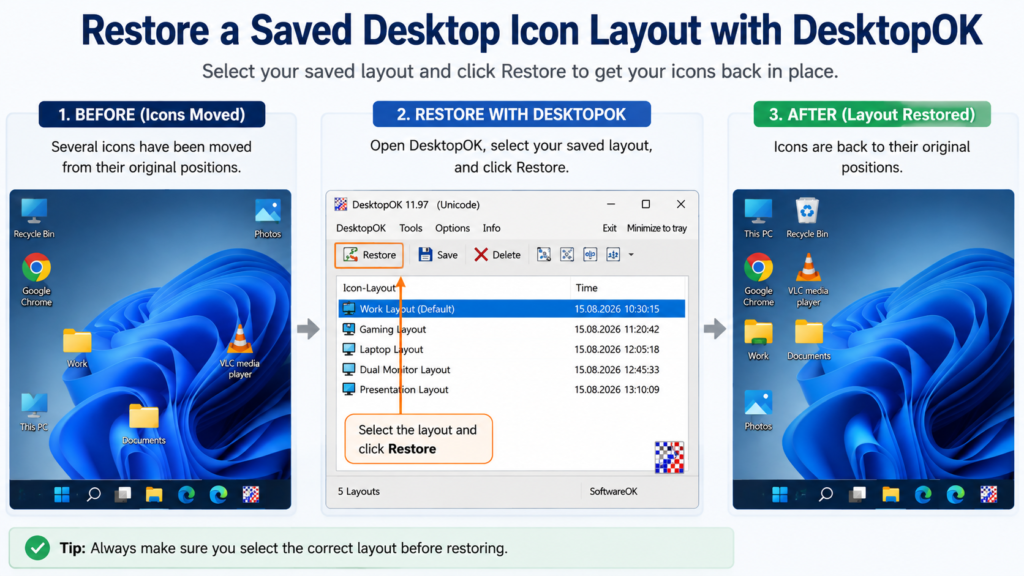
This simple test helps confirm that you saved the correct arrangement.
If you have several layouts stored, always check the layout name before restoring. Selecting an older or incorrect profile can place icons in positions that belong to another setup.
4. Create and Manage Multiple Desktop Layouts
One of the most useful ways to use DesktopOK is to keep separate layouts for different situations.
For example, you may use one desktop arrangement when working and another when gaming.
Possible profiles include:
Work Layout
Keep productivity applications, project folders, documents, and communication tools arranged for daily work.
Gaming Layout
Create a separate layout for game launchers, voice-chat applications, recording tools, and related shortcuts.
Laptop Layout
Save an arrangement designed specifically for the laptop screen.
Dual-Monitor Layout
Create a different profile when working with two displays.
Presentation Layout
Save a cleaner desktop layout for meetings, demonstrations, or screen sharing.
Avoid creating too many layouts with unclear names. Delete old or unnecessary profiles when they are no longer useful.
5. Delete or Manage Old Desktop Layouts
Over time, you may accumulate layouts created for monitors, resolutions, or desktop arrangements that you no longer use.
Keeping outdated layouts can make it difficult to identify the correct profile.
Review your saved layouts occasionally and remove ones that are no longer required.
Before deleting an important layout, make sure you do not still need it for:
- Another monitor configuration
- An older laptop setup
- Remote work
- Presentations
- Gaming
- A different display resolution
Using consistent and descriptive profile names makes layout management much easier.
6. Use DesktopOK Auto-Save
Manually saving a layout works well when you intentionally change your desktop arrangement. However, users who frequently move icons may want more regular backups.
DesktopOK includes Auto-Save functionality that can help maintain recent desktop layout records.
Auto-Save can be useful if:
- You frequently add or remove shortcuts
- Your desktop changes throughout the day
- You regularly switch between different tasks
- You want recent layouts available if the desktop changes unexpectedly
Before relying on automatic saving, create and test at least one manual layout first. This gives you a known working layout to restore.
For detailed configuration, see the DesktopOK Auto-Save Feature guide.
7. Use DesktopOK with Multiple Monitors
Multiple monitors can make desktop icon management more complicated because Windows may reposition icons when a display is connected, disconnected, or detected differently.
A useful approach is to save separate DesktopOK layouts for each monitor configuration.
For example:
- Laptop only
- Laptop + external monitor
- Two desktop monitors
- Three-monitor workstation
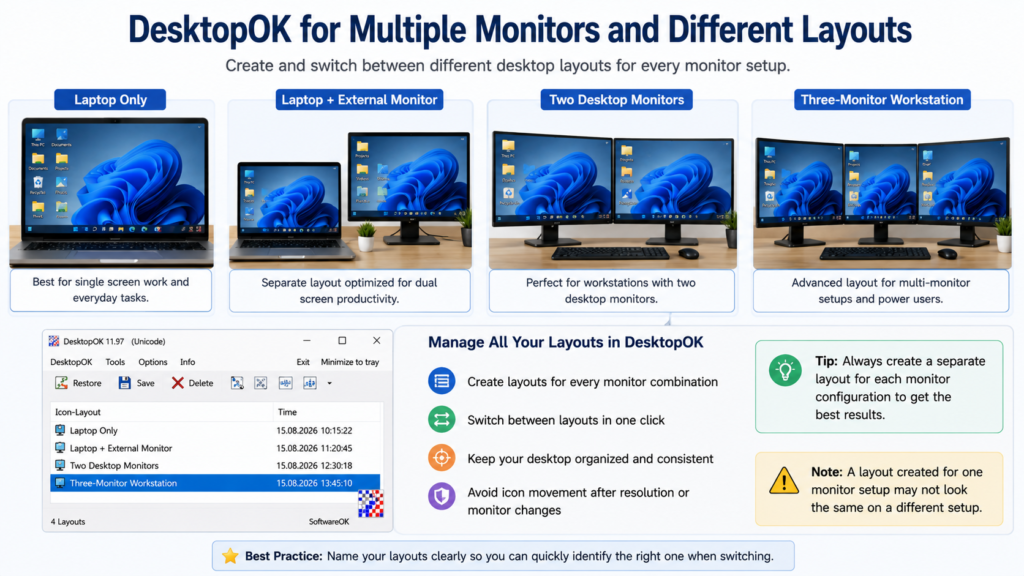
Try to restore a layout that matches your current display arrangement.
A profile created with two monitors may not produce the expected arrangement when only one monitor is connected because the available desktop space is different.
It is also helpful to keep your screen resolution, scaling, and primary-monitor configuration consistent whenever possible.
For more detailed instructions, see the DesktopOK Multi-Monitor Setup Guide.
8. Start DesktopOK with Windows
DesktopOK includes options that can make it available when Windows starts.
This can be useful for users who regularly rely on saved layouts or automatic functions.
Before enabling startup-related options, first confirm that:
- DesktopOK works normally when opened manually
- Your preferred layout is saved correctly
- You understand which layout you want to restore
- Your current monitor configuration is stable
Testing everything manually first reduces the chance of automatically restoring an outdated or unwanted layout.
Users who only occasionally need DesktopOK do not necessarily need it to start with Windows. Manual use may be sufficient.
9. Best DesktopOK Settings for Beginners
There is no single configuration that every DesktopOK user must use. Beginners should start with a simple setup and enable additional features only when they are useful.
Keep at Least One Tested Layout
Create one primary layout and confirm that it restores correctly.
Use Clear Layout Names
Names such as Layout 1 and Layout 2 become confusing quickly.
Use names that describe their purpose.
Save After Important Desktop Changes
If you intentionally reorganize your desktop, create a fresh saved layout rather than relying only on an older profile.
Keep Display Settings Consistent
Changing screen resolution, display scaling, or monitor configuration can affect available desktop space.
Use Auto-Save Only When Needed
Auto-Save can be helpful, but beginners should understand manual saving and restoring before depending on automatic backups.
Keep DesktopOK in a Permanent Folder
If you use the portable version regularly, keep its files in a location you can easily find rather than repeatedly moving or deleting the program folder.
10. Common DesktopOK Beginner Mistakes
Understanding a few common mistakes can prevent confusion.
Forgetting to Save Before Icons Move
DesktopOK cannot restore an arrangement that was never saved.
Create your first layout while the icons are still arranged correctly.
Restoring the Wrong Layout
Users with several profiles may accidentally select an old layout.
Use descriptive names to identify each saved arrangement.
Using One Layout for Every Monitor Setup
A single-monitor arrangement and a dual-monitor arrangement may require separate saved layouts.
Changing Display Settings
A different resolution or scaling configuration changes the usable desktop area and may affect where icons can be placed.
Keeping Outdated Profiles
Old layouts can clutter the saved-layout list and make the correct profile harder to identify.
Depending on Automatic Features Too Early
Learn manual Save and Restore first. Once you know the basic workflow works correctly, consider enabling automatic features.
DesktopOK Not Working?
If DesktopOK does not save or restore layouts correctly, start with the basic checks.
Make sure:
- The correct layout was selected
- The layout was actually saved
- Windows Auto Arrange Icons is not interfering
- Your display resolution has not unexpectedly changed
- The correct monitor configuration is active
- DesktopOK files were extracted properly
- You are using a current version of DesktopOK
If Auto-Save specifically is not working, check its configuration separately rather than repeatedly creating new manual layouts.
For detailed troubleshooting, see How to Fix DesktopOK Not Working on Windows.
Frequently Asked Questions
How do I use DesktopOK for the first time?
Arrange your desktop icons, open DesktopOK, and save the current layout. Move several icons afterward and restore the saved profile to confirm that everything works correctly.
How do I save desktop icon positions with DesktopOK?
Arrange your icons in their preferred locations and use the Save option in DesktopOK. The saved arrangement will appear in the layout list for later restoration.
How do I restore desktop icons with DesktopOK?
Open DesktopOK, select the correct saved layout, and use the Restore option. The available desktop icons should return to the positions recorded in that layout.
Can DesktopOK save multiple desktop layouts?
Yes. DesktopOK can keep multiple saved layouts, allowing users to maintain separate arrangements for different workflows or display configurations.
Can I use DesktopOK with multiple monitors?
Yes. Separate layouts can be useful for different monitor configurations. Try to restore a layout created for the same display setup you are currently using.
Does DesktopOK have Auto-Save?
DesktopOK includes Auto-Save functionality for users who want automatic desktop layout backups. Beginners should first create and test a manual layout before relying on automatic saving.
Can DesktopOK start with Windows?
DesktopOK includes startup-related options. These can be useful for users who want the utility available automatically after signing in to Windows.
Does DesktopOK need to be installed?
DesktopOK can be used as a portable utility, so a traditional installation is not required.
Does DesktopOK work on Windows 11?
DesktopOK supports modern Windows systems, including Windows 11. Users should keep the utility updated and use a layout appropriate for their current display configuration.
What should I do before changing my monitor or resolution?
Save your current desktop layout first. If you regularly use more than one display configuration, create separate layouts for each setup.
Conclusion
Learning how to use DesktopOK starts with a simple process: arrange your desktop icons, save the layout, and restore it whenever Windows changes the icon positions.
Once the basic Save and Restore workflow is working correctly, you can create multiple layouts, use Auto-Save, manage different monitor setups, and configure additional options based on how you use your computer.
For most beginners, the best approach is to keep the setup simple at first. Create one reliable desktop layout, test the restore function, and add more profiles or automatic features only when they provide a clear benefit.